5-2
Copying
5
Setting Enlarging/Reducing
You can enlarge or reduce the copy size using preset copy ratios or using custom copy ratios.
Enlarging/Reducing Using Preset Copy Ratios
1
Press [Enlarge/Reduce].
2
Press [ (-)] or [ (+)] to select the copy ratio ➞ press [OK].
You can select from the following:
- 200% MAX.
- 141% A5 ➞ A4
- 122% A5 ➞ B5
- 115% B5 ➞ A4
- 100%
-86% A4 ➞ B5
-81% B5 ➞ A5
-70% A4 ➞ A5
-50% MIN.
NOTE
•
If the <PAPER SIZE GROUP> setting of <COPY SETTINGS> menu in the Menu is set to <INCH> or <A>, the
preset copy ratios will be as follows:
INCH: 50%, 64%, 78%, 100%, 129% and 200%;
A: 50%, 70%, 141% and 200%.
•
Enlarging or reducing using preset copy ratio is not available with the 2 on 1 copy function.
•
To return the copy ratio to 100%, press [Enlarge/Reduce] several times to display <DIRECT 100%> ratio
➞
press
[OK].
You can also return the ratio to 100% using a custom copy ratio. (See "Enlarging/Reducing Using Custom Copy
Ratios" below.)
Enlarging/Reducing Using Custom Copy Ratios
1
Press [Enlarge/Reduce] twice.
2
Use the numeric buttons to enter the copy ratio ➞ press [OK].
• You can enter the copy ratio from 50% to 200%, selectable in 1% increments.
• Even after entering the copy ratio, you can use [ (-)] or [ (+)] to adjust the copy ratio. To increase the copy
ratio, press [ (+)]. To decrease the copy ratio, press [ (-)].
NOTE
•
Enlarging or reducing using a custom copy ratio is not available with the 2 on 1 copy function.
•
To return the copy ratio to 100%, press [Enlarge/Reduce] several times to display <DIRECT 100%> ratio
➞
press
[OK].
You can also return the ratio to 100% using a preset copy ratio. (See "Enlarging/Reducing Using Preset Copy
Ratios" above.)
➞
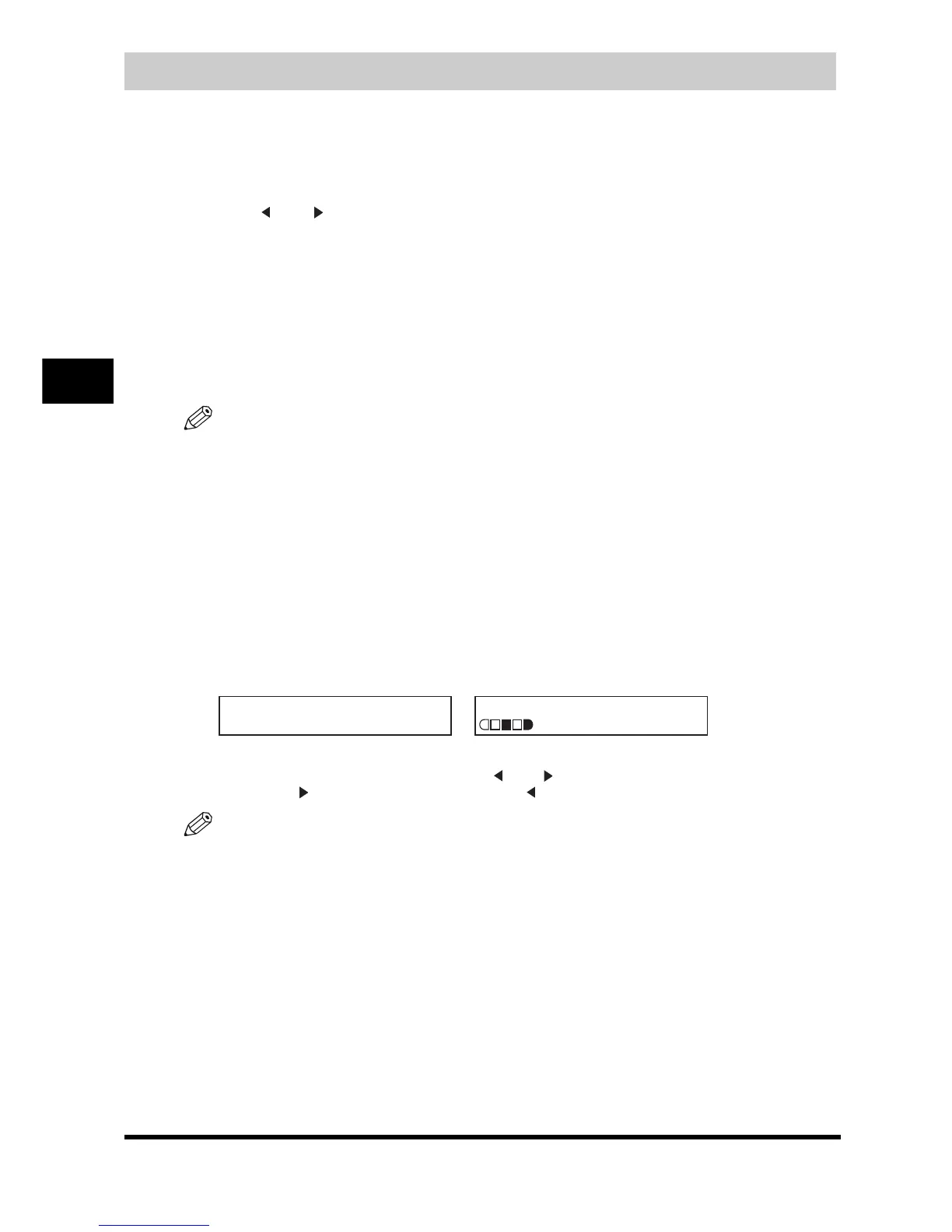
ZOOM 50-200%
- 80% +
80% A4
TEXT/PHOTO
01





 To Next Page