5-3
Copying
5
Improving Copied Image
Adjusting the Image Quality (Resolution)
You can adjust image quality to the appropriate level best suited for a document with text or photos.
Three modes are available for adjusting the image quality.
1
Press [Image Quality].
2
Press [Image Quality] repeatedly until the image quality you want appears.
You can select from the following:
- <TEXT> for text-only documents
- <PHOTO> for photographs
- <TEXT/PHOTO> for documents with text and photographs
NOTE
Copy exposure automatically changes to manual mode when <TEXT/PHOTO> or <PHOTO> is set.
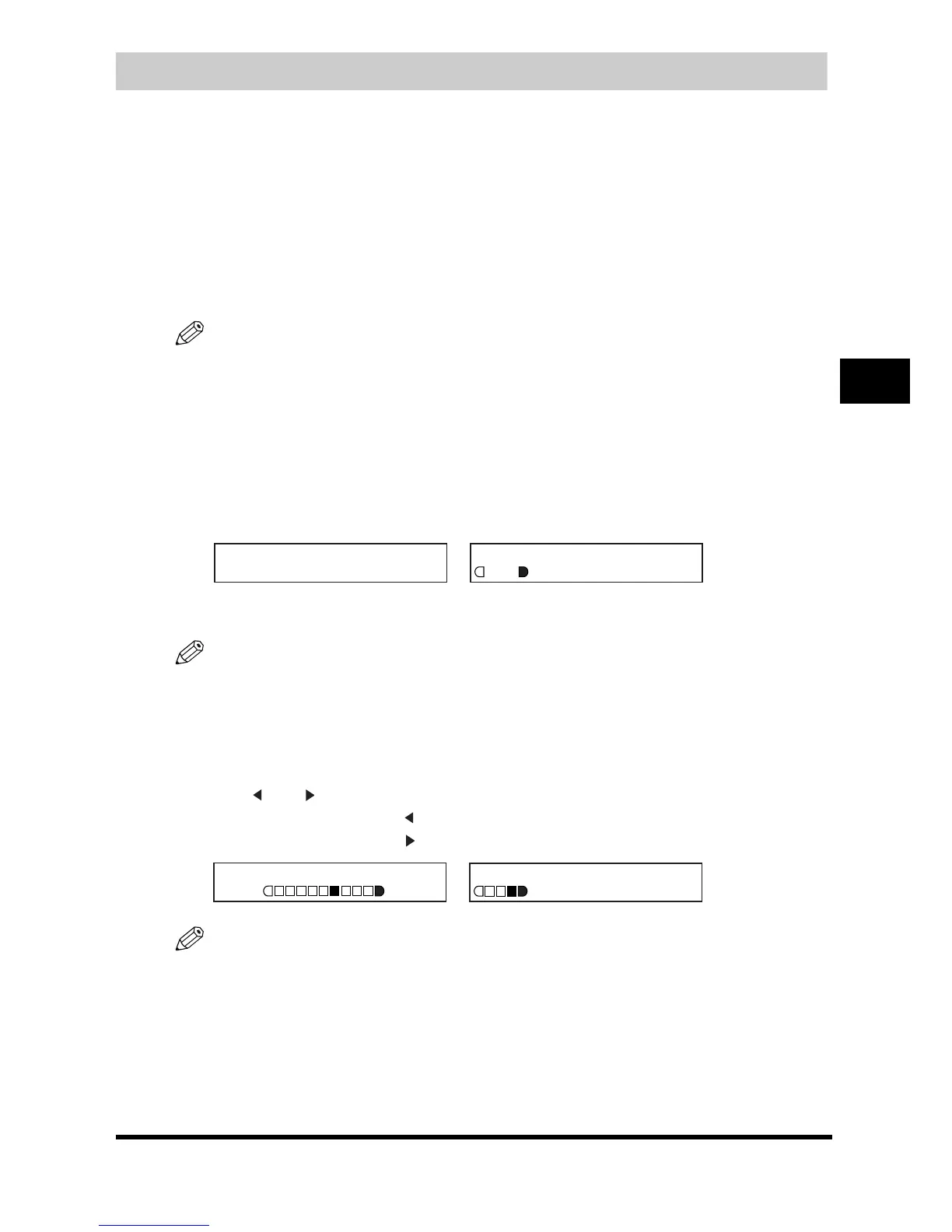
Adjusting the Exposure (Density)
You can adjust the copy exposure automatically or manually according to how light or dark your
document is.
■ Adjusting Automatically
1
Press [Exposure] twice to select the auto mode ➞ press [OK].
The copy exposure is adjusted automatically.
NOTE
Image quality mode automatically changes to <TEXT> when <AUTO EXPOSURE> is set.
■ Adjusting Manually
1
Press [Exposure] to select the manual mode.
2
Press [ (-)] or [ (+)] to adjust the copy exposure ➞ press [OK].
For a lighter copy exposure, press [ (-)].
For a darker copy exposure, press [ (+)].
NOTE
When setting the exposure lighter, the indicator moves to the left. When setting the exposure darker, the indicator
moves to the right.
➞
EXPOSURE
AUTO EXPOSURE
100% A4
A TEXT
01
➞
EXPOSURE
-LT DK+
100% A4
TEXT/PHOTO
01




 To Next Page