EasyManua.ls Logo

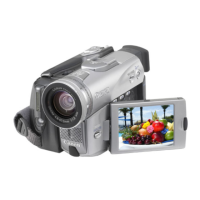
Canon MVX330i - User Manual

Canon MVX330i
163 pages
Print Icon
To Next Page IconTo Next Page
Loading...
English
English
PUB.DIE-221
PAL
Introduction
Basic
Functions
Advanced
Functions
Editing
Using a
Memory Card
Direct
Printing
Transferring
Images
Additional
Information
Digital Video Camcorder
Instruction Manual
Please read also the following instruction manual.
• Digital Video Software
Mini
Digital
Video
Cassette
Digital Video Software
Instruction Manual
PUB.DIE-219
This instruction manual explains how to install the software, connect the
camcorder to a computer, and download images from a memory card to a
computer. For more detailed operational instructions, refer to the PDF format
manual provided on the DIGITAL VIDEO SOLUTION DISK For Win dows or
DIGITAL VIDEO SOLUTION DISK For Macin tosh.
If you are using Windows operating system, use the supplied
DIGITAL VIDEO SOLUTION DISK For Windo ws.
If you are using Macintosh operating system, use the supplied
DIGITAL VIDEO SOLUTION DISK For Macin tosh.
E
Version 15 / Version 16


Table of Contents

Questions and Answers

  • J
    James ContrerasSep 10, 2025
    Why does Canon MVX330i Camcorder cassette compartment stopped during loading/ unloading?
    • J
      Jason MaldonadoSep 10, 2025
      The cassette compartment on your Canon Camcorder may stop during loading/unloading if the battery pack is exhausted. Replace or charge the battery pack.
  • J
    Jillian GreenAug 23, 2025
    How to fix a Canon MVX330i that will not focus?
    • A
      amandahudsonAug 23, 2025
      If your Canon Camcorder will not focus, it may be because the autofocus does not work on that subject, so focus manually. Also, the viewfinder may not be adjusted, so adjust it with the dioptric adjustment lever. Finally, the lens may be dirty, so clean the lens.
  • B
    Bryan JacksonAug 25, 2025
    How to fix a blurred viewfinder picture on a Canon MVX330i Camcorder?
    • M
      Marcus SmithAug 25, 2025
      If the viewfinder picture on your Canon Camcorder is blurred, adjust the viewfinder with the dioptric adjustment lever.
  • C
    clarsonAug 26, 2025
    Why does my Canon MVX330i Camcorder battery pack will not charge?
    • T
      timothyparksAug 27, 2025
      Your Canon Camcorder battery pack may not charge if the temperature is outside the range of 0 °C and 40°C (32°F and 104°F). In this case, charge the battery pack in temperatures between 0 °C and 40 °C (32°F and 104°F). Also, battery packs become hot with use and may not charge, so wait until the battery pack temperature is below 40 °C (104 °F) and retry charging. Finally, the battery pack may be damaged, so try using a different battery pack.
  • K
    Katrina MeyerAug 28, 2025
    What to do if my Canon Camcorder switches off by itself?
    • M
      Melissa RuizAug 28, 2025
      If your Canon Camcorder switches off by itself, it may be because the battery pack is exhausted, so replace or charge the battery pack. It could also be that the power save function has been activated. In this case, simply turn the camcorder back on.
  • J
    Julie JamesAug 29, 2025
    What to do if pressing the start/stop button will not start recording on Canon Camcorder?
    • O
      Olivia AndradeAug 29, 2025
      If pressing the start/stop button will not start recording on your Canon Camcorder, ensure the power is on. Also, check if a cassette is loaded. If the tape has reached the end, rewind it or replace the cassette. Another reason could be that the cassette is protected; change the position of the protect switch. Finally, make sure the camcorder is set to CAMERA mode.
  • R
    Rebecca HillSep 18, 2025
    How to fix Canon MVX330i no sound from the built-in speaker?
    • S
      Samantha AdamsSep 18, 2025
      If there is no sound from the built-in speaker on your Canon Camcorder, adjust the volume with the SET dial.
  • D
    Darrell HunterSep 12, 2025
    How to resolve Canon MVX330i image that will not appear on the TV screen?
    • B
      bstewartSep 12, 2025
      If the image from your Canon Camcorder will not appear on the TV screen, ensure that [AV/PHONES ] is set to [AV] in the menu. Additionally, verify that [AV DV] is set to [OFF] in the menu.
  • D
    David JohnsonSep 8, 2025
    What to do if Canon MVX330i Camcorder shows “REMOVE THE CASSETTE”?
    • Z
      zeverettSep 8, 2025
      If your Canon Camcorder displays “REMOVE THE CASSETTE”, it means the camcorder stopped operating to protect the tape. Unload and reload the cassette.
  • A
    Alexander BlakeSep 5, 2025
    What does it mean when Canon MVX330i shows “SET THE TIME ZONE, DATE AND TIME”?
    • C
      Calvin RogersSep 5, 2025
      If your Canon Camcorder displays “SET THE TIME ZONE, DATE AND TIME”, it means the time zone, date and time are not set, so set them. Alternatively, the backup battery may be exhausted, so replace it and reset the time zone, date and time. Finally, the battery pack may be inserted the wrong way, so insert the backup battery with the + side facing outward and set the time zone, date and time.

Summary

Important Usage Instructions

Safety Warnings and Precautions

Crucial safety advice on handling the camcorder to prevent hazards.

Introduction

Using this Manual

Explains manual structure, symbols, and operating modes.

Components Guide

Identifies and explains the various parts of the camcorder.

Screen Displays during Recording;Playback

Details various indicators and information shown on the screen.

Basic Functions

Preparing the Power Supply

Instructions for attaching and charging the battery pack.

Loading;Unloading a Cassette

Steps for inserting and removing video cassettes.

Installing the Backup Battery

Guide on how to install the internal backup battery.

Preparing the Camcorder

Covers viewfinder adjustment, lens cap, and strap fastening.

Using the Wireless Controller

Instructions for setting up and using the wireless remote.

Adjusting the LCD Screen

How to rotate and adjust the LCD screen backlight.

Setting the Time Zone, Date and Time

Procedure for setting the camcorder's date, time, and time zone.

Recording Movies on a Tape

Step-by-step guide to recording video onto a tape.

Zooming

Explanation of how to use optical and digital zoom.

Tips for Making Better Videos

Advice on holding the camcorder and lighting for improved videos.

Playing Back a Tape

Instructions on how to play back recorded video from a tape.

Adjusting the Volume

How to control audio volume and use headphones.

Playing Back on a TV Screen

Guide for connecting the camcorder to a TV for playback.

Advanced Functions

Menus and Settings

Overview of accessing and navigating the camcorder's menu system.

Recording Programs

Explains different recording modes like Auto, Sports, and Low Light.

Using the Night Modes

How to use NIGHT, NIGHT+, and S.NIGHT modes for low-light recording.

Skin Detail Function

Softens skin details for a more flattering appearance in close-ups.

Adjusting Exposure Manually

Covers exposure lock and manual brightness adjustment.

Adjusting the Focus Manually

Guide for manual focus adjustment in challenging conditions.

Setting the White Balance

How to set white balance for accurate color reproduction.

Setting the Shutter Speed

Adjusting shutter speed for capturing fast-moving subjects.

Auto Slow Shutter

Using slow shutter speeds for better brightness in low light.

Using the Self-Timer

Instructions for using the self-timer for delayed recording.

Changing the Recording Mode (SP;LP)

How to select between standard and long play recording modes.

Audio Recording

Details on changing audio modes and recording with external mics.

Using Digital Effects

Explains faders, effects, and multi-image screen features.

Widescreen TV Recording (16:9)

How to set up the camcorder for 16:9 widescreen recording.

Editing

Recording to a VCR or Digital Video Device

Copying recordings to VCR or digital devices.

Recording from Analog Video Devices (VCR, TV or Camcorder)

Recording TV programs or videos from analog sources.

Recording from Digital Video Devices (DV Dubbing)

High-quality recording from digital devices via DV terminal.

Converting Analog Signals into Digital Signals (Analog-Digital Converter)

Converting analog video/audio to digital signals via DV terminal.

Audio Dubbing

Adding sound with built-in mic, external mic, or audio devices.

Transferring Video Recordings to a Computer (IEEE1394)

Transferring video data to a computer using IEEE1394 connection.

Using a Memory Card

Inserting and Removing a Memory Card

Step-by-step guide for inserting and removing memory cards.

Selecting the Image Quality;Size

Options for setting still image quality and resolution.

File Numbers

How file numbering works and setting options (RESET/CONTINUOUS).

Recording Still Images on a Memory Card

Instructions for capturing still images onto a memory card.

Recording Motion JPEG Movies on a Memory Card

Recording video clips in Motion JPEG format on the memory card.

Selecting the Focusing Point

How to choose focusing points for sharper images.

Selecting the Drive Mode

Explains continuous shooting, AEB, and single shot modes.

Recording Panoramic Images (Stitch Assist Mode)

Capturing and merging images for panoramic photos.

Playing Back a Memory Card

How to view images and movies stored on the memory card.

Protecting Images

Prevents accidental erasure of important images.

Erasing Images

Procedures for deleting single or all images.

Combining Images (Card Mix)

Creating effects by combining images with video recordings.

Formatting a Memory Card

Erases all data on the memory card to prepare it for use.

Creating a Start-up Image

Customizing the camcorder's initial display image.

Direct Printing

Printing Still Images

Connecting the camcorder to a printer for direct printing.

Printing with Print Order Settings

Selecting images and setting print quantities.

Transferring Images

Transferring Memory Card Images to a Computer

Connecting camcorder to PC via USB to transfer images.

Direct Transfer (Windows OS only)

Transferring images using the print/share button on Windows.

Selecting Images for Transfer (Transfer Order)

Choosing specific images for transfer and setting transfer orders.

Additional Information

About the NETWORK Mode (DV Messenger Version2)

Operating the camcorder remotely via computer and internet.

Screen Displays

Hiding/showing displays on LCD and TV screens.

List of Messages

Explains various messages displayed by the camcorder.

Troubleshooting

Solutions for common problems with power, recording, and playback.

System Diagram (Availability differs from area to area)

Visual representation of camcorder and connected accessories.

Optional Accessories

Information on compatible accessories like batteries and lenses.

Specifications

Technical details and features of the camcorder.

Canon MVX330i Specifications

General IconGeneral
Digital zoom360 x
Optical zoom18 x
Image stabilizerYes
Focal length range45.4 - 817 mm
Sensor typeCCD
Total megapixels1.33 MP
Optical sensor size1/4.5 \
Display diagonal2.5 \
Resolution1280 x 960 pixels
Minimum illumination0 lx
Weight and Dimensions IconWeight and Dimensions
Depth78 mm
Width72 mm
Height131 mm
Weight500 g

Related product manuals