To Next Page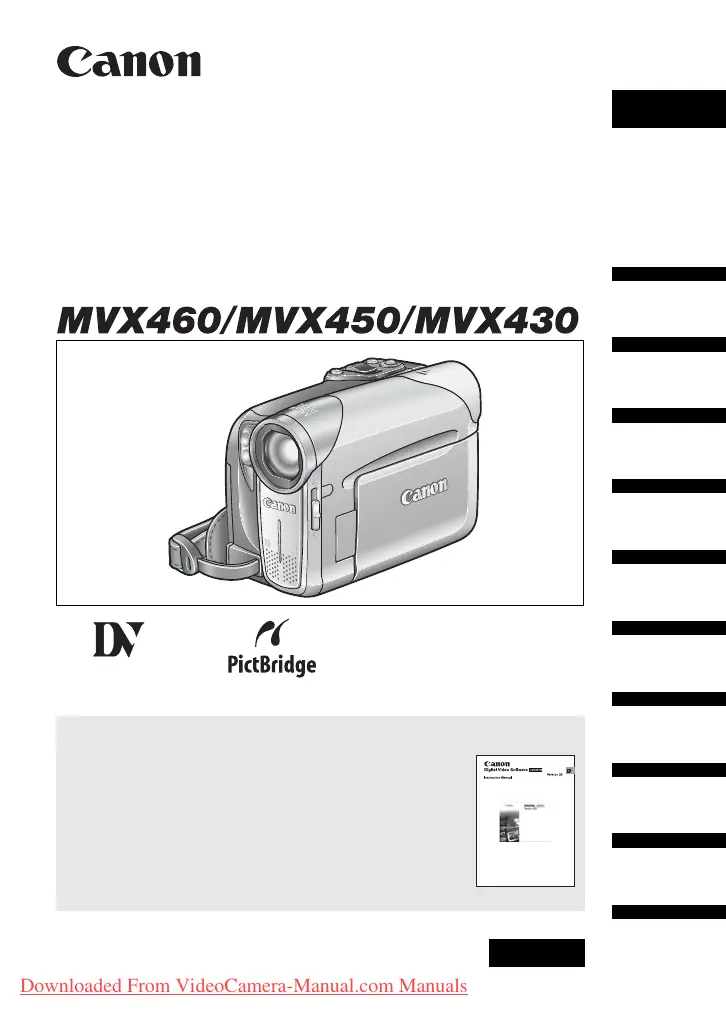
M
Matthew SmithSep 22, 2025
What does it mean if “ ” flashes red on my Canon Camcorder?
- PPatricia WangSep 22, 2025
Turn off the Canon Camcorder, remove and reinsert the memory card. If flashing persists, initialize the memory card.

What does it mean if “ ” flashes red on my Canon Camcorder?
Turn off the Canon Camcorder, remove and reinsert the memory card. If flashing persists, initialize the memory card.
Why my Canon MVX450 Camcorder will not turn on?
If your Canon Camcorder isn't turning on, it's likely due to an exhausted battery pack. Replace or charge the battery pack. Also, ensure that the battery pack is correctly attached.
How to fix Canon MVX450 viewfinder picture is blurred?
If the viewfinder picture on your Canon Camcorder is blurred, adjust the viewfinder with the dioptric adjustment lever.
Why does my Canon MVX450 switch off by itself?
If your Canon Camcorder switches off by itself, the battery pack may be exhausted. Replace or charge the battery pack. You can also try to turn on the camcorder.
What to do if Canon MVX450 Camcorder battery pack will not charge?
If the Canon Camcorder's battery pack will not charge, make sure you are charging the battery pack in temperatures between 0 °C and 40 °C. If the temperature is too high, wait until the battery pack temperature is below 40 °C and retry charging. You can also try using a different battery pack.
What to do if “ ” flashes on the screen of Canon MVX450 Camcorder?
If “ ” flashes on the screen of your Canon Camcorder, load a cassette, or replace or charge the battery pack. If condensation is detected, see reference page.
What to do if “SET THE TIME ZONE, DATE AND TIME” appears on the screen of Canon MVX450 Camcorder?
If “SET THE TIME ZONE, DATE AND TIME” appears on the screen of your Canon Camcorder, set the time zone, date and time. If that doesn't work, replace the backup battery with a new lithium button battery CR1616 and then set the time zone, date and time again.
How to fix Canon MVX450 video noise during playback?
During playback, if there is video noise on your Canon Camcorder, clean the video heads.
What to do if Canon Camcorder cassette compartment stopped during loading/ unloading?
If the Canon Camcorder cassette compartment stopped during loading/ unloading, replace or charge the battery pack.
How to fix Canon Camcorder memory card cannot be recorded?
If the Canon Camcorder is not recording to the memory card, make sure a memory card is inserted. If it is full, replace the memory card or erase images. You can also initialize the memory card. As a last resort, set [FILE NOS.] to [RESET] and insert a new memory card.
Covers attaching the battery pack and charging it for camcorder operation.
Details the procedure for properly inserting and loading a video cassette.
Explains how to insert and remove SD or MultiMedia cards for storage.
Covers setting the camcorder's internal clock and time zone for accurate recording data.
Step-by-step instructions for recording video content onto a cassette tape.
Guide on how to record still images and movies onto an SD or MultiMedia card.
Instructions on how to review recorded video content from a cassette tape.
Guide on how to view still images and movies stored on a memory card.
How to manually control exposure settings to compensate for difficult lighting conditions.
Guide on manually setting focus when autofocus may not perform optimally.
Procedures for setting accurate white balance for realistic color reproduction.
How to choose the resolution and compression level for still images and movie clips.
Instructions on how to delete unwanted still images or movies from the memory card.
Process for formatting a memory card to ensure compatibility and erase all data.
How to copy recordings from the camcorder to external video devices.
Guide on recording video from analog sources via the AV terminal.
Instructions for transferring digital video via the DV terminal to the camcorder's tape.
Steps for adding or replacing audio tracks on recorded tapes.
How to convert analog video/audio signals to digital format using the DV terminal.
Guide on connecting the camcorder to a PictBridge compatible printer for direct printing.
Details on adjusting print parameters like paper size, type, and layout options.
Steps to transfer video footage from the camcorder tape to a computer via DV terminal.
Guide on transferring still images and movies from the memory card to a PC using USB.
 General
| Filter size | 27 mm |
|---|---|
| Digital zoom | 800 x |
| Optical zoom | 20 x |
| Focal length range | 43.7 - 878 mm |
| Sensor type | CCD |
| Total megapixels | 1.33 MP |
| Optical sensor size | 1/5 \ |
| Effective megapixels (movie) | 750000 MP |
| Display diagonal | 2.7 \ |
| Display resolution | 123000 pixels |
| I/O ports | AV |
| Resolution | 640 x 480 pixels |
| Camera shutter speed | 1/2000 ~ 1/6 s |
| Battery type | BP-208DG |
| Minimum illumination | 2 lx |
| PictBridge | Yes |
| USB 2.0 ports quantity | 1 |
| Camcorder tape type | Mini-DV |
| Compatible memory cards | MMC, SD |
| Viewfinder resolution | 113000 pixels |
| Product color | Silver |
 Weight and Dimensions
| Depth | 109 mm |
|---|---|
| Width | 57 mm |
| Height | 77 mm |
| Weight | 430 g |