EasyManua.ls Logo

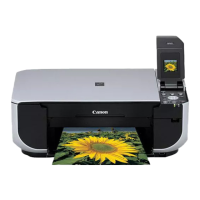
Canon PIXMA MP210 Series - User Manual

Canon PIXMA MP210 Series
80 pages
Print Icon
To Next Page IconTo Next Page
Loading...
series
Quick Start Guide
QT5-1208-V01 XXXXXXXX © CANON INC. 2007 PRINTED IN VIETNAM
The following FINE Cartridges are compatible with this product.
QT51208V01
For information on product specifications, please visit our website at
www.usa.canon.com
Photo All-in-One

Table of Contents

Other manuals for Canon PIXMA MP210 Series

Questions and Answers

  • A
    Angela SteeleAug 7, 2025
    What to do if an error message appears on the computer screen for Canon PIXMA MP210?
    • P
      paulaclarkAug 7, 2025
      If you receive an error message on your computer screen when using your Canon All in One Printer, it could be due to these reasons: * The printer is not ready. Ensure the Power lamp is lit green. If it's off, turn the printer on. * The printer port setting does not match the computer’s interface. Check the printer port settings. * The printer is not connected properly. Ensure the USB cable is securely plugged into both the printer and the computer.
  • A
    Aaron CervantesAug 13, 2025
    Why is my Canon PIXMA MP210 All in One Printer not starting to print?
    • S
      Samuel ThompsonAug 13, 2025
      If your Canon All in One Printer isn't printing, it could be because: * There are unnecessary print jobs in the queue or computer problems. Restarting your computer may resolve the issue. Delete any unnecessary print jobs. * The printer is not ready. Check that the Power lamp is lit green; if not, turn the printer on.
  • C
    Cynthia GarciaAug 19, 2025
    What to do if the print result is not satisfactory when copying with Canon PIXMA MP210?
    • R
      Robert WilsonAug 19, 2025
      If the copy result from your Canon All in One Printer is unsatisfactory, consider the following: * Ensure the original document is loaded correctly on the Platen Glass. * Make sure the side to be copied is faced down when loading the original on the Platen Glass. * Clean the Platen Glass and the inner side of the Document Cover if they are dirty.
  • J
    James JonesOct 24, 2025
    Why does my Canon PIXMA MP210 display an error code?
    • Q
      qhooverOct 25, 2025
      If your Canon All in One Printer displays an error code, it could be due to several reasons: * The printer is out of paper or paper does not feed. Reload the paper correctly and press the Black or Color button. * There is a paper jam. Clear the jam, reload the paper correctly, and press the Black or Color button. * The FINE Cartridge cannot be recognized. Open the Scanning Unit (Printer Cover) and install the appropriate FINE Cartridge. If the error persists, the Print Head may be damaged, and you should contact a Canon service representative. * The FINE Cartridge is not installed correctly. Ensure each FINE Cartridge is in the correct position. * The ink absorber is almost full. Press the Black or Color button to continue printing temporarily. Contact a Canon service representa...
  • J
    jameskaufmanOct 30, 2025
    How to fix Canon PIXMA MP210 All in One Printer MP Drivers installation issues?
    • K
      kimberlymyersOct 30, 2025
      If you encounter issues installing the MP Drivers for your Canon All in One Printer: * If you can't proceed past the Printer Connection screen: 1. Click Cancel on the Printer Connection screen. 2. Click Start Over on the Installation Failure screen. 3. Click Back on the subsequent screen. 4. Click Exit on the PIXMA XXX screen, then remove the CD-ROM. 5. Turn the printer off. 6. Restart your computer. 7. Ensure no application software, including anti-virus software, is running. 8. Reinstall the MP Drivers following the setup sheet procedure. * If the installation doesn't start automatically when the Setup CD-ROM is inserted: 1. Click Start then Computer. 2. Double-click the CD-ROM icon. If it's not displayed, restart your computer. If i...

Summary

Getting Help from Canon

Customer Technical Support Sequence

Details on how to contact Canon for technical assistance through various channels.

Before Using the Machine

Operation Panel

Overview of the printer's control panel and its buttons.

Turning the Machine On and Off

Instructions for powering the printer on and off safely.

Handling the Original Document

Guide on how to place documents on the scanner glass for copying or scanning.

Loading Printing Paper

Instructions for loading various types of paper into the rear tray.

Loading Envelopes

Specific steps for loading envelopes for printing.

Loading Small-Sized Paper

Instructions for loading small paper sizes like photo paper.

Copying

Making Copies

Basic procedure for creating copies using the printer.

Changing the Copy Settings

How to adjust copy parameters like paper size and quality.

Printing from Your Computer

Printing with Windows

Step-by-step guide for printing from Windows operating systems.

Printing with Macintosh

Step-by-step guide for printing from Macintosh operating systems.

Scanning Images

Scanning Methods

Overview of different scanning techniques and software options.

Printing Photographs Directly from a Compliant Device

Connect the PictBridge compliant device to the machine

How to connect cameras or other devices for direct printing.

About PictBridge Print Settings

Details on configuring print settings for PictBridge direct printing.

Setting on the Machine

How to adjust PictBridge print settings directly on the printer.

Routine Maintenance

List of Maintenance Codes

Reference table for printer maintenance codes and their operations.

When Printing Becomes Faint or Colors Are Incorrect

Troubleshoot faint prints or incorrect colors by cleaning the print head.

Printing the Nozzle Check Pattern

Procedure to print a pattern for checking print head nozzle condition.

Examining the Nozzle Check Pattern

How to interpret the nozzle check pattern to diagnose print quality issues.

Print Head Cleaning

Steps to clean the print head to resolve print quality problems.

Print Head Deep Cleaning

Advanced print head cleaning procedure for persistent quality issues.

Aligning the Print Head

Process to adjust print head alignment for sharp, accurate printing.

Replacing a FINE Cartridge

Step-by-step guide on how to replace ink cartridges.

Getting the Ink Status Information

How to check the remaining ink levels using lamps or software.

Keeping the Best Printing Results

Tips to prevent print head drying and nozzle clogging during non-use.

Cleaning Your Machine

General procedures for cleaning the printer's exterior and internal parts.

Cleaning the Paper Feed Roller (Roller Cleaning)

How to clean the paper feed rollers to ensure proper paper feeding.

Cleaning the Inside of the Machine (Bottom Plate Cleaning)

Procedure to clean the inside of the machine to prevent smudging.

Troubleshooting

If an Error Occurs When the Machine Is Connected to a Computer

What to do when errors appear during computer connection.

An Error Code Is Displayed on the LED

Explains error codes shown on the LED and their solutions.

Power Lamp Flashes Green and Alarm Lamp Flashes Orange Alternately

Troubleshooting for simultaneous flashing of power and alarm lamps.

LED Cannot Be Seen At All

Steps to take if the printer's LED indicators are not visible.

Cannot Install the MP Drivers

Solutions for issues encountered during MP Driver installation.

Cannot Connect to Computer Properly

How to resolve problems with the printer's computer connection.

Print Results Not Satisfactory

Guidance on improving print quality when results are unsatisfactory.

Paper Does Not Feed Properly

How to fix problems with paper not feeding correctly into the printer.

Paper Jams

Instructions for clearing paper jams from the printer.

Error Message Appears on the Computer Screen

How to interpret and resolve error messages from the computer.

Scanning Problems

General troubleshooting for scanning operations.

Appendix

How to Use the Documentation Provided

Guide on how to utilize the various manuals and documentation.

Reading the On-screen Manuals

Instructions on how to access and view the printer's on-screen manuals.

Specifications

General Specifications

Technical details and performance specifications of the printer.

Copy Specifications

Specific technical details related to the copying function.

Scan Specifications

Technical details pertaining to the scanning capabilities of the printer.

Camera Direct Print (PictBridge)

Technical specifications for direct printing from cameras via PictBridge.

Minimum System Requirements

Hardware and software requirements for using the printer.

Safety Precautions

Choosing a location

Guidelines for safely placing the printer in the environment.

Power supply

Critical safety instructions regarding the printer's power connection.

Cleaning the machine

Safety considerations when cleaning the printer's exterior and components.

Maintaining the machine

General safety advice for machine upkeep and maintenance.

Working around the machine

Safety precautions for operating and handling the printer.

FINE Cartridges (Ink Cartridges)

Safety guidelines related to handling and storing ink cartridges.

Legal Limitations on Use of Your Product and Use of Images

Information on legal restrictions regarding copying and reproducing certain documents.

Users in the U.S.A.

Regulatory and warranty information specific to users in the USA.

Regulatory Information

Compliance details, including FCC notices, for the product.

Canon U.S.A., INC. LIMITED WARRANTY - (USA Only)

Details of the limited warranty provided by Canon USA for the product.

Ordering Information

Canon PIXMA MP210 Series Specifications

General IconGeneral
Print TechnologyInkjet
Max Print Resolution4800 x 1200 dpi
FunctionsPrint, Scan, Copy
Print Speed (Black)22 ppm
Print Speed (Color)17 ppm
Scanner TypeFlatbed
Max Scan Resolution1200 x 2400 dpi
Copy Speed (Black)22 cpm
Copy Speed (Color)17 cpm
Copy Resolution600 x 600 dpi
InterfaceUSB 2.0
Paper SizesLetter, Legal
Operating System SupportMac OS
Ink Cartridge CompatibilityPG-40, CL-41

Related product manuals