Table of
Contents
Chapter 1
What is
ZoomBrowser EX?
Chapter 2
Downloading and
Printing Images
Chapter 3
What You Can Do with
a Camera Connected
Chapter 4
Viewing Images
Chapter 5
Organizing Images
Chapter 6
Using Supplementary
Features
Appendices Index
ZoomBrowser EX Software User Guide 20
Back Next
This section explains how to print images downloaded to a computer. It
describes the procedures for printing a single image on a single page. It
is easy to print photo-quality prints.
2.
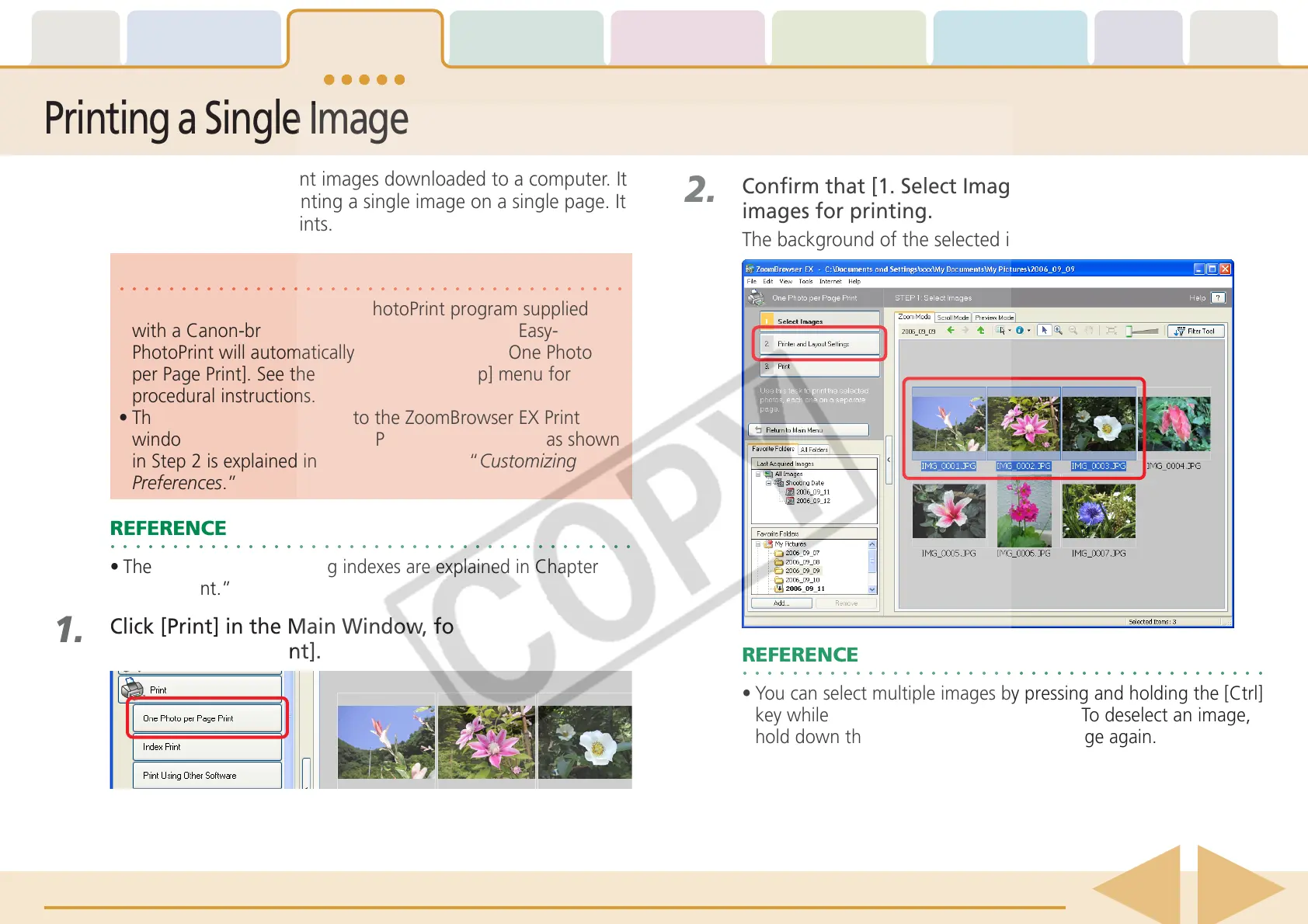
Confirm that [1. Select Images] is chosen and select
images for printing.
The background of the selected images will change to blue.
○○○○○○○○○○○○○○○○○○○○○○○○○○○○○○○○○○○○○○○○○○
REFERENCE
•You can select multiple images by pressing and holding the [Ctrl]
key while you click on successive images. To deselect an image,
hold down the [Ctrl] key and click the image again.
Printing a Single Image on a Single Page (1/2)
○○○○○○○○○○○○○○○○○○○○○○○○○○○○○○○○○○○○○○○○○
IMPORTANT
• If you have installed the Easy-PhotoPrint program supplied
with a Canon-brand printer, the Print window of Easy-
PhotoPrint will automatically open if you select [One Photo
per Page Print]. See the Easy-PhotoPrint [Help] menu for
procedural instructions.
• The method for proceeding to the ZoomBrowser EX Print
window when you select [One Photo per Page Print] as shown
in Step 2 is explained in the Appendices in “Customizing
Preferences.”
○○○○○○○○○○○○○○○○○○○○○○○○○○○○○○○○○○○○○○○○○○
REFERENCE
• The procedures for printing indexes are explained in Chapter 6,
“Index Print.”
1.
Click [Print] in the Main Window, followed by [One
Photo per Page Print].






 To Next Page