Scanning Easily (Auto Scan)
Auto Scan allows for automatic detection of the type of the item placed on the platen.
Important
• The following types of items may not be scanned correctly. In that case, adjust the cropping frames
(scan areas) in whole image view of ScanGear (scanner driver), and then scan again.
• Photos with a whitish background
• Items printed on white paper, hand-written text, business cards, and other unclear items
• Thin items
• Thick items
1.
Make sure scanner or printer is turned on.
2.
Place items on platen.
Positioning Originals (Scanning from Computer)
3.
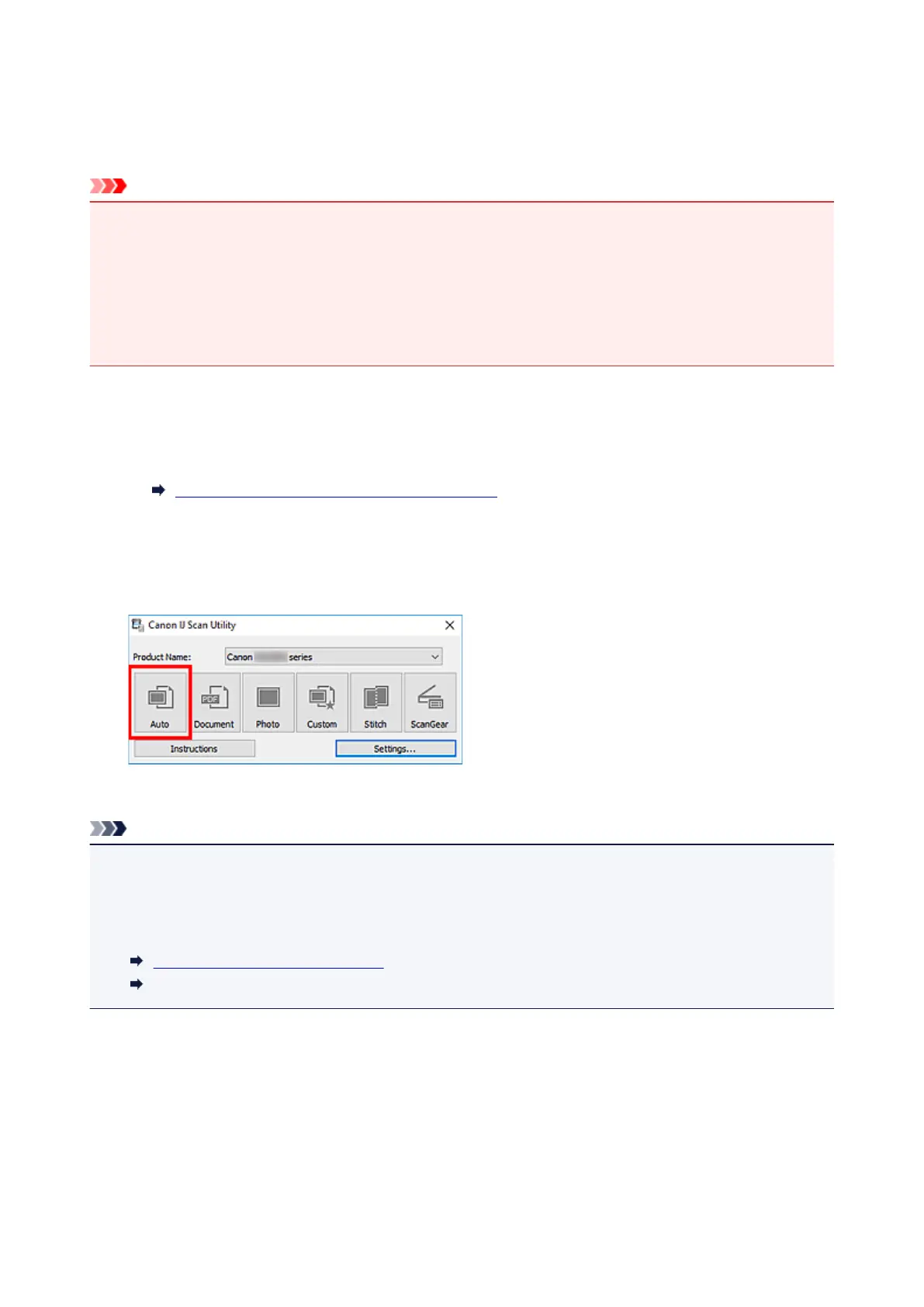
Start IJ Scan Utility.
4.
Click Auto.
Scanning starts.
Note
• To cancel the scan, click Cancel.
• Use the Settings (Auto Scan) dialog box to set where to save the scanned images and to make
advanced scan settings.
• To scan a specific item type, see the following pages.
Scanning Documents and Photos
Scanning with Favorite Settings
342




 To Next Page