Delete Print Jobs
Locations where You Can Delete Print Jobs
You can delete jobs from the following locations.
• List of [Printed jobs] (if this function is enabled in the Settings Editor).
• List of [Scheduled jobs].
• List of [Waiting jobs].
• [DocBox] (optional).
NOTE
You can only delete the active print job
in the list of [Scheduled jobs] when the printer is on
hold. If necessary, press the Stop button two times to put the printer on hold.
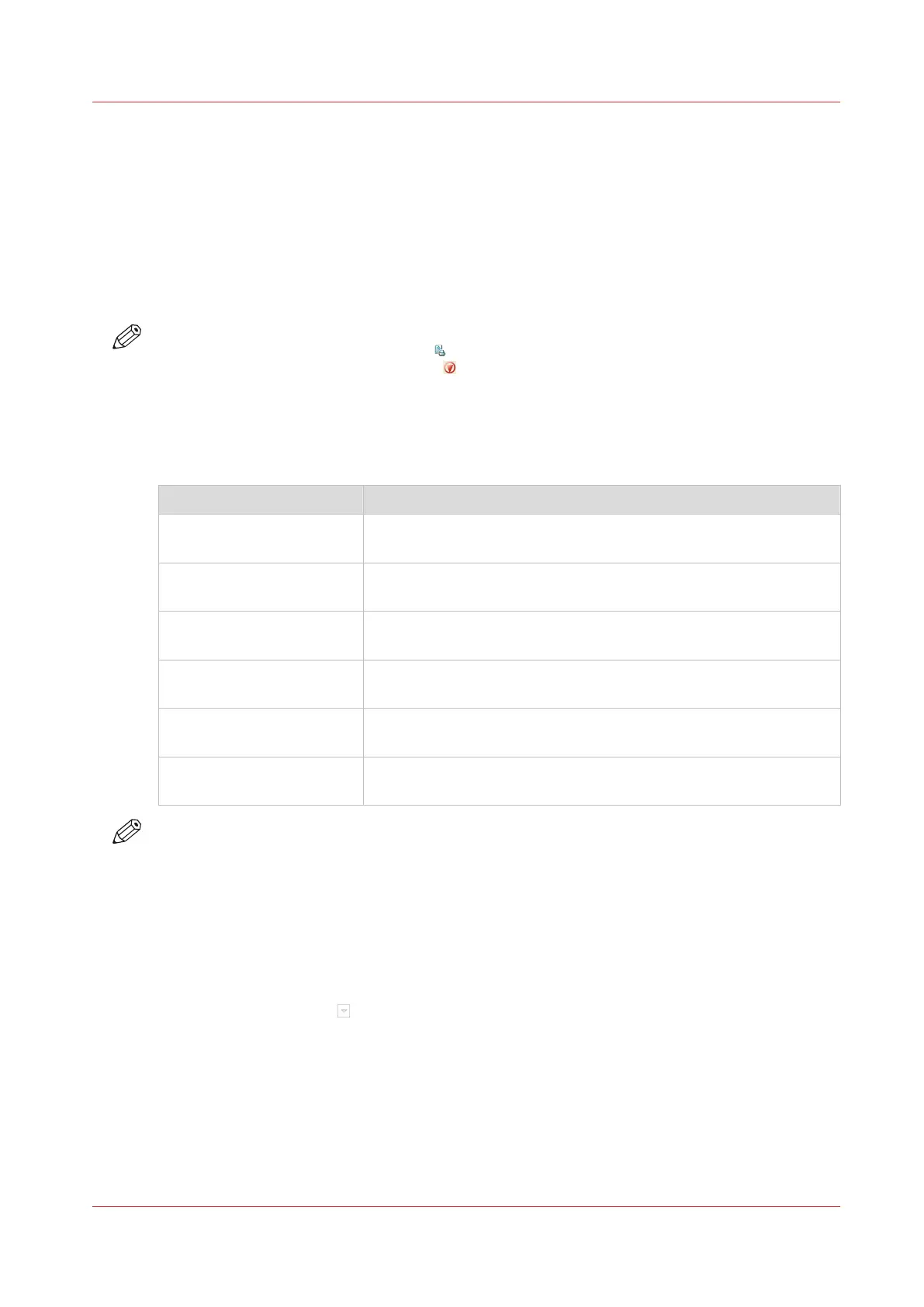
Select the Jobs You Want to Delete
The table below describes your options to select one or more jobs.
Select one or more jobs that you want to delete
What to delete? How to do?
One or more separate jobs • Select the desired location described above.
• Touch the jobs one by one.
All jobs • Select the desired location.
• Touch [Select] -> [All].
[Jobs with available media] • Select the desired location.
• Touch [Select] -> [Jobs with available media].
[Jobs with label] • Select the desired location.
• Touch [Select] -> [Jobs with label].
[Printed jobs] in the [Doc-
Box]
• Select the [DocBox].
• Touch [Select] -> [Printed jobs].
New jobs in the [DocBox] • Select the [DocBox].
• Touch [Select] -> [New jobs].
NOTE
For the list of [Printed jobs], you can indicate in the Settings Editor that the list must be cleaned
automatically at specified times. The factory default is one day. Furthermore, in the Settings
Editor you can manually clean up the jobs in the lists of [Printed jobs], [Scheduled jobs],
[Waiting jobs] and the [DocBox].
Procedure
1.
Go to one of the following locations.
• On the control panel, touch [Jobs] -> [Queues]
If collapsed, first touch
to expand the list of [Scheduled jobs] or [Waiting jobs].
• Touch [Jobs] -> [Printed jobs]
2.
Select the jobs you want to delete.
3.
Press [Delete].
A message appears.
4.
When you are sure that you want to delete the selected job(s), touch [Yes].
Delete Print Jobs
Chapter 9 - Carry Out Print Jobs
193
Canon varioPRINT DP line






 To Next Page