110 Photos
Copying a Single Photo
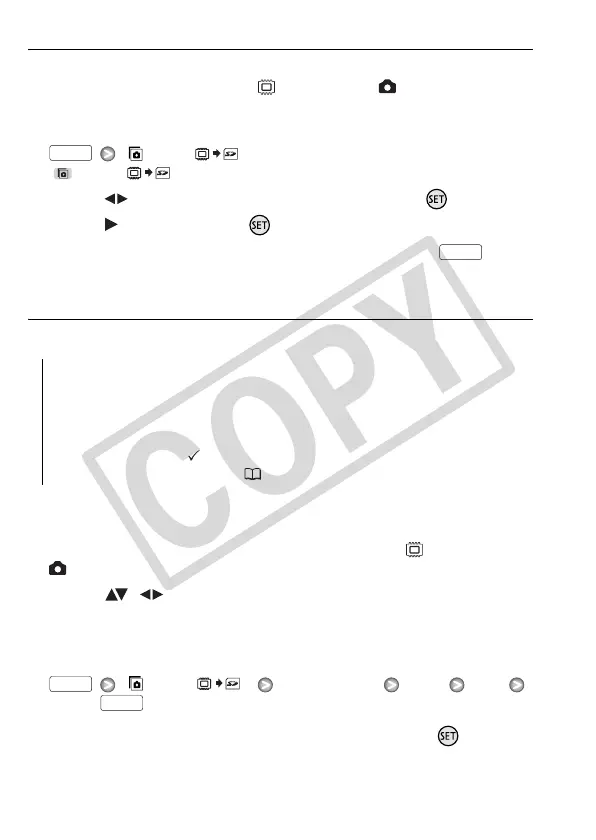
1 Select to view the photos recorded in the built-in memory.
In the index screen, select the tab under the icon and move the
zoom lever toward T to return to single photo view.
2 Open the photo selection screen.
[ Copy ( )]
[ Copy ( )] appears on the screen.
3 Select ( ) the photo you want to copy and press .
4 Select ( ) [Yes] and press to copy the photo.
5 Repeat steps 3-4 to copy additional photos or press twice
to close the menu.
Copying Photos from the Index Screen
Options
1 Open the index screen of the photos recorded in the built-in
memory.
Move the zoom lever toward W and then select the tab under the
icon.
2 Select ( , ) the photo you want to copy.
This step is not necessary to copy all photos or previously selected
photos.
3 Copy the photo(s).
[ Copy ( )]
Desired option [Yes]* [OK]
* If you selected [Selected Photos] or [All Photos], you can press to interrupt
the operation while it is in progress.
[All Photos] Copies all the photos.
[This Photo] Copies only the photo marked with the orange selec-
tion frame.
[Selected Photos] Copies all the photos selected in advance
(marked with a checkmark). Refer to Pre-selecting Recordings
from the Index Screen (57).
FUNC.
FUNC.
FUNC.
FUNC.









 To Next Page