Video 55
Selecting Only Scenes in which People’s Faces Were Detected
If you recorded movies with the Face Detection function ( 75) acti-
vated, the camcorder can narrow down the scenes shown in the index
screen, leaving only those scenes where a face was detected. This
function is not available from the index screen for video snapshot
scenes.
1 Open the movie index screen.
You can select the original movies in the built-in memory or on the
memory card.
2 Narrow down the scenes displayed in the index screen.
[ Scene Search] [Scenes with Faces]
• The index screen will display only those scenes that contain people’s
faces.
3 Select ( , ) the scene you want to play back.
NOTES
• You can press to return to the normal index screen at any time.
Selecting the Playback Starting Point
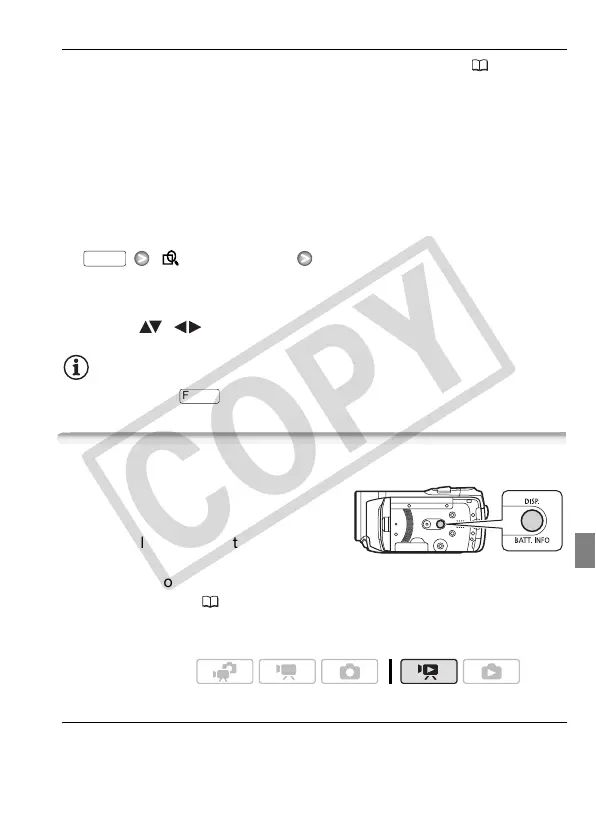
If you have a very long scene, you may
want to start playing back the scene
from a certain point. You can use the
movie timeline to break the scene to
segments at fixed time intervals rang-
ing from 6 seconds to 6 minutes. If you recorded movies with the Face
Detection function ( 75) activated, you can display the scene divided
into segments every time the camcorder registered a change in the
main subject of the scene.
Movie Timeline
1 Open the original movies index screen.
FUNC.
FUNC.
Operating modes:








 To Next Page