Photos 115
Printing after Changing the Print Settings
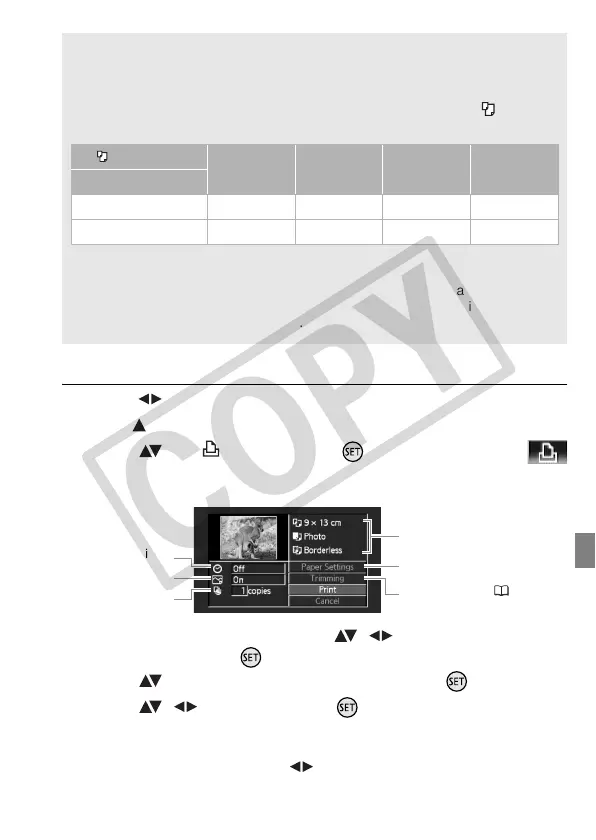
1 Select ( ) the photo you wish to print.
2 Open ( ) the joystick guide.
3 Select ( ) the icon and press .
The print settings menu appears.
4 In the print settings menu, select ( , ) the setting you want
to change and press .
5 Select ( ) the desired setting option and press .
6 Select ( , ) [Print] and press .
• Printing starts. The print settings menu disappears when the print job
is completed.
• To continue printing, select ( ) another photo.
[x photos/sheet]: Printing multiple photos on the same sheet
When using Canon printers you can print the same photo multiple
times on the same sheet of paper. Use the following table as a guideline
for the recommended number of copies depending on the [ Paper
Size] setting.
1
You can also use the special sticker sheets.
2
SELPHY CP series only:
- With the [8 photos/sheet] setting, you can also use the special sticker sheets.
- You can use [2 photos/sheet] or [4 photos/sheet] also when using wide-sized
photo paper with [Default] settings.
[ Paper Size]→ [CreditCard] [9 x 13 cm]
[10 x 14.8 cm]
[A4]
Canon printer ↓
PIXMA / SELPHY DS – – 2, 4, 9 or 16
1
4
SELPHY CP/ES 2, 4 or 8
2
2 or 4 2 or 4 –
Current paper settings (paper
size, paper type and page layout)
Trimming settings ( 116)
Date printing
Print effect
Number of copies
Paper settings



 To Next Page