3
25
English
24
English
Preset Buttons 1-3 (Presets)
The Amp 5�1 is able to assign three memory buttons with „presets“� Settings like volume, selected input and settings in the Speaker Setup [SPS]
menu (sound settings, etc�) as well as playlists from the app „Spotify“ can be stored� The memory buttons can be operated via the Smart remote
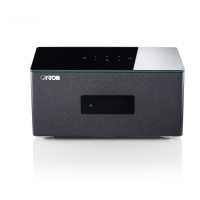
control as well as via the keypad on top of the Amp 5�1�
Practical tip:
• We recommend that you store the settings you have made in the loudspeaker menu during the initial set-up of the Amp 5�1, e�g� regarding
loudspeaker levels and distances, sound settings, etc�, to one of the three preset buttons so that your settings are not overwritten by the
factory (neutral) settings if you accidentally press one of the preset buttons�
To store playlists and/or (sound)settings, please proceed as follows:
1
Please apply the desired settings regarding volume, sound, input, etc� and press and hold the memory button 1, 2 or 3 until the corresponding
number [P1], [P2] or [P3] is shown in the display and no longer flashes�
2
To store a playlist, please open the desired playlist on the app „Spotify“ on your (mobile) device and start playback� Be sure to select Spotify
Connect as your connection to Amp 5�1, not Chromecast built-in� Now, please press and hold the corresponding memory button 1, 2 or 3 until the
corresponding number [P1], [P2] or [P3] is shown in the display and no longer flashes� Storing a playlist automatically stores all (sound)settings,
too�
3
To recall the settings resp� a playlist from these presets, please press the corresponding button 1, 2 or 3 briefly� The settings are then called up,
resp� the tracks from the stored playlist are played back automatically by the Amp 5�1 (even without using your (mobile) device)�
Note: To delete the settings or a playlist from a preset button, please press and hold the relating button for 10 seconds until the corresponding
preset [P1], [P2] or [P3] is shown in the display rapidly flashing�
Automatic Updates
After you have connected the Amp 5�1 to the network, firmware updates are executed automatically� After each connection to the power supply and
at regular intervals (also in standby mode), the Amp 5�1 searches for an update and installs this, if available� The LED flashes green/red
during the update and the display first shows „DOWNLOADING“, then „UPDATING“� During this time the Amp 5�1 is not operable�
To do this, the Amp 5�1 must have been connected to the network router via the Google Home app or an iOS device (by use of WLAN) or
alternatively by a network cable (by use of LAN)�
Attention: Do NOT disconnect the Amp 5�1 from the power supply during an update process!
Menu Structure and Navigation
Overview
Most settings of the Smart Amp 5�1 are included into the main menu� This main menu is controlled with the touch keys on the top side of the Smart
Amp 5�1 or with the Canton Smart Remote� The main menu is displayed by the OSD (On-Screen Display) on your TV screen� The LED display in the
amplifier shows the respective function in the form of an abbreviation or as scroll text when the menu is activated� This means that the Amp 5�1 can
also be adjusted without a screen�
Please find an instruction on how to navigate through the menu using the remote below:
• To enter the main menu, press the "M" button�
• To enter the next menu level, press the "OK" button�
• To navigate upwards or downwards within the menu, press the Up " " or Down " " key�
• To change the value of a parameter, press the "+" (Volume +) or "–" (Volume -) button�
• To confirm your settings please press the "OK" button�
• To enter the previous menu level, press the "M" button�
•To exit the menu:
a) Either press and hold the "M" button until the selected input (e�g� TV) is displayed, or
b) wait for 30 seconds without pressing any button�
Practical tip:
• To change the language of the On-screen display from German to English, please go to the main menu by pressing the button „M“�
Under „Systemeinstellung“ [SYS] select the menu item „Displayeinstellungen“ [UIS] and change the language under the menu item „Sprache“
[LAN]�


 To Next Page
 Loading...

