2.4-10 Select Isotope Screen
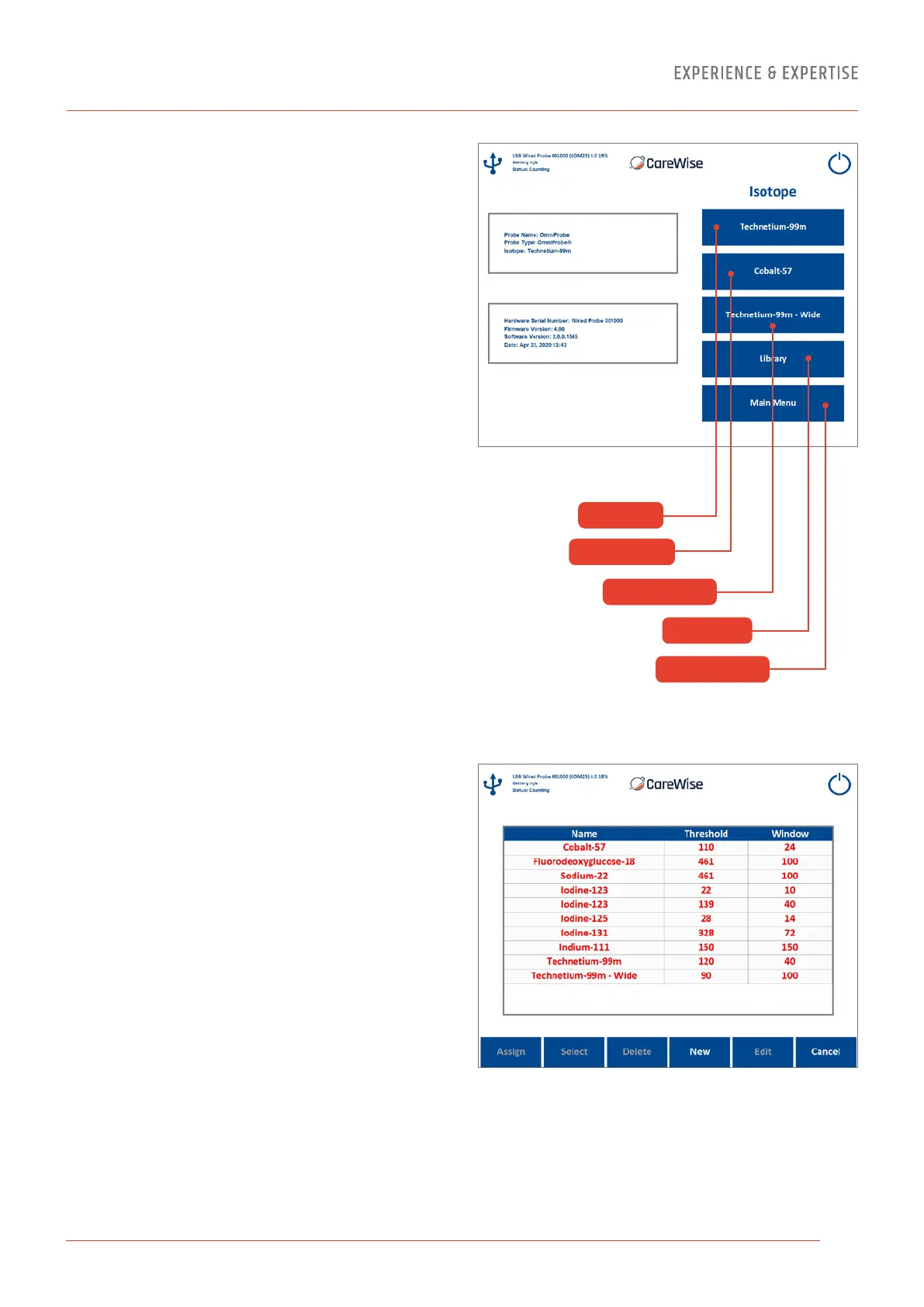
The Select Isotope Screen [Refer to Figure 16] allows the user to
quickly choose from a list of commonly used isotopes, based on
the type of probe currently selected.
(1) Clinical Isotope – Pressing this button brings up the Count
Screen preset to detect the most commonly used clinical
isotope associated with the type of probe selected.
The default settings for OmniProbe
®
and OmniProbe
®
-EL
devices, the clinical isotope is Tc99m. For OmniProbe
®
-PET
devices, the clinical isotope is 18F-FDG.
(2) Calibration Isotope – Pressing this button brings up the
Count Screen preset to detect the calibration isotope
associated with the type of probe selected. The default
calibration isotope for the OmniProbe
®
and OmniProbe
®
EL
devices is Co-57. For OmniProbe
®
PET devices, the calibration
isotope is Na-22. It is not necessary to select a calibration
isotope before performing a System Test, as the C-Trak
®
Apollo System will automatically select the appropriate
calibration isotope for the selected probe.
(3) User Isotope – This button brings up the Count Screen
preset to detect the secondary isotope assigned by the user.
By default, it will display “User Isotope” and be grayed out
(unusable) until the user assigns an isotope to this shortcut
button by pressing the LIBRARY button and selecting an
isotope from the list. Press ASSIGN to save the isotope as
the User Isotope. Press SELECT to bring up the Count Screen
preset to detect the selected User Isotope.
(4) Isotope Library – Pressing this button brings up the
ISOTOPE LIBRARY, a list of commonly used isotopes,
described in 2.4-10.1.
(5) Main Menu – Pressing this button allows the user to
navigate to the MAIN MENU, described in 2.4-6.
2.4-10.1 Isotope Library Screen
The Isotope Library [Figure 17] comes pre-installed with
commonly used isotopes. Users can freely create, edit and
delete their own isotope entries. The isotopes that come
pre-installed, (shown in red on the Isotope Library Screen)
cannot be edited or deleted. To create a new isotope entry,
press NEW. To edit or delete an existing (user-created) isotope
entry, select the entry then press EDIT or DELETE respectively.
To select an isotope, highlight the entry and press SELECT.
The isotope chosen will become the active isotope.
To assign an isotope to the USER ISOTOPE button, select the
entry from the list and press ASSIGN. Assigning a user isotope
allows the user to quickly select a commonly used isotope
without having to navigate to the full isotope library.
Figure 16 – Select Isotope Screen
Figure 17 – Isotope Library Screen
(1) Clinical
(2) Calibration
(3) User Isotope
(4) Isotope
(5) Main Menu
15


 To Next Page