– 14 –
3. Click Next.
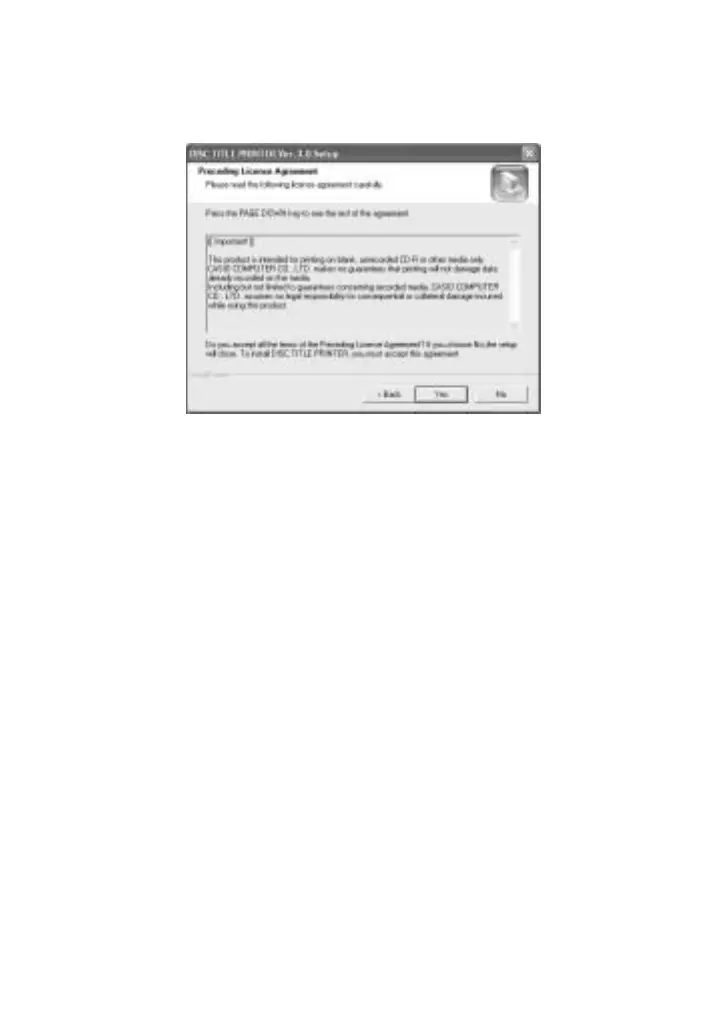
This displays the “Preceding License Agreement”.
Be sure to read the “Preceding License Agreement”.
4. After reading the agreement, click Yes.
This displays the “Software End User License Agreement”.
Be sure to read the “Software End User License Agreement”.
5. After reading the agreement, click Yes.
This displays the Choose Destination Location screen.
6. Check the install destination location, and then click Next.
• If you want to change the installation location, click Browse.
• Clicking Next starts installation.
7. The InstallShield Wizard Complete screen will appear after
installation is complete. Click Finish.
Check to make sure that everything was installed correctly.
• DISC TITLE PRINTER Application: If you installed this application following the
above steps, there should be a DISC TITLE PRINTER shortcut icon on your
Windows desktop.



 To Next Page