EasyManua.ls Logo

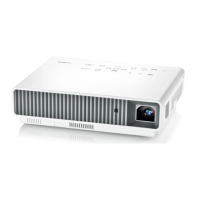
Casio XJ-M145 - User Manual

Casio XJ-M145
69 pages
Print Icon
To Next Page IconTo Next Page
Loading...
1
DATA PROJECTOR
XJ-M145/XJ-M155/
XJ-M245/XJ-M255
Data Projector
USB Function Guide
z Be sure to read the precautions in the separate Setup Guide.
z Be sure to keep all user documentation handy for future reference.
z To obtain the latest version of this manual visit the website at the URL below.
http://www.casio.com/support/
z Microsoft, Windows, Windows Vista and PowerPoint are registered trademarks or trademarks of
Microsoft Corporation in the United States and other countries.
z ArcSoft and the ArcSoft logo are trademarks or registered trademarks of ArcSoft, Inc. in the
United States and other countries.
z Macintosh, Mac OS and QuickTime are trademarks or registered trademarks of Apple, Inc. in the
United States and other countries.
z Other company and product names may be registered product names or trademarks of their
respective owners.
z The contents of this manual are subject to change without notice.
z Copying of this manual, either in part or its entirety, is forbidden. You are allowed to use this
manual for your own personal use. Any other use is forbidden without the permission of CASIO
COMPUTER CO., LTD.
z CASIO COMPUTER CO., LTD. shall not be held liable for any lost profits or claims from third
parties arising out of the use of this product, the included software or this manual.
z CASIO COMPUTER CO., LTD. shall not be held liable for any loss or lost profits due to loss of
data due to malfunction or maintenance of this product, or any other reason.
z The sample screens shown in this manual are for illustrative purposes only, and may differ
somewhat from the screens actually produced by the product.
E
D

Other manuals for Casio XJ-M145

Questions and Answers

  • S
    stanley55Sep 12, 2025
    How to fix viewer not appearing when connecting USB to Casio XJ-M145 Projector?
    • J
      Jacob MahoneySep 12, 2025
      If the viewer doesn't appear when you connect a USB memory stick to the Casio Projector's USB port, it might be due to a few reasons. First, the USB memory might have a format that the projector can't recognize. To fix this, connect the USB memory to your computer and check if its file system is FAT or FAT32. If it isn't, reformat the USB memory to FAT or FAT32. Also, try using a different USB memory. Finally, check the 'Plug and Play' setting in the Data Projector’s settings.
  • R
    Reginald ButlerSep 10, 2025
    What to do if some files are not displayed on Casio Projector?
    • T
      Todd LeeSep 10, 2025
      If some folders or files are not displayed in the file menu of your Casio Projector, try reducing the number of folders and files in the folder.
  • L
    laramariaSep 9, 2025
    What to do if Casio Projector does not recognize multiple USB devices?
    • H
      Heather ElliottSep 9, 2025
      When using a USB hub or card reader with your Casio Projector, connect memory devices while ensuring that no more than four drives are connected. Some devices may not be recognized if too many are connected.
  • S
    stevenlucasSep 8, 2025
    Why digital camera memory contents do not appear on Casio XJ-M145?
    • K
      Kimberly Richmond DDSSep 8, 2025
      If the digital camera memory contents do not appear when you connect your digital camera to the Casio Projector via USB, the digital camera’s USB mass storage class setting may not be configured correctly, or you may need to perform some operation on the camera. Consult the user documentation for your digital camera for information about the required settings and operations. It is also possible that the digital camera may not support USB mass storage class. If it does not, you will not be able to use Viewer to view digital camera memory contents.
  • J
    Jeremiah DavilaAug 23, 2025
    How to fix a Casio Projector when the power does not turn on?
    • A
      Angela BrownAug 23, 2025
      If the POWER/STANDBY indicator is not lit, ensure the AC power cord is correctly connected. If the TEMP or LIGHT indicator remains flashing or lit, consult the “Error Indicators and Warning Messages” in the User’s Guide.
  • M
    megan61Sep 6, 2025
    Why ECA files do not appear on Casio Projector?
    • R
      Ruben HollandSep 6, 2025
      If ECA files converted from PowerPoint files using EZ-Converter FA do not appear in the file menu on your Casio Projector, Viewer may be in a mode other than the Presentation Mode. To enter the Presentation Mode, highlight “Presentation” on the main Viewer window and then press the [ENTER] key.
  • K
    Kaitlyn CabreraSep 5, 2025
    What to do if Casio Projector cannot play ECA files?
    • A
      Angie WilliamsSep 5, 2025
      If you are unable to play ECA files selected from the Presentation Mode file menu on your Casio Projector, the file might be corrupted. Try re-converting the PowerPoint files using the procedure under 'To convert a PowerPoint file to an ECA file'.
  • W
    William CoxSep 4, 2025
    What to do if Casio XJ-M145 Projector cannot play movie files?
    • K
      Kenneth FranklinSep 4, 2025
      If you cannot play movie files you select on the Movie Mode file menu of your Casio Projector, the file may be corrupted. Check the original file on your computer to see if it is normal. If it is, copy the original file to the memory device and try playing it again. If the message “This movie file cannot be played back.” appears, refer to “Viewer Error Messages”.
  • L
    Logan MullenSep 2, 2025
    What to do if Casio XJ-M145 cannot play image files?
    • K
      Karen CoxSep 3, 2025
      If you're unable to play image files selected from the Slide Mode file menu on your Casio Projector, the file may be corrupted. Check the original file on your computer to ensure it is working correctly. If the original file is fine, copy it back to the memory device and try playing it again. If the message “Cannot display an image file.” appears, refer to “Viewer Error Messages”.
  • T
    Tara RichardsSep 1, 2025
    Why viewer does not appear when I connect USB to Casio XJ-M145 Projector?
    • J
      Julie JohnsSep 1, 2025
      If the Viewer does not appear when you connect a USB memory device to the Casio Projector's USB port, it could be due to the USB memory's format or the projector's Plug and Play setting. First, ensure the USB memory is formatted as FAT or FAT32 by connecting it to your computer and checking its file system. If it isn't, reformat it to FAT or FAT32. Also, check the projector's Plug and Play setting; if it's set to “Off”, change it to “On”.

Summary

About the Data Projectors USB Functions

USB Memory Device or Memory Card

Lists supported file types for USB memory devices.

Connecting a USB Device to the Data Projector

When plug-and-play is enabled

Describes automatic operations when connecting USB devices with plug-and-play enabled.

Installing the Software

Minimum System Requirements

Details the system requirements for installing the expansion software.

Projecting the Contents of Files on a Memory Device

Using EZ-Converter FA to Convert PowerPoint Files to ECA or PtG Files

Explains conversion of PowerPoint files for projector playback.

Using Viewer to Project the Contents of a File on a Memory Device

Connecting a Memory Device to the Data Projector

Explains how to connect USB memory, memory cards, and digital cameras.

Viewer Troubleshooting

Memory Devices

Lists common problems and solutions related to memory devices.

Performing a Presentation Using the YC-400;YC-430 Document Camera

Connecting the Document Camera to the Data Projector

Steps to connect the document camera to the projector.

YC Camera Application Operations

YC Camera Application Projection Operations

Details operations using the YC Camera function menu.

Casio XJ-M145 Specifications

General IconGeneral
ResolutionXGA (1024 x 768)
Projection SystemDLP
Lamp TypeLaser & LED Hybrid
Screen Size30 - 300 inches
Noise Level29 dB (Eco mode)
Brightness2500 ANSI Lumens
Max Resolution1600 x 1200
Contrast Ratio2000:1
Zoom1.2x
InputsHDMI, VGA, Composite Video
OutputsAudio out

Related product manuals