EasyManua.ls Logo

Casio XJ-M145 - User Manual

Casio XJ-M145
69 pages
Print Icon
To Next Page IconTo Next Page
Loading...
1
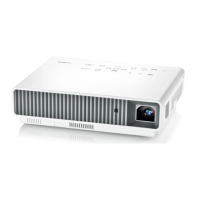
DATA PROJECTOR
XJ-M145/XJ-M155/
XJ-M245/XJ-M255
Data Projector
USB Function Guide
z Be sure to read the precautions in the separate Setup Guide.
z Be sure to keep all user documentation handy for future reference.
z To obtain the latest version of this manual visit the website at the URL below.
http://www.casio.com/support/
z Microsoft, Windows, Windows Vista and PowerPoint are registered trademarks or trademarks of
Microsoft Corporation in the United States and other countries.
z ArcSoft and the ArcSoft logo are trademarks or registered trademarks of ArcSoft, Inc. in the
United States and other countries.
z Macintosh, Mac OS and QuickTime are trademarks or registered trademarks of Apple, Inc. in the
United States and other countries.
z Other company and product names may be registered product names or trademarks of their
respective owners.
z The contents of this manual are subject to change without notice.
z Copying of this manual, either in part or its entirety, is forbidden. You are allowed to use this
manual for your own personal use. Any other use is forbidden without the permission of CASIO
COMPUTER CO., LTD.
z CASIO COMPUTER CO., LTD. shall not be held liable for any lost profits or claims from third
parties arising out of the use of this product, the included software or this manual.
z CASIO COMPUTER CO., LTD. shall not be held liable for any loss or lost profits due to loss of
data due to malfunction or maintenance of this product, or any other reason.
z The sample screens shown in this manual are for illustrative purposes only, and may differ
somewhat from the screens actually produced by the product.
E
D

Other manuals for Casio XJ-M145

Questions and Answers

  • J
    Jessica BrennanAug 31, 2025
    Why won't the light source unit light on my Casio Projector?
    • A
      Ashley MorganAug 31, 2025
      If the light source unit in your Casio Projector does not light, it has likely reached the end of its service life or is malfunctioning. Contact your original dealer or an authorized CASIO service center for replacement.
  • M
    michaelhansenAug 30, 2025
    How to change the language on a Casio XJ-M145?
    • K
      Kyle PerryAug 30, 2025
      To change the language on your Casio Projector, follow these steps: 1. Press the [MENU] key to display the setup menu. 2. If the input signal is HDMI, press [T] four times and then press the [ENTER] key. If the input signal is not HDMI, press [T] five times and then press the [ENTER] key. 3. Display the language selection menu. If the input signal is RGB, press [T] six times and then press the [ENTER] key. If the input signal is not RGB, press [T] five times and then press the [ENTER] key. 4. Use the [T] and [S] keys to move the highlighting to the language you want to select and then press the [ENTER] key. 5. Press the [MENU] key to exit the setup menu.
  • C
    Corey WilliamsAug 29, 2025
    What to do if my Casio XJ-M145 Projector asks for a password?
    • D
      David ShepardAug 29, 2025
      If the message “Please input the password.” appears on your Casio Projector, the “Option Settings 1 J Power On Password” setting on the setup menu is turned on, meaning the projector is password protected. Input the correct password, and then press the [ENTER] key.
  • M
    msawyerAug 28, 2025
    What to do if my Casio XJ-M145 Projector has a strange color display?
    • J
      Jason MooreAug 28, 2025
      If you're seeing strange colors on your Casio Projector, the input signal may not match the projector settings. Try adjusting the image brightness using the [BRIGHT] key, changing the color mode using the [COLOR MODE] key, or adjusting the projection image color balance using “Image Adjustment 1 J Color Balance” in the setup menu.
  • B
    Brian SchultzAug 27, 2025
    Why does the remote controller not work with my Casio XJ-M145 Projector?
    • S
      Samuel HuntAug 27, 2025
      If the remote controller for your Casio Projector isn't working, first replace the batteries. If that doesn't solve the issue, ensure you are operating the remote controller within the allowable range of the projector.
  • B
    brittney99Aug 26, 2025
    How to fix blurry text on a Casio XJ-M145 Projector?
    • M
      Mrs. Katie LeachAug 27, 2025
      If the text is blurry on your Casio Projector, rotate the focus ring to focus the image. If that doesn't work, press the [AUTO] key to execute an automatic adjustment. If the issue persists, the frequency and phase may need adjusting in the “Image Adjustment 2 J Frequency” and “Image Adjustment 2 J Phase” settings on the setup menu. If the input source is a video camera or document camera, check to make sure there is no problem with the input source device.
  • W
    walterhowardAug 26, 2025
    Why is there no sound coming from my Casio XJ-M145 Projector?
    • R
      Robin ChaneyAug 26, 2025
      If there is no sound from your Casio Projector, first check the volume level on the projector itself by pressing the remote controller [VOLUME] key and using [T] and [S] to adjust the volume level. Also, verify that the volume level of the device connected to the projector is not too low and that it is outputting audio. Ensure the audio output of the connected device is correctly connected to the projector’s AUDIO IN terminal or AUDIO IN L/R terminal. Finally, make sure the “Audio Out” setting is set to “Speaker” and not “Line” in the setup menu “Option Settings 2 J Audio Out”.
  • S
    Sharon DavisAug 25, 2025
    What to do if my Casio XJ-M145 shows no image or an abnormal image?
    • R
      Richard NorrisAug 25, 2025
      If no image is projected or the projected image is abnormal on your Casio Projector, first ensure that the connected computer or video device is turned on and outputting a video signal. Next, select the correct input source on the projector that corresponds to the connected device. If you're using the component output terminal of a video device, connect it to the VIDEO or S-VIDEO terminal of the projector instead of the COMPUTER IN terminal.

Summary

About the Data Projectors USB Functions

USB Memory Device or Memory Card

Lists supported file types for USB memory devices.

Connecting a USB Device to the Data Projector

When plug-and-play is enabled

Describes automatic operations when connecting USB devices with plug-and-play enabled.

Installing the Software

Minimum System Requirements

Details the system requirements for installing the expansion software.

Projecting the Contents of Files on a Memory Device

Using EZ-Converter FA to Convert PowerPoint Files to ECA or PtG Files

Explains conversion of PowerPoint files for projector playback.

Using Viewer to Project the Contents of a File on a Memory Device

Connecting a Memory Device to the Data Projector

Explains how to connect USB memory, memory cards, and digital cameras.

Viewer Troubleshooting

Memory Devices

Lists common problems and solutions related to memory devices.

Performing a Presentation Using the YC-400;YC-430 Document Camera

Connecting the Document Camera to the Data Projector

Steps to connect the document camera to the projector.

YC Camera Application Operations

YC Camera Application Projection Operations

Details operations using the YC Camera function menu.

Casio XJ-M145 Specifications

General IconGeneral
ResolutionXGA (1024 x 768)
Projection SystemDLP
Lamp TypeLaser & LED Hybrid
Screen Size30 - 300 inches
Noise Level29 dB (Eco mode)
Brightness2500 ANSI Lumens
Max Resolution1600 x 1200
Contrast Ratio2000:1
Zoom1.2x
InputsHDMI, VGA, Composite Video
OutputsAudio out

Related product manuals