Technical manual Tild v1.0QC
Flashes green quickly
Connection fault: SSID entry error or router not
accessible
In case of high brightness, the blue LED can be less visible.
8. App connection
8.1. Bluetooth® and Wi-Fi control
The Tild includes a Bluetooth and Wi-Fi transmitter, which allows your device to be controlled by a
smartphone or tablet. To be able to control the Tild , you will need an iOS (Apple®) or or Android
device with Bluetooth® Low Energy (v4.x) connectivity OR Wi-Fi 502.11 B:N:G. Other operating
systems (Windows Phone®,...) or devices equipped with previous Bluetooth® version - lower than
4.0 - are not supported. Only one phone / tablet can be connected to the panel. To connect another
device, disconnect the first device.
One phone only can be connected to the panel. To connect other advice, you should be disconnected
first.
If you are connecting via Wi-Fi, you must indicates the Wi-Fi features (ID and SSID) to connect your
Tild to the network and pilot the Tild via Wi-Fi.
Only one device (phone / tablet) can be connected to the Tild .
The Bluetooth and the geolocation of your phone must be activated.
8.2. App download
Search "Vigipool" into the App Store or Play Store search engine. Download and install the app.
8.3. First connection
When running the app for the first time, it's scanning all Tild at connection range. Select the first Tild
which appears. A message will pop-up mentioning that a pairing is needed.
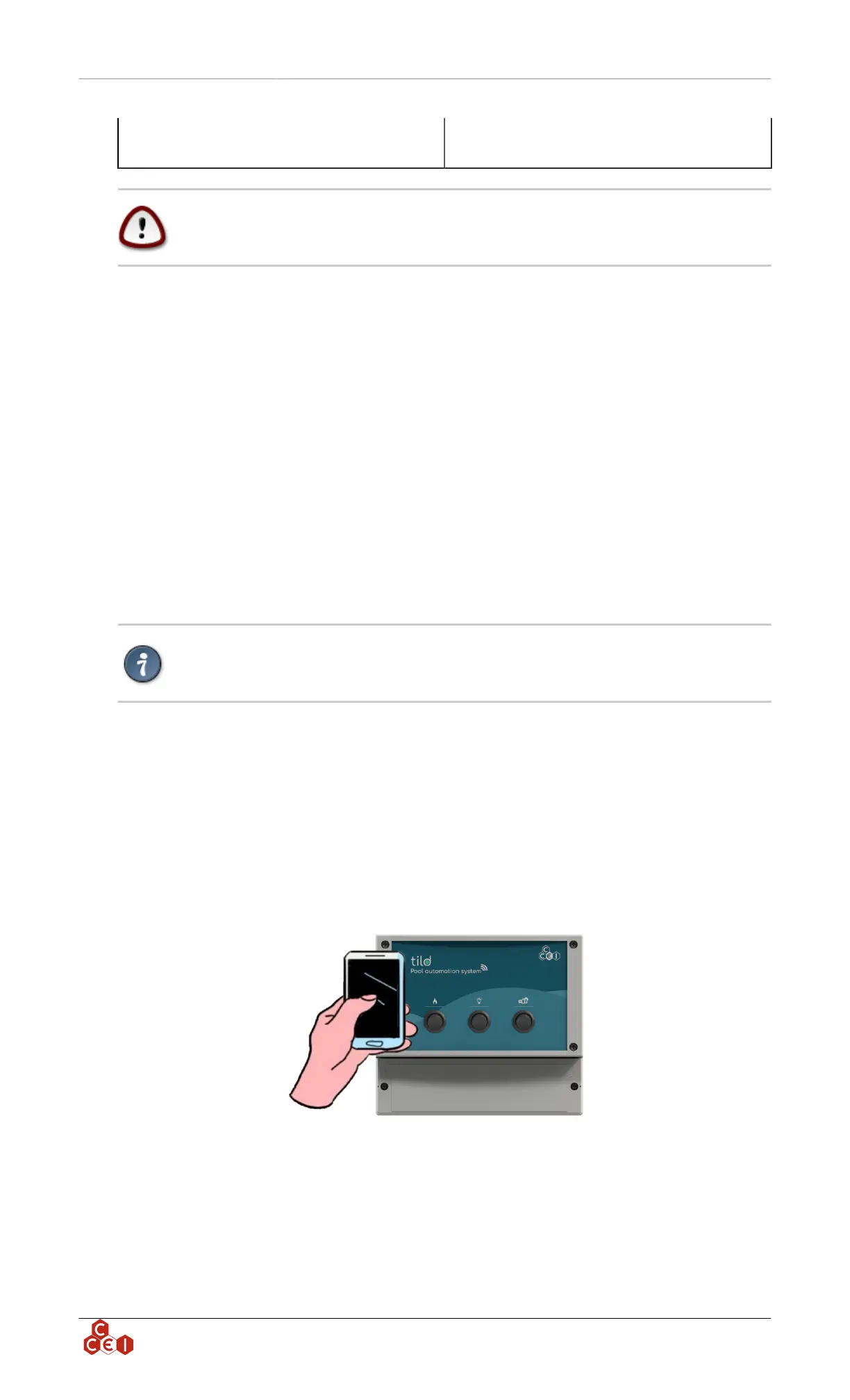
Put your phone on the top right corner of the enclosure. The phone pairing takes 5 to 10 seconds.
8.4. Vigipool app description
When your Tild is connected to your device, the following screen appears:
ccei.ca
7


 To Next Page