Technical manual Tild v1.0QC
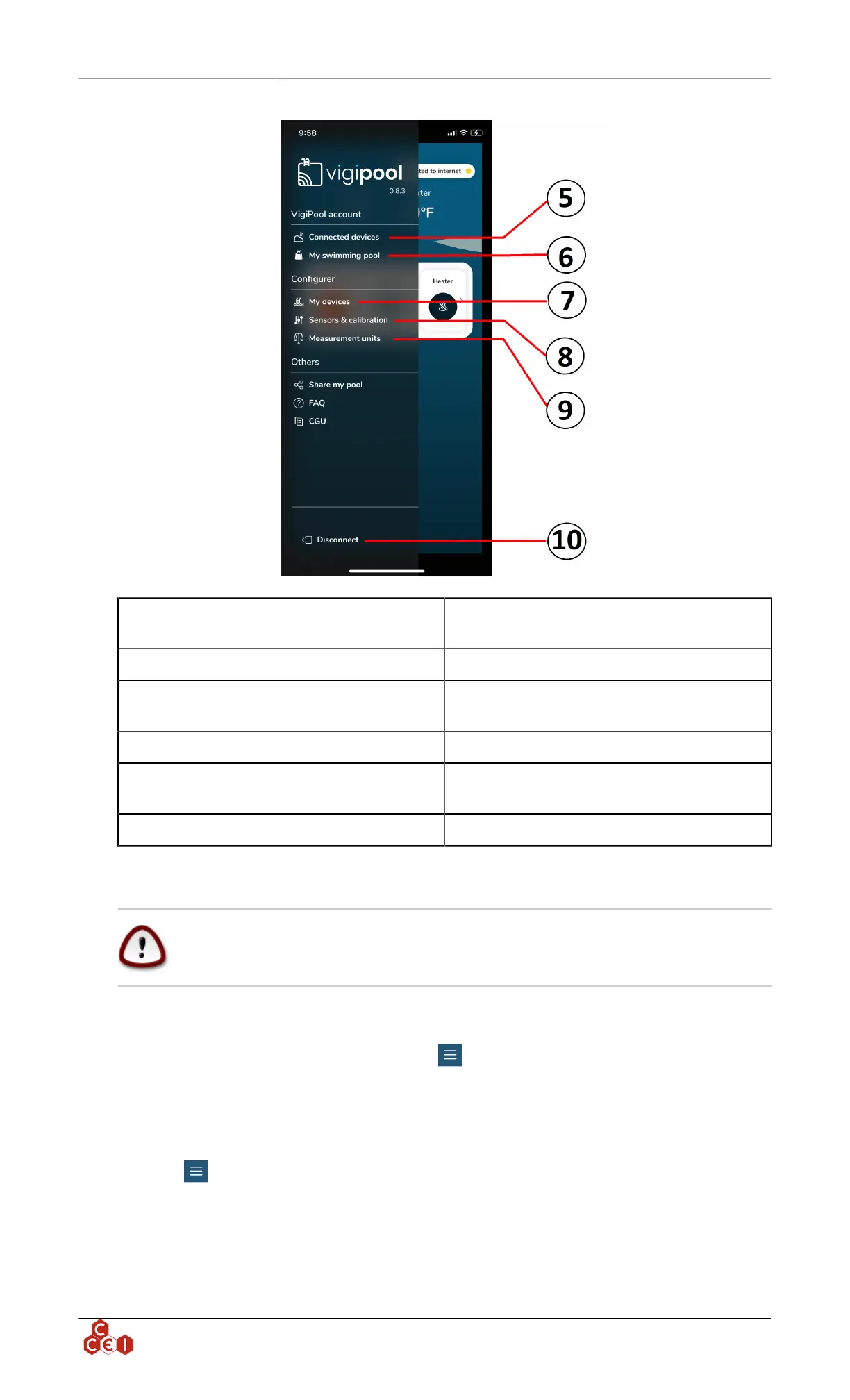
5- Connected devices
See all devices which are currently connected to
this Vigipool account
6- My swimming pool Enter your pool data to optimize Vigipool settings
7- My devices
See all devices which can be connected to this
Vigippool account
8- Sensor & calibration Sensor calibration
9- Measurement units
Choose your favourite measurement units to dis-
play (°C / °F)
10- Disconnect Disconnect your account from the app
8.6. Wi-Fi connection / Vigipool account creation
Vigipool is compatible with 2.4 Ghz networks only !
To be able to connect via Wi-Fi the first time, first leave the smartphone's Bluetooth on and activate
the phone's Wi-Fi, and check that the phone is connected to an access point. Once all is done, open the
app and connect the Tild via Bluetooth. Click on " " to access the general settings then click on "My
device" and select the device that you want to pair. Click on "Configure Wifi connection". Fill the form
with the SSID and the password of your network. If you come back to the main page, you should see
on the top right corner the mention "connected to internet".
When the Wi-Fi is correctly setup you can create a Vigipool account to manage you pool remotely.
Click on " " to access the general settings then click on "Sign in / Sign up". Fill the form to create
a Vigipool account. Once done, come back to the menu "Sign in / Sign up", fill the email address used
to create the account and your password. The product is added to the menu "My devices" and you can
now remotely control it.
ccei.ca
9


 To Next Page