INSTRUCTION MANUAL
CELESTRON ORIGIN | 25
Recenter Telescope
• Selecting this option recenters the Planetarium View on the
location Origin is currently pointing to.
Settings
• Tapping here brings up the Settings page, which presents
additional options:
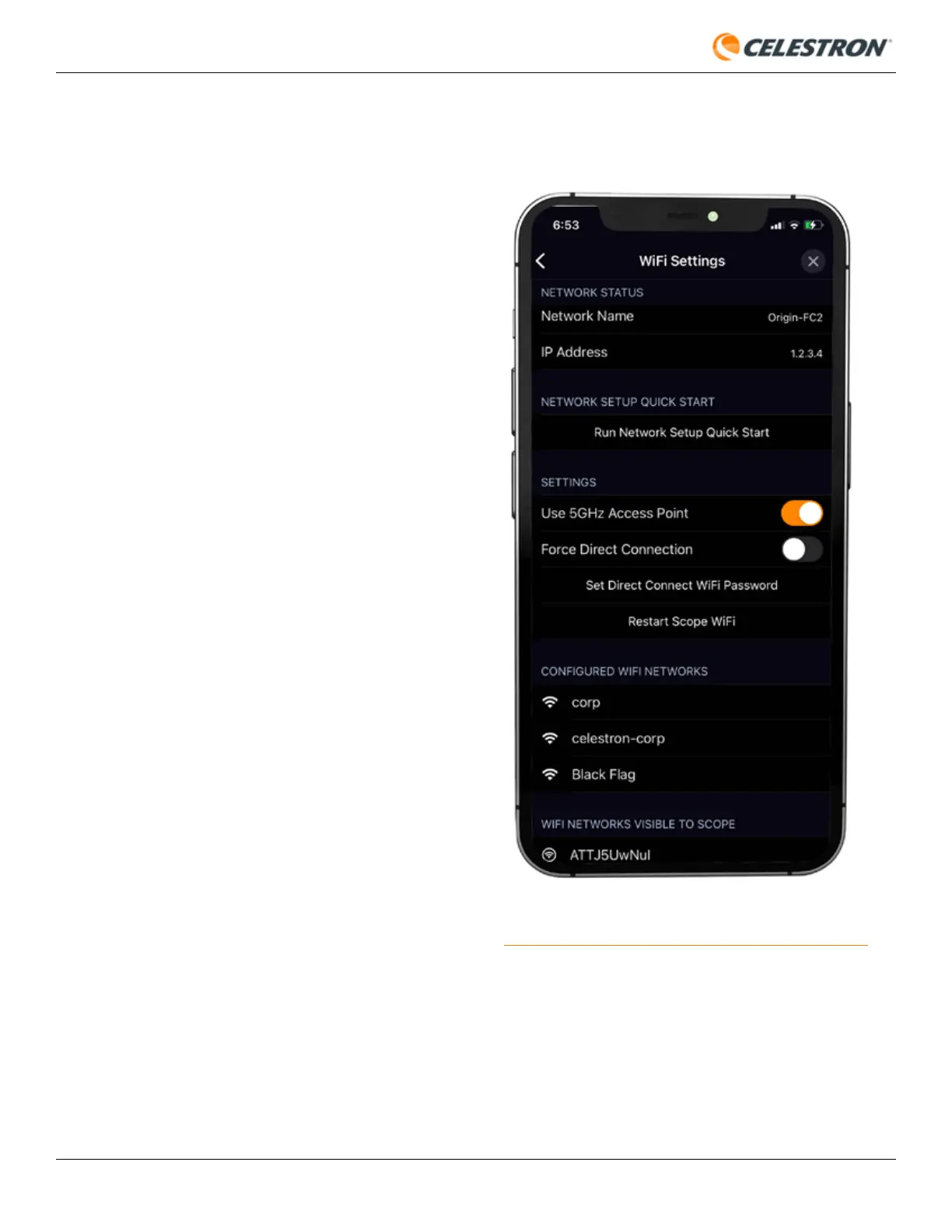
• Wifi Settings – Manage and view Origin’s WiFi
connection details (Figure 26).
• Network Status – Displays the Network Name and IP
Address for the current WiFi connection.
• Network Setup Quick Start - Runs the initial “Quick
Start” guide to set up WiFi connection.
• Use 5GHz Access Point – This is on by default. We
generally recommend using Origin in 5GHz. If you want
to switch to 2.4GHz operation, turn this switch off. You
may need to use 2.4GHz operation with some older
routers in Network Connect mode. In this case, Origin
will automatically switch to 2.4 GHz.
• Force Direct Connect – If you are connected to
Origin through your home network and wish to revert to
Direct Connect mode, turn the Force Direct Connection
slider on.
• Set Direct Connect WiFi Password – This is where you
can change the password for Origin’s Direct Connect
WiFi network from the default 1234555.
NOTE: You will
only need this password if you try to connect to Origin’s
WiFi outside the app (i.e., from your device’s WiFi page.
You won’t need the password if you connect from within
the app.
• Restart Scope WiFi – This restarts Origin’s WiFi
connection. While WiFi is restarting, you won’t be able to
connect to Origin.
• Configured WiFi Networks – Selecting this option
displays the external WiFi networks you previously set up
to work with Origin.
• WiFi Networks Visible To Scope – Selecting this option
displays all the external WiFi networks currently visible to
Origin. Tap one of the visible networks to begin configuring
that network to connect to Origin in Network Connect
mode.
FIG 26: Manage and view Origin’s WiFi connection from the Menu>Settings>
WiFi Settings page.





 To Next Page