INSTRUCTION MANUAL
CELESTRON ORIGIN | 9
3. Status LEDs and Origin Status
Origin has LEDs to provide “status-at-a-glance” functionality
outside of the app, which allows you to check Origin by looking
at its lighting pattern. The status LEDs help you understand
what Origin is doing and assist with troubleshooting.
Status LED Ring
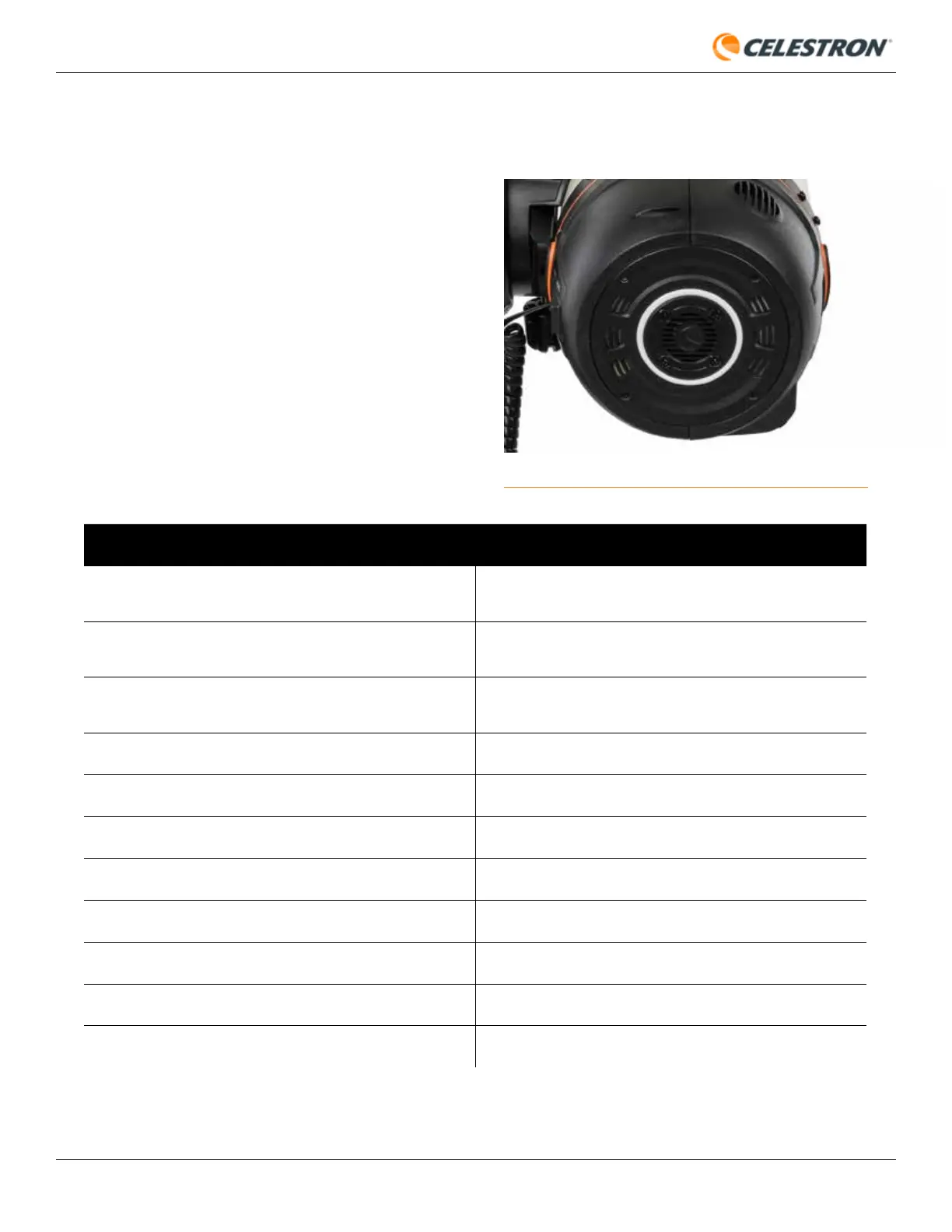
You’ll find the Status LED Ring on the back of Origin’s rear
cell (Figure 8). The ring has eight individual segments and
provides “status-at-a-glance” functionality. The status LED
ring can also indicate if there is a problem.
Pattern Meaning
Counterclockwise swirl
Origin has established its own network and is waiting for the
mobile app to connect.
Clockwise swirl
Origin has connected to your local WiFi network and is waiting
for the mobile app to connect.
Solid ring
Origin has established a connection with the mobile app and
is awaiting commands.
LED #3 and #7 (left and right) are alternating
Origin is busy with a long task (e.g., focusing).
Fill in a clockwise direction
An exposure is in progress.
All LEDs - repeating stepwise increase in brightness
Origin is booting up.
All LEDs - repeating stepwise decrease in brightness
Origin is shutting down.
Pendulum - swinging back and forth
Origin is reconfiguring the WiFi network.
One LED Blinking (top LED)
A firmware update is in progress.
One LED Blinking (closest to the dovetail bar)
There is a hardware malfunction.
Slow fill from bottom to top
The hardware is not calibrated.
Fig. 8: The LED ring on Origin’s rear cell provides status-at-a-glance.
You can find animations of some of the LED ring patterns at https://software.celestron.com/Origin/led-patterns.html





 To Next Page