40 | CELESTRON ORIGIN
INSTRUCTION MANUAL
Appendix B: Tips
In this appendix, we’ll review tips to help you get the best
results with Origin.
Charge your device
• While you use Origin, your device (i.e. phone or tablet) will
continually process images, which can deplete the battery
over time. You may find that your smartphone battery runs
down faster than Origin’s internal battery. Therefore, before
using Origin, we recommend fully charging your device.
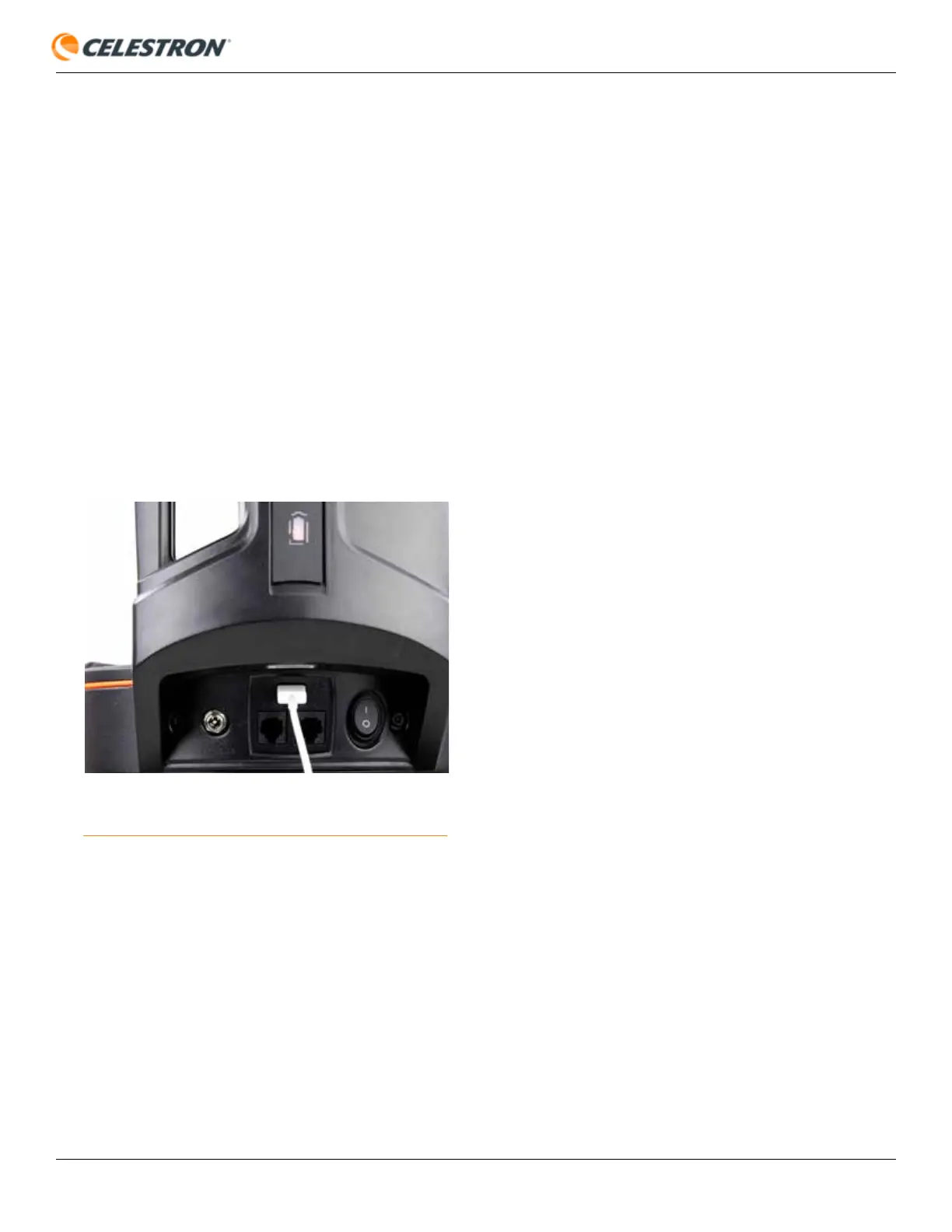
• You can use the USB charge port on the Origin mount
(Figure 38) to charge your device as you use it.
NOTE: Only use the USB charge port on the mount to charge
your device. Do not use the USB ports on the tube for
charging.
Use a smartphone or tablet with a modern
display and processor
• Your overall experience, including the speed of image
processing and image quality, depends on the device you
pair with Origin. Choose a smartphone or tablet with an
excellent display and fast processor for best results.
Choose the correct settings for your device’s
sleep mode
• While you use the Origin app, your device’s operating
system may go into “sleep mode” after some inactivity to
preserve the device’s battery power. If this happens, the app
FIG 38: You can use the USB charging port on the Origin mount to charge
your device in the field.
will lose connection with Origin. The app will automatically
reconnect to Origin when you reactivate the app. To prevent
Origin from disconnecting due to sleep mode, turn off sleep
mode or set a very long duration before it initiates. Consult
your device’s manual or manufacturer’s website for specific
instructions.
Adjust the tube balance
• Origin’s Quick Setup Guide shows you how to balance
the optical tube on the mount. However, you may slightly
improve Origin’s tracking performance by mounting the
tube somewhat off-balance. When Origin’s tube is slightly
off-balance, gravity ensures the altitude axis gears stay
well-engaged. The worm gears on both axes of motion are
spring-loaded to provide good contact regardless. However,
the additional gravitational force on the altitude axis when
slightly off-balance may help in some circumstances.
Select the correct object for the best imaging
results
• For the best AI image processing results, ensure the object
you selected is the object you intend to image. If you want
to change the framing, use the Reframe functionality. Do not
choose a nearby star and issue a GoTo command to center
on that. Origin will think you intend to image the star and may
adjust AI parameters as a result.
• The Western Veil Nebula is a good example. The bright
star 52 Cygni is near its center. Do not choose 52 Cyngi
and GoTo it to image the Western Veil. Instead, choose
the Western Veil, GoTo it, and then use the Reframe
functionality to place 52 Cygni at the center of the
image, if you wish.
Switch from 5 GHz WiFi to 2.4 GHz
WiFi if necessary
- When in Direct Connect mode, Origin’s WiFi operates at 5
GHz by default. In most cases, 5GHz provides the greatest
bandwidth and stability. However, you may find that operating
at 2.4 GHz WiFi is best for your WiFi environment in Direct
Connect mode. To switch from 5 GHz WiFi (default) to 2.4
GHz WiFi, use the toggle in Menu>Settings>WiFi Settings.
After you change the setting, power cycle Origin.
- When in Network Connect mode, Origin automatically
switches between 2.4 GHz and 5 GHz operation to match
your router. If your home router has both 2.4 GHz and 5 GHz
channels, we generally recommend connecting through the
5 GHz channel for best results.




 To Next Page