Need help?
Do you have a question about the Cellularline U-COM 8R and is the answer not in the manual?
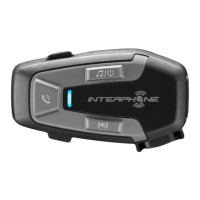
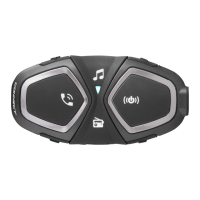
Overview of the headset's components and their functions.
Lists all items included in the product packaging.
Instructions for attaching the main unit to a helmet using brackets.
Guide to connect the headset to mobile phones or motorcycle TFT systems.
Instructions for pairing a second mobile phone to the headset.
Steps to pair the headset with GPS navigation devices.
How to manage incoming and outgoing calls using the headset.
Activating voice assistants like Siri and Google Assistant.
Setting up and using speed dial numbers for quick calls.
Instructions for playing music from Bluetooth® enabled devices.
Explains the MESH 2.0 technology and its benefits.
Details on the open, public mode of Mesh communication.
How to initiate and manage conversations in OPEN MESH.
Information on private, closed group Mesh conversations.
How to reset Mesh settings, typically via the app.
Switching between Open Mesh and Group Mesh modes.
Muting and unmuting the microphone during intercom.
Explains the priority order of different audio sources.
Instructions on how to update the headset firmware.
Accessing the main settings menu for configuration.
Removes all previously stored Bluetooth® pairings from the device.
Changing various device settings via utility or app.
Assigning phone numbers for speed dialing.
Setting the communication channel for Mesh intercom.
Selecting the language for the headset's voice prompts.
Adjusting audio frequency levels for personalized sound.
Enabling voice activation for answering calls.
Adjusting the sensitivity for voice activation.
Setting sensitivity for audio overlay during intercom.
Managing volume reduction for overlaid audio during intercom.
Enabling high-definition audio quality for phone calls.
Automatically adjusting volume based on ambient noise.
Enabling audible feedback of the user's own voice.
Reducing background noise during intercom conversations.
Simple troubleshooting step by disconnecting the battery.
Restoring the headset to its original factory settings.
 General
| Intercom Range | 1.6 km |
|---|---|
| Charging Time | 2 hours |
| Water Resistance | IP67 |
| Battery Type | Lithium Polymer |
| Type | Bluetooth Intercom |
| Compatibility | Universal |
| Weight | 55 grams |
| Package Contents | mounting kit, USB cable |


 To Next Page