5
3. GETTING STARTED
x 1
x 1
x 1 x 2 x 3
1 sec
1 sec
3 sec
3 sec
5 sec
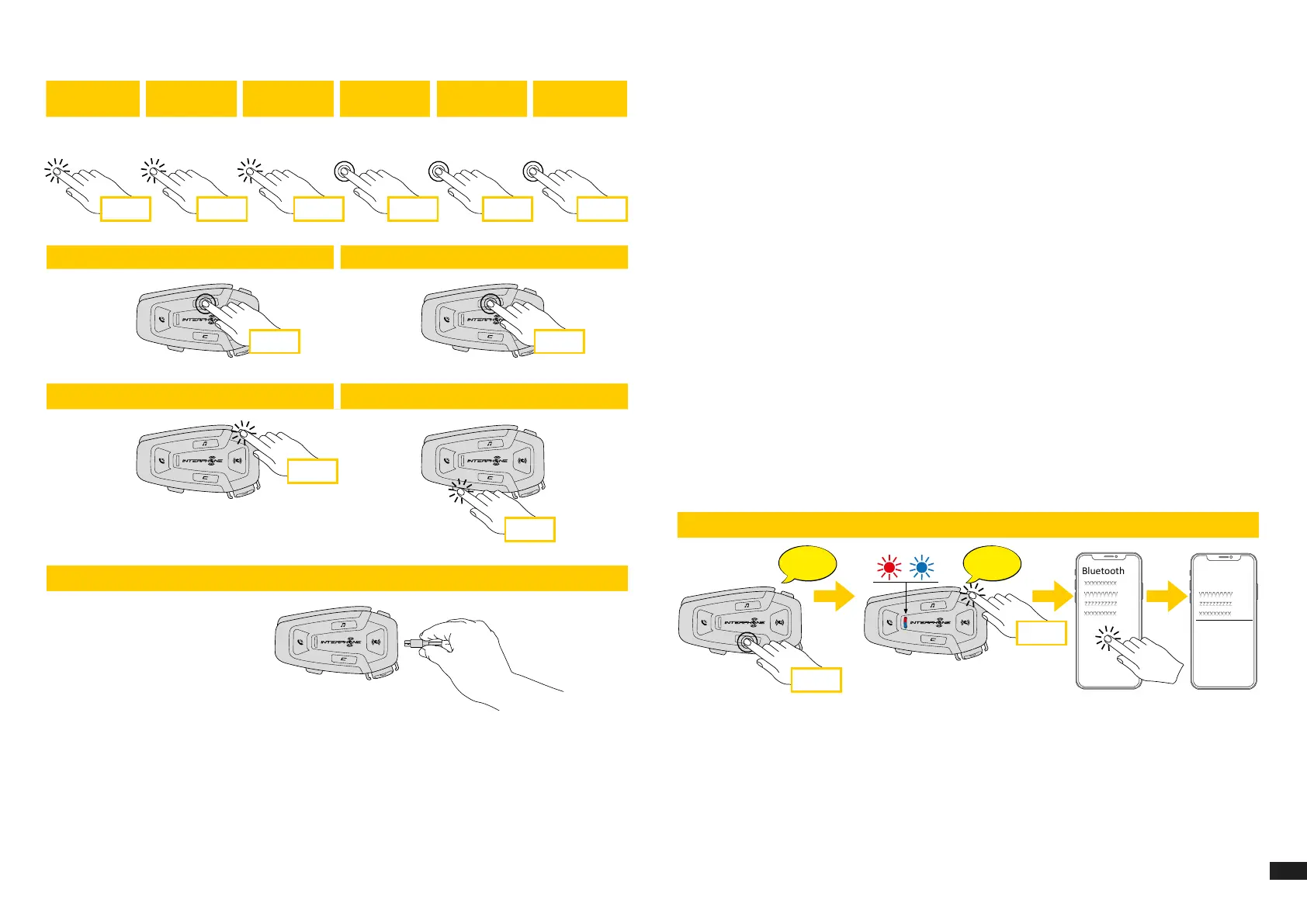
Legenda and basic functions
Power on Power o
Volume increase Volume decrease
Charging
Press once Press twice
Press three
times
Press and hold
for 1 sec
Press and hold
for 3 sec
Press and hold
for 5 sec
x 1
x 1
x 1 x 2 x 3
1 sec
1 sec
3 sec
3 sec
5 sec
Legenda and basic functions
Power on Power o
Volume increase Volume decrease
Charging
Press once Press twice
Press three
times
Press and hold
for 1 sec
Press and hold
for 3 sec
Press and hold
for 5 sec
x 1 x 2 x 3
1 sec
3 sec
5 sec
Legenda and basic functions
Power on Power o
Volume increase Volume decrease
Charging
Press once Press twice
Press three
times
Press and hold
for 1 sec
Press and hold
for 3 sec
Press and hold
for 5 sec
1 sec
3 sec
5 sec
Legenda and basic functions
Power on Power o
Volume increase Volume decrease
Charging
Press once Press twice
Press three
times
Press and hold
for 1 sec
Press and hold
for 3 sec
Press and hold
for 5 sec
Note:
• U-COM 8R use a fast charging technology, via USB-C connector. Charging
for 30 minutes will give 3,5h in Mesh mode.
• Any USB charger with FCC, CE, IC or any local approval can be used.
• U-COM 8R is compatible only with USB device with 5V DC input.
4. PAIRING WITH OTHER BLUETOOTH
®
DEVICES
When using the headset with other Bluetooth
®
devices for the rst time, they
will need to be “paired.” This enables them to recognize and communicate
with one another whenever they are within range.
U-COM 8R can be paired to Bluetooth
®
devices such as mobile phones, GPS
Satnav and TFT motorcycle multimedia systems.
4.1 Pairing with Mobile phone / TFT systems
1. Switch on Bluetooth
®
service on your phone (check device manual for
more details).
2. With U-COM 8R on, press and hold central button for 10 seconds, to
enter settings menu. Don’t release the button until the led light is blue.
3. Press once VOLUME + button to start phone pairing mode.
4. On your phone search for new Bluetooth
®
devices.
5. In few moments the phone will list “U-COM 8R vx.x” among available
devices to pair. Select this item.
6. If prompted for a PIN or code, enter 0000 (four times zero ).
7. U-COM Voice guide will conrm the successful pairing.
8. If your smartphone asks for additional authorization please conrm.
UCOM16
UCOM8R
UCOM8R
5 sec
x 1
TFT
UCOM16
Cascopilota
COLLEGAMENTI
UCOM8R
Bluetooth
®
devices pairing
Con guration
menu
Con guration
menu
Con guration
menu
Con guration
menu
Phone
pairing
Phone
pairing
Second
mobile phone
pairing
GPS pairing
Main phone pairing (to be done with unit on)
Second phone pairing (to be done with unit on)
Gps SATNAV & TFT pairing (to be done with unit on)
TFT
UCOM16
Rider’shelmet
CONNECTIONS



 To Next Page