19
20
1. Power on the player. Wait until the main screen is displayed.
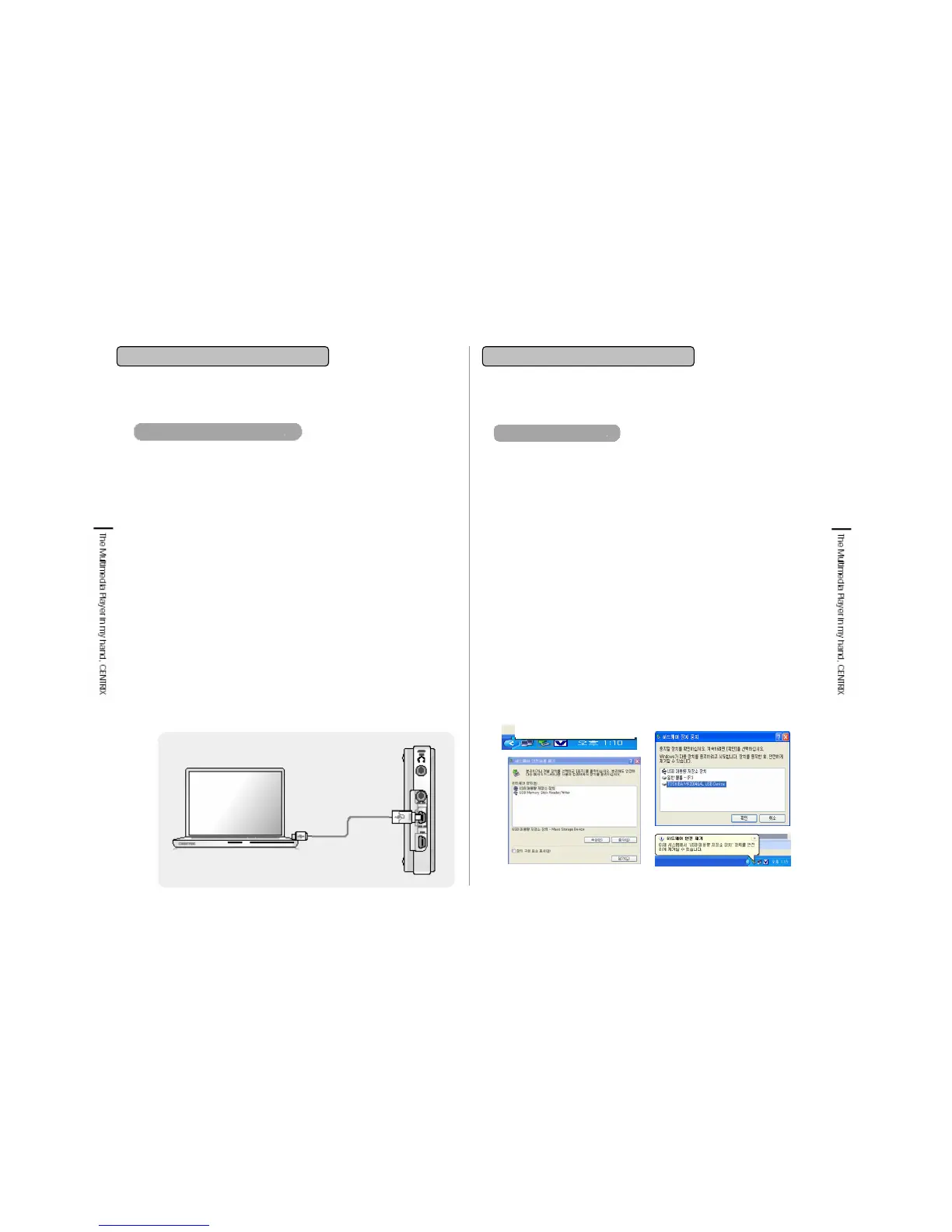
2. Connect to a PC with USB 2.0 cable (Mini USB B, long cable).
When it is connected to PC, “USB Device Connected” message
will pop-up on the screen
of the player.
3. Open USB port which is on the left side and connect USB 2.0
cable (Mini USB B, long cable) with USB 2.0 Jack which is on
the lower end of player.
4. When it is connected to the main body, it is detected as a mass
storage on PC. If no power source is input, the USB is not
detected. Power on when it is connected to PC.
5. When it is connected to PC, it is detected as a mass storage,
MVP-100.
6. you can transfer movie, music, image file from PC to audio box,
Video, Image folder in the player.
• You should connect to PC with USB 2.0 port.
• This player has USB 2.0 & USB1.1 Host Jack.
Do not use with connecting above two Jacks at the same time.
• Under Window 98 system, you should install additional USB
driver for recognition of USB.
2. Getting Started
2-2. Connecting & Installation
PC Connecting with USB 2.0
2-2. Connecting & Installation
2. Getting Started
Separation from PC
1. If you want to separate the connection between player
and PC, click the USB connecting icon from the menu
icon which is shown right side in the below end of PC
then “Hardware safely detachable” message will pop-up.
2. Select “USB mass storage device” and press ”Stop”.
3. Select “ Toshiba MK2004GAL USB Device” and select
“ Hardware device stop” message from menu.
4. Be sure to check “ Hardware safely detachable” message
on PC.
5. You can separate this player with PC.
Hardware safely detachable


 To Next Page