13
Operation
Connect With Your Smartphone
This WiFi
®
Garage Door Opener is compatible with up to 16 myQ
®
enabled accessories that can be controlled using the myQ
®
app.
You will need:
• Wi-Fi enabled smartphone, tablet or laptop
• Broadband Internet Connection
• Wi-Fi signal in the garage (2.4 Ghz, 802.11b/g/n required), see page 3
• Password for your home network (router's main account, not guest network)
• myQ serial number located on the garage door opener
DOWNLOAD THE myQ APP TO SET UP AN
ACCOUNT AND CONNECT
Open and close your door, get alerts and set schedules
from anywhere. Connected smart garage door openers also
receive software updates to ensure the opener has the latest
operational features.
1. Download the myQ App.
2. Set up an account and connect.
For more information on connecting your garage door
opener, visit support.chamberlaingroup.com.
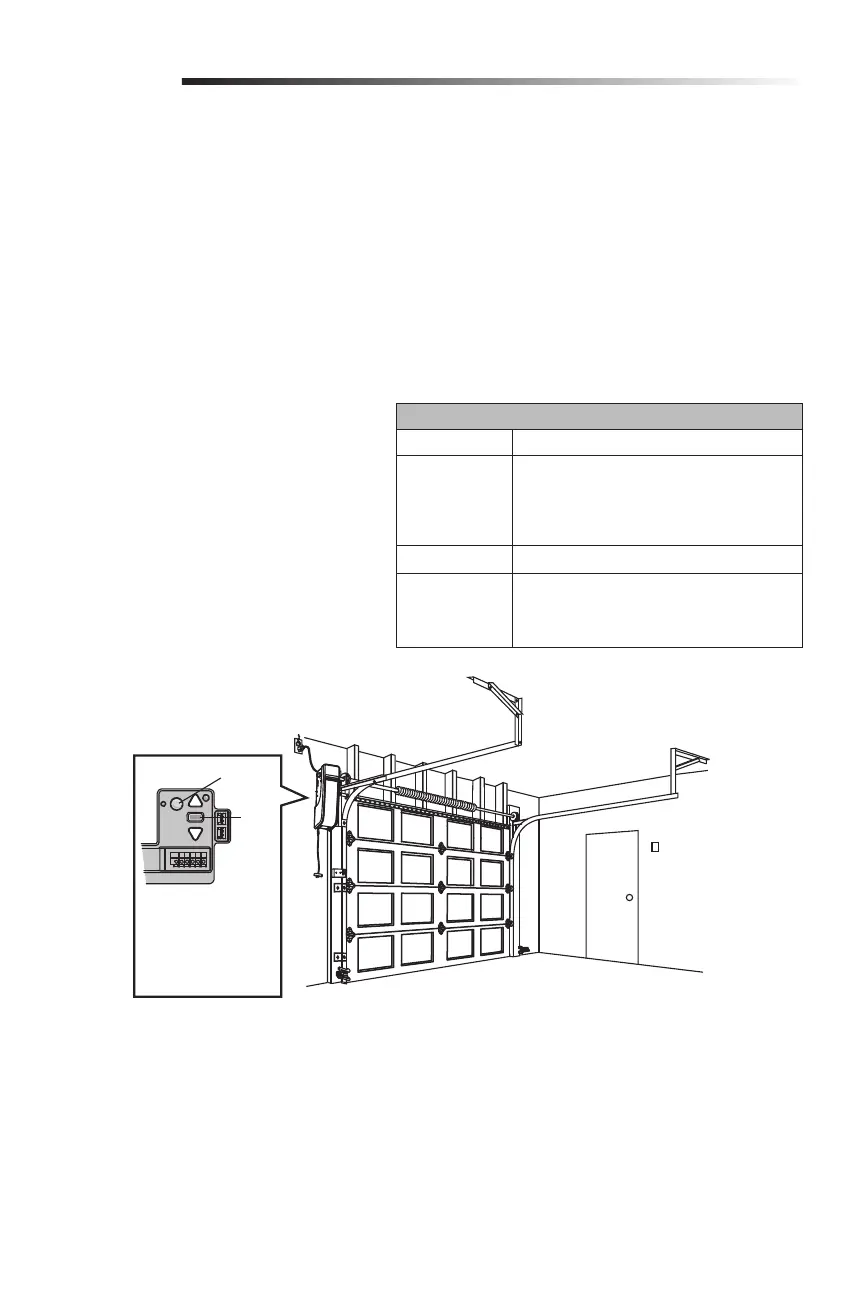
Wi-Fi Status
LED Definition
Blue Off - Wi-Fi is not turned on.
Blinking - Garage door opener is in Wi-Fi learn
mode.
Solid - Mobile device connected to the garage
door opener.
Blue and Green Blinking - Attempting to connect to router.
Green Blinking - Attempting to connect to the Internet
server.
Solid - Wi-Fi has been set up and garage door
opener is connected to the Internet.
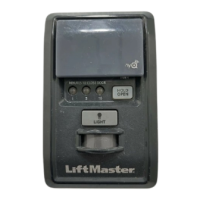
SYNCHRONIZE THE DOOR CONTROL
To synchronize the door control to the garage door opener, press the push bar until the garage door opener activates (it may take up to
3 presses). The garage door opener must run through a complete cycle before it will activate Wi-Fi programming.
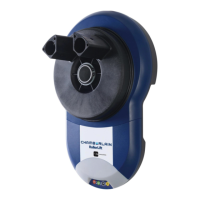
An LED on the
garage door opener
will indicate Wi-Fi
status. See table
above.
LED
Learn
Button
NOTES:
The myQ Smartphone Control WILL NOT
work if the garage door opener is operating on
battery power.
To erase the Wi-Fi settings, see page 17.
If you need help adding devices to your
myQ account, or to learn more go to
support.chamberlaingroup.com.




 To Next Page