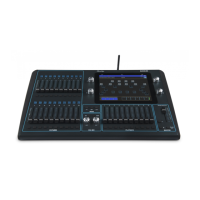
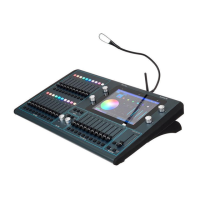
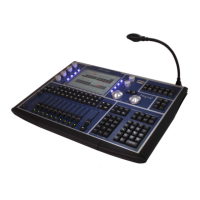
ChamSys QuickQ Series Service Document
Page 14 of 17 www.chamsys.co.uk
Replacing switches:
To replace switches, first remove the relevant PCB from the console, as per the
instructions in section 3. You will then need to remove the rubber keymat for the row of
switches, which simply pulls off. The faulty switch can then be replaced by de-soldering
the 4 surface-mounted solder joints, as highlighted in the image below, right. Once the
faulty key is removed, hold the new key in place and solder the connections.
Switch part number: 307-045
Section 5: Setting the ID of the multi-function preset fader PCB.
If the multi-function preset fader PCB is replaced (the left-hand fader panel), you may
need to reset the PCB ID. Usually this is programmed as ID1 for QuickQ 10 and 20. For the
QuickQ 30, which has 2 of these PCBs fitted, then left-hand PCB is programmed as ID1,
while the right-hand PCB is programmed as ID2.
To reprogram the PCB ID:
1. Connect the PCB(s) as normal to the motherboard PCB in the console
2. Access the factory tests via the Startup App (see Section 2)
3. Use the ‘Set Product’ option to select the product as a QuickQ 30 (left pic, below)
4. Next, select the appropriate test for the panel you are reprogramming (right
picture, below). When set as a QuickQ 30, you will see two options here, for the
left and right fader panels. If reprogramming the multi-function faders on a
QuickQ 10, 20 or the left-hand PCB on a QuickQ 30, select the ‘Wing fader panel
left’ option. OR to set the Right-hand fader panel on a QuickQ 30 (ID2), select the
‘Wing fader panel right’ option.


 To Next Page
 Loading...