iGage X9x User Manual page 48 of 53
Configuring the Radio Channel List in the Receiver
In the United States a FCC license is required to operate the UHF radio at any power, on any frequency. Your FCC
license will specify a ‘Call Sign’ which must be broadcast at least once every 15-minutes. Violating these requirements
may result in large daily fines.
Several programs are available to program the radio channel lists within your receiver. These programs can be
downloaded and installed on a Windows computer from the website:
www.x9gps.com click on Tools, then click on Utilities
The HCConfig tool can be used to configure the FCC Call Sign transmission. The iGage Channel Tool can be used to
program radio frequencies.
HCConfig
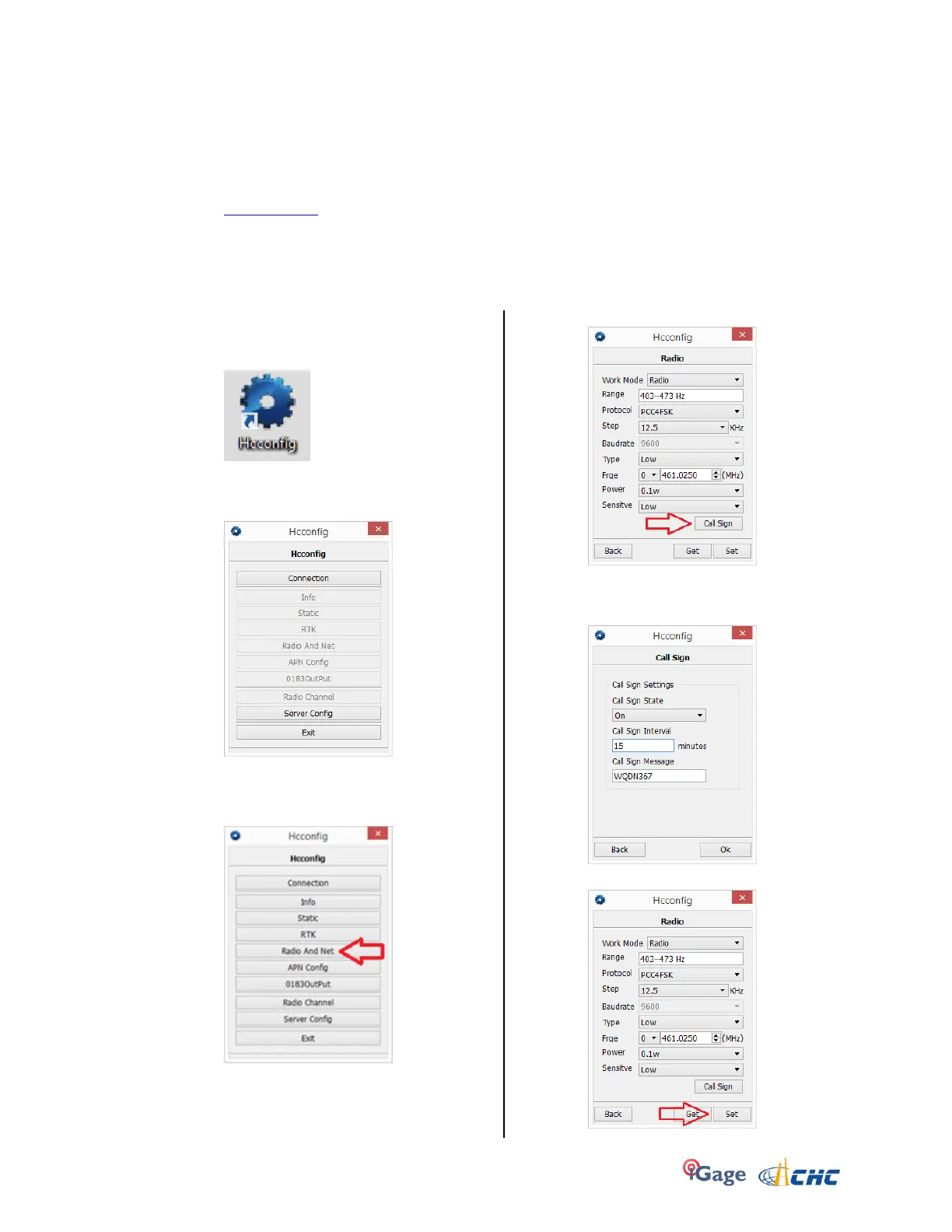
After installing HCConfig using the installation
program contained in the supplied archive, you can
click on this desktop icon:
Double-click on the icon to start HcConfig. (Win 8.1)
users may need to right-click and ‘Run As
administrator’.
Click on Connection, select the correct COM port, the
click on ‘Connect’.
To set the radio call sign, click on ‘Radio and Net’:
Next click on the ‘Call Sign’ button:
Set the ‘Call Sign State’ to ‘On’; set the ‘Call Sign
Interval’ to ‘15’ and enter your FCC assigned Call Sign
in the ‘Call Sign Message’, then click on ‘Ok’:
Finally click on ‘Set’ to push the changes to the radio:



 To Next Page