Configuring 16000 Appliances
16000 Appliances Getting Started Guide|32
Synchronizing RAID
All 16000/16200 appliances support two storage devices, excluding 16600HS.
In appliances that use two storage devices, RAID1 mirroring across both storage devices is used. This lets
the appliance continue to work if there is a storage device failure.
The mirror rebuild is automatic. Both storage devices must be the same type.
First Boot Up
At first boot up, wait for up to six hours to let the storage devices fully synchronize. If you reboot the
appliance before the storage devices are synchronized, the synchronization starts again from scratch at
the next boot.
To monitor the RAID status of the storage devices from the CLI:
1.
Connect to the command line on the appliance.
2. Log in to Gaia Clish or the Expert mode.
3.
Run this command to monitor the RAID status of the storage devices:
raid_diagnostic
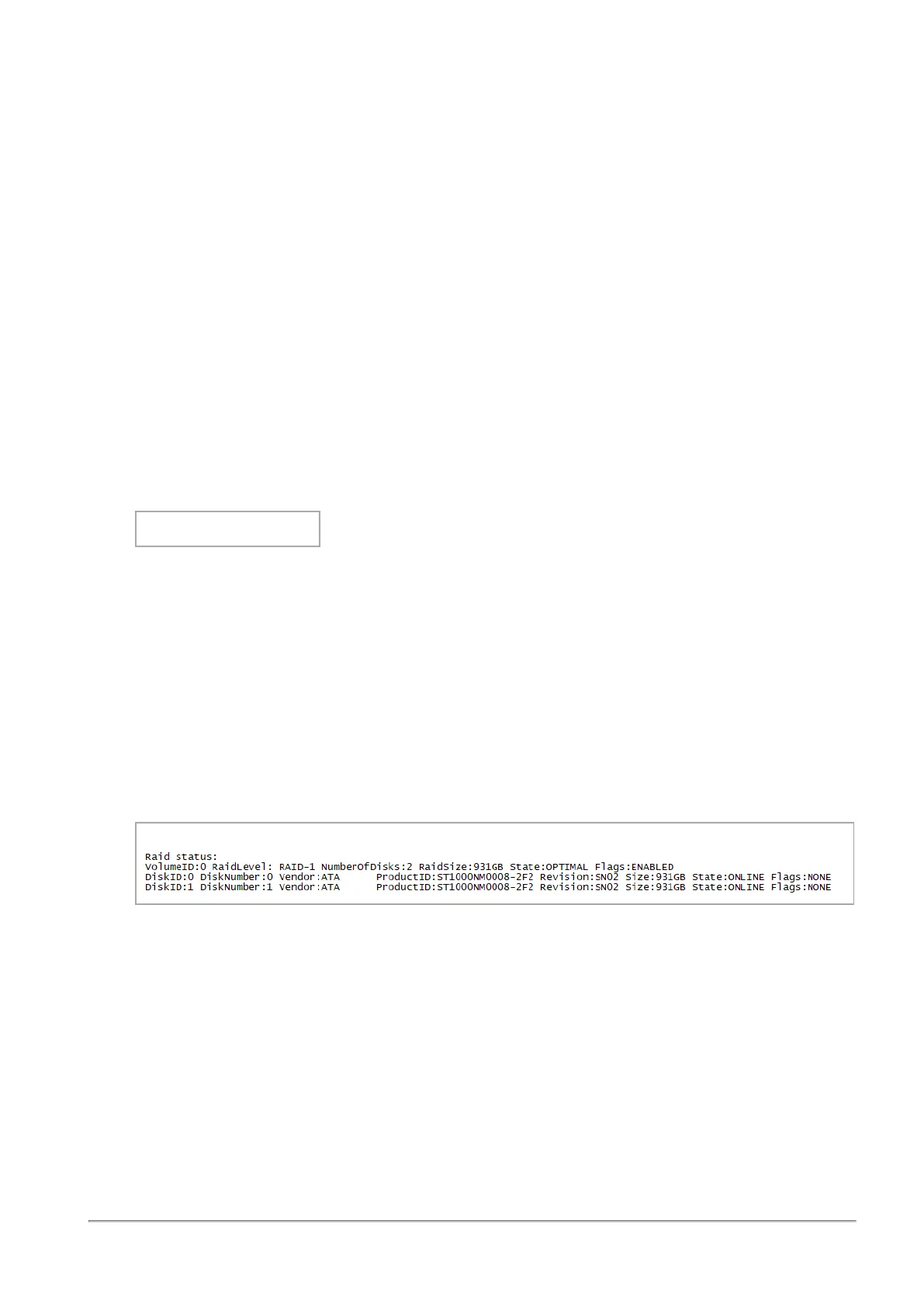
This command shows data about the RAID and storage devices, with the percent of synchronization
done.
DiskID 0 is the left storage device. DiskID 1 is the right storage device.
After the first boot and after you replace a second storage device, the RAID state (in the VolumeID
line) shows DEGRADED (this indicates that the drives are not synchronized). The DiskID:0 state
shows ONLINE and the DiskID:1 state shows INITIALIZING.
After the RAID is synchronized, the RAID state (in the VolumeID line) shows OPTIMAL (this
indicates that the drives are synchronized). The DiskID:0 and DiskID:1 states show ONLINE.
This example shows that the storage devices are fully synchronized (disk sizes and vendor may
vary):
MyAppliance> raid_diagnostic
To monitor the RAID status of the storage devices from the Gaia Portal:
1. Log in to the Gaia Portal.
2. From the left tree, click Maintenance > RAID Monitoring.
To monitor the RAID status of the storage devices from SmartConsole:
1. From Gateways & Servers, select the object that represents the appliance.
2. In the Summary tab, click Device Information.



 To Next Page