Using the First Time Configuration Wizard
Quantum Spark 1530 / 1550 Appliance R80.20.XX Getting Started Guide|23
If you enter a host name, it is saved and the Security Gateway will re-resolve the name of the
IPaddress changes. This configuration can be edited later in the Home > Security Management
page of the WebUI.
If you do not select this checkbox and you use a host name to fetch the policy, when the policy is
fetched, the Security Management Server IP is set to the IP address in the policy.
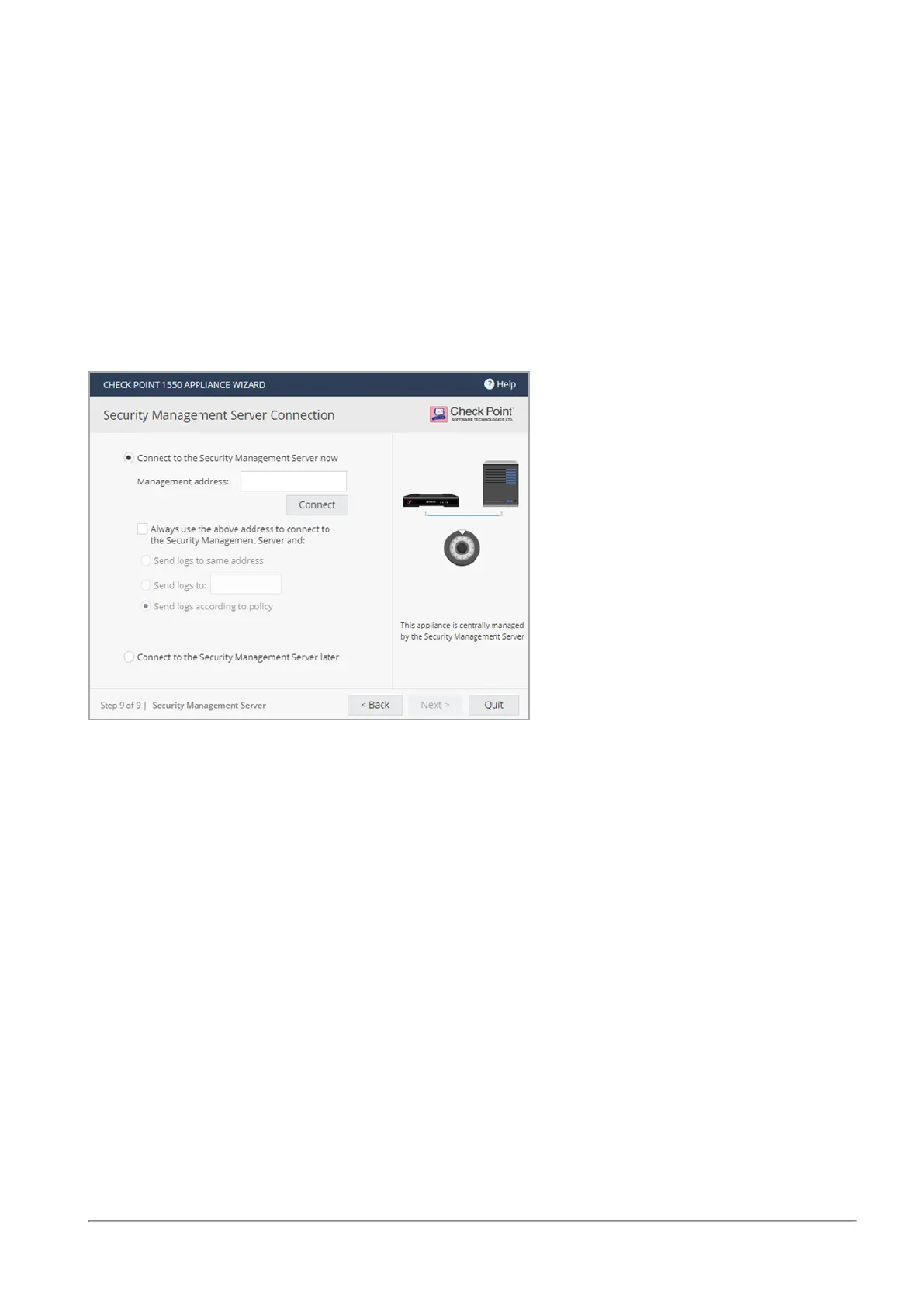
Select where to send logs:
l
Send logs to same address - The logs are sent to the IP address entered on this page for
the Security Management Server.
l
Send logs to - Enter the IP address of a log server.
l
Send logs according to policy - The logs are sent according to the log server definitions that
are defined in the policy.
Internet Connection
In the Internet Connection page, configure your Internet connectivity details or select Configure Internet
connection later.
To configure Internet connection now:
1. Select Configure Internet connection now.
2. From the Connection type drop down list, select the protocol used to connect to the Internet.
3.
Enter the fields for the selected connection protocol. The information you must enter is different for
each protocol. You can get it from your Internet Service Provider (ISP).
n
Static IP - A fixed (non-dynamic) IP address.
n
DHCP - Dynamic Host Configuration Protocol (DHCP) automatically issues IP addresses
within a specified range to devices on a network. This is a common option when you connect
through a cable modem.









 To Next Page