Chapter I. Unified Boot Option ROM
Chelsio Unified Boot 9
2. Hardware Installation
i. Shutdown/power off your system.
ii. Power off all remaining peripherals attached to your system.
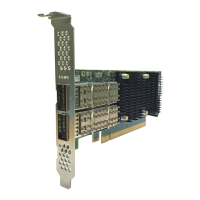
iii. Unpack the Chelsio adapter and place it on an anti-static surface.
iv. Remove the system case cover as per the system manufacturer’s instructions.
v. Remove the PCI filler plate from the slot where you will install the Ethernet adapter.
vi. For maximum performance, it is highly recommended to install the adapter into a PCIe
x8/x16 slot.
vii. Holding the Chelsio adapter by the edges, align the edge connector with the PCI connector
on the motherboard. Apply even pressure on both edges until the card is firmly seated. It
may be necessary to remove the SFP (transceiver) modules prior to inserting the adapter.
viii. Secure the Chelsio adapter with a screw, or other securing mechanism, as described by the
system manufacturer’s instructions. Replace the case cover.
ix. After securing the card, ensure that the card is still fully seated in the PCIE x8/x16 slot as
sometimes the process of securing the card causes the card to become unseated.
x. Connect a fiber/twinax cable, multi-mode for short range (SR) optics or single-mode for long
range (LR) optics, to the Ethernet adapter or regular Ethernet cable for the 1Gb Ethernet
adapter.
xi. Power on your system.
xii. On Linux systems, run update-pciids command to download the current version of PCI ID list
xiii. Verify if the adapter was installed successfully:
• On Linux and ESXi systems, run lspci command and you should see a similar output:
• On Windows systems, follow these steps:
a. Open Device Manager in Control Panel.
b. Under Other devices section, Chelsio adapter should be listed as Ethernet
Controller. If the adapter is not listed, right-click on the system name or click
on the Actions menu and select Scan for hardware changes.


 To Next Page
 Loading...