14
How to Change WiFi?
Tap on [Settings]-[Others]-[Network Conguration]-[Change WiFi], select the WiFi name
and then enter the password. The WiFi indicator will stop blinking when the network is
connected.
2. Cellular Connection
Preparations before Use
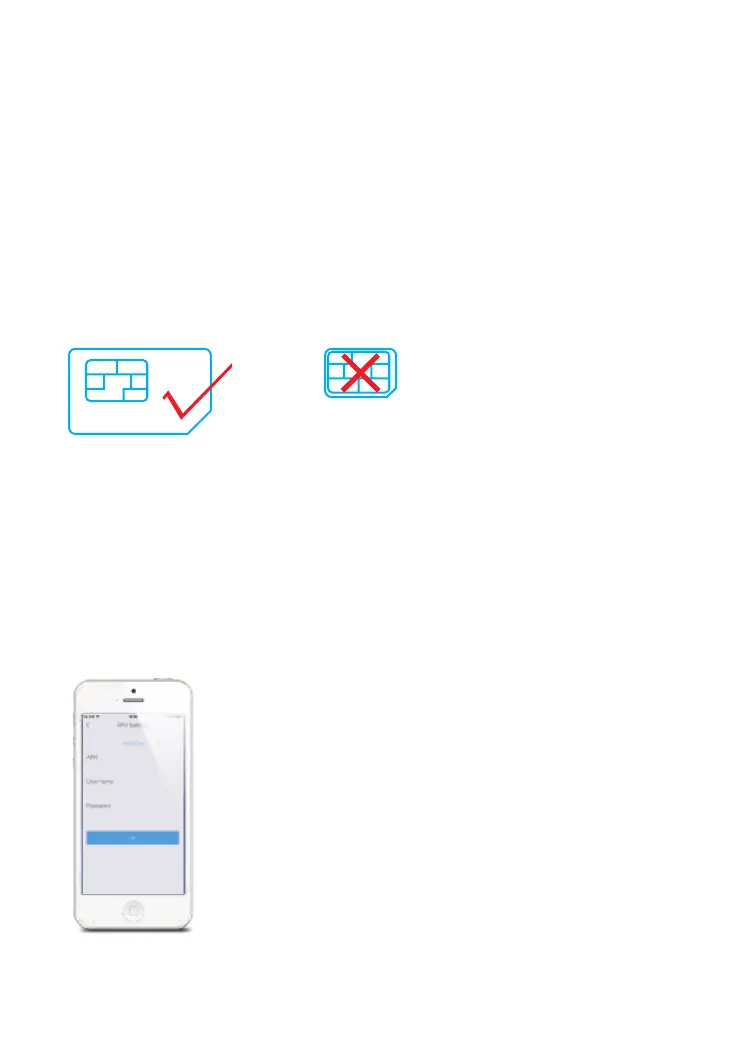
1. A regular-size 2G/3G/4G* SIM card is needed to be inserted into the hub’s SIM slot.
*H4 plus: supports 2G cellular network, if using 3G/4G SIM card, please make sure the 2G network of
this cellular operator is still available in your country.
H4-LTE: supports 4G cellular network.
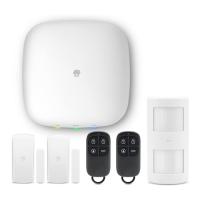
2. Connect the Hub with the provided AC adapter.
3. Turn the power switch of the hub from “OFF” to “ON”.
There are two scenarios for Cellular : 1. You have home WiFi and Cellular is used as a
backup. 2. You don’t have home WiFi and Cellular is used for sending notications, SMS
and phone calls.
For the rst scenario, connect to the WiFi by following the instructions in WiFi Connection
above To set up Cellular , go to Settings - My Hub - APN Setting, input required
information for cellular data and tap OK.



 To Next Page