Circle
®
User Guide
11
Filter
Set online content lters that match each family member’s age and
interests. When setting a lter, you rst must select a lter level as
a starting place, which you can always customize to be the right t
for each family member.
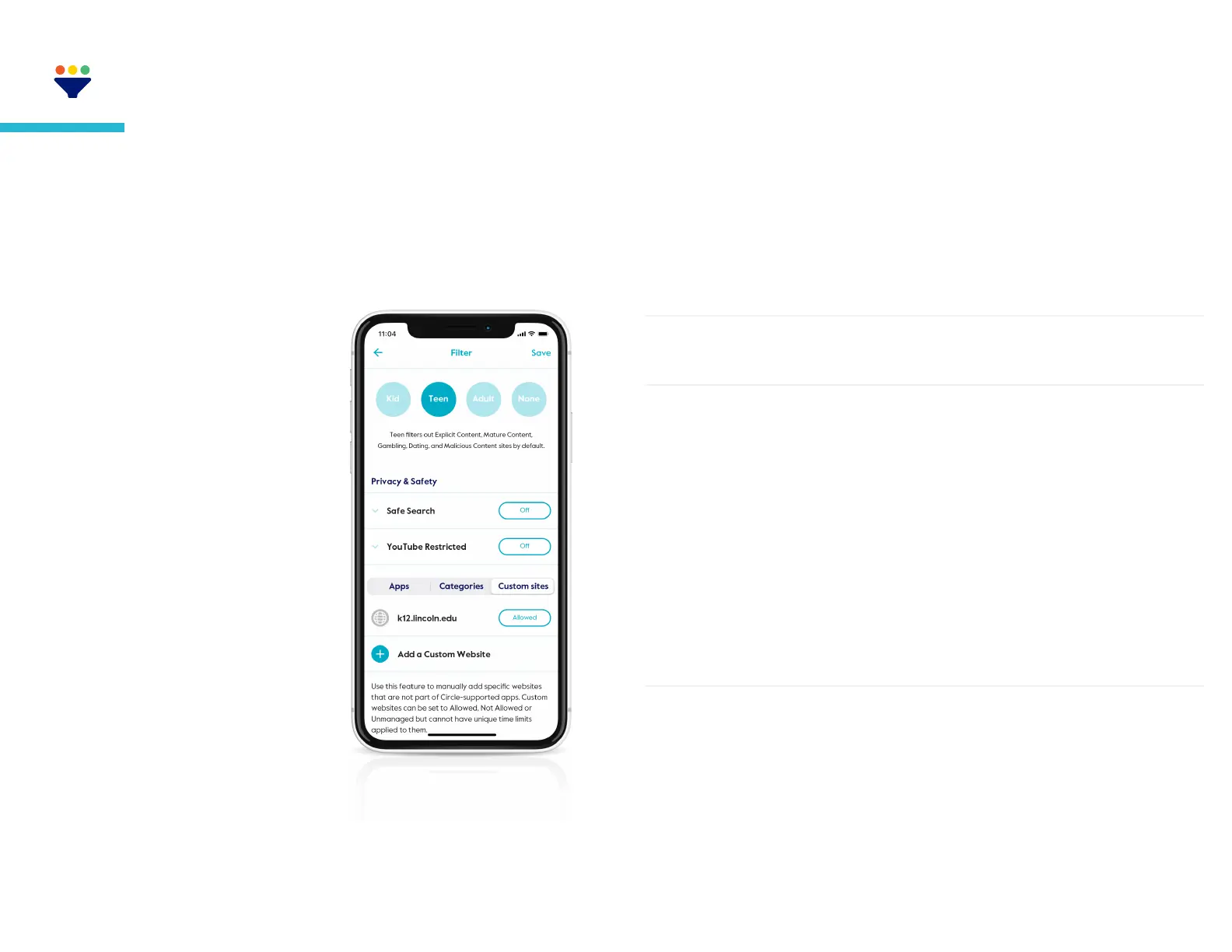
To edit a family member’s lter, tap on
their prole, then select lter.
Filter levels
Kid
Grants access to kid-safe experiences,
like the education category, but lters
out content not appropriate for children
(most restrictive level)
Teen
Grants access to most general-use
platforms and categories, without
mature or adult-oriented content
Adult
Grants access to nearly all platforms,
categories, and apps, though explicit
content is ltered out by default
None
Means that Circle won’t lter content,
track usage or history, or limit time online
for any assigned devices
Filter settings
After you select a lter level, you can customize it by setting
content to allowed, not allowed, or unmanaged by tapping
the text-box across from the platform or category name.
Content from this source is available and tracked
by Circle
Allowed
Content is restricted by the lter
Not allowed
Internet trac is allowed to freely come
and go from this site, even if Circle is set on
Pause, Bedtime, or Focus Time. Trac to any
unmanaged site does not count toward Time
Limits.
Tapping the Custom Sites section on the right
lets you create a lter setting for an individual
site. Follow the steps to type in the name of the
site and pick a lter setting for it.
Unmanaged
Custom Sites
Privacy & safety
Filters sexually-explicit content from search
results in Google, Bing and DuckDuckGo.
Safe search
When enabled, enforces an optional YouTube
setting to lter out potentially mature videos
and livestreaming.
YouTube restricted


 To Next Page