Circle
®
User Guide
19
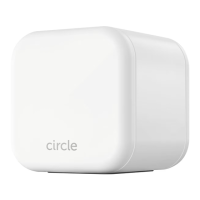
If you don’t have a Circle Home Plus, open the Circle App and press get Circle
Home Plus from the home screen menu.
If Circle Home Plus isn’t pairing with your network via ethernet, make sure the
mobile device with the Circle App (most likely your smartphone) is connected
to the network created by your router. This way, Circle can verify that the
Circle Home Plus you’ve plugged in is associated with your Circle account.
If you don’t have a spare ethernet port in your router, just skip ethernet
pairing by tapping pair with Wi-Fi instead during setup.
If you skip ethernet pairing, you’ll have to connect your phone to the Circle
Home Plus hotspot. Follow the instructions in the app, and make sure that you
stay connected to the Circle Home Plus hotspot, even though you won’t have
an Internet connection on your phone for the moment.
If Circle Home Plus isn’t pairing with your network via Wi-Fi, make sure that
you’ve connected to the Circle Home Plus hotspot (if the app required you
to do so) before continuing, or that you’ve correctly entered your Wi-Fi
password credentials into the Circle App.
If you paired Circle Home Plus over ethernet but don’t use Wi-Fi, or you’re
unable to pair wirelessly, just tap skip Wi-Fi pairing during setup.
If your Circle Home Plus seems to be creating problems for your home
network, try temporarily disabling it from the settings screen (found by
tapping the menu button in the top-left corner of the home screen, then
settings, then disable Circle Home Plus).
If Circle Home Plus is oline or not working, try rebooting your router and
Circle. Set up again by opening the menu and select Remove Circle Home
Plus then Resetting Circle.
If the problem goes away after you’ve disabled Circle Home Plus, check to
make sure that all networking equipment (like a mesh network extender or
other network fabric) and smart home devices (like smart thermostats and
light bulbs) are set to unmanaged.
Helpful resources to get the most from Circle:
FAQs
Feature Guides
Networking & Compatibility
Troubleshooting Resources
Troubleshooting Circle Home Plus Troubleshooting Circle Home Plus


 To Next Page