Circle
®
User Guide
15
Find the current location for a family member's mobile devices. To
use Location, the devices you want to locate must have the Circle
App and VPN installed with location services enabled. Notication
services must also be enabled on the parents' and kids' devices.
Additionally, Location will only work once the mobile device is
assigned to the kid's prole that you wish to location.
Location
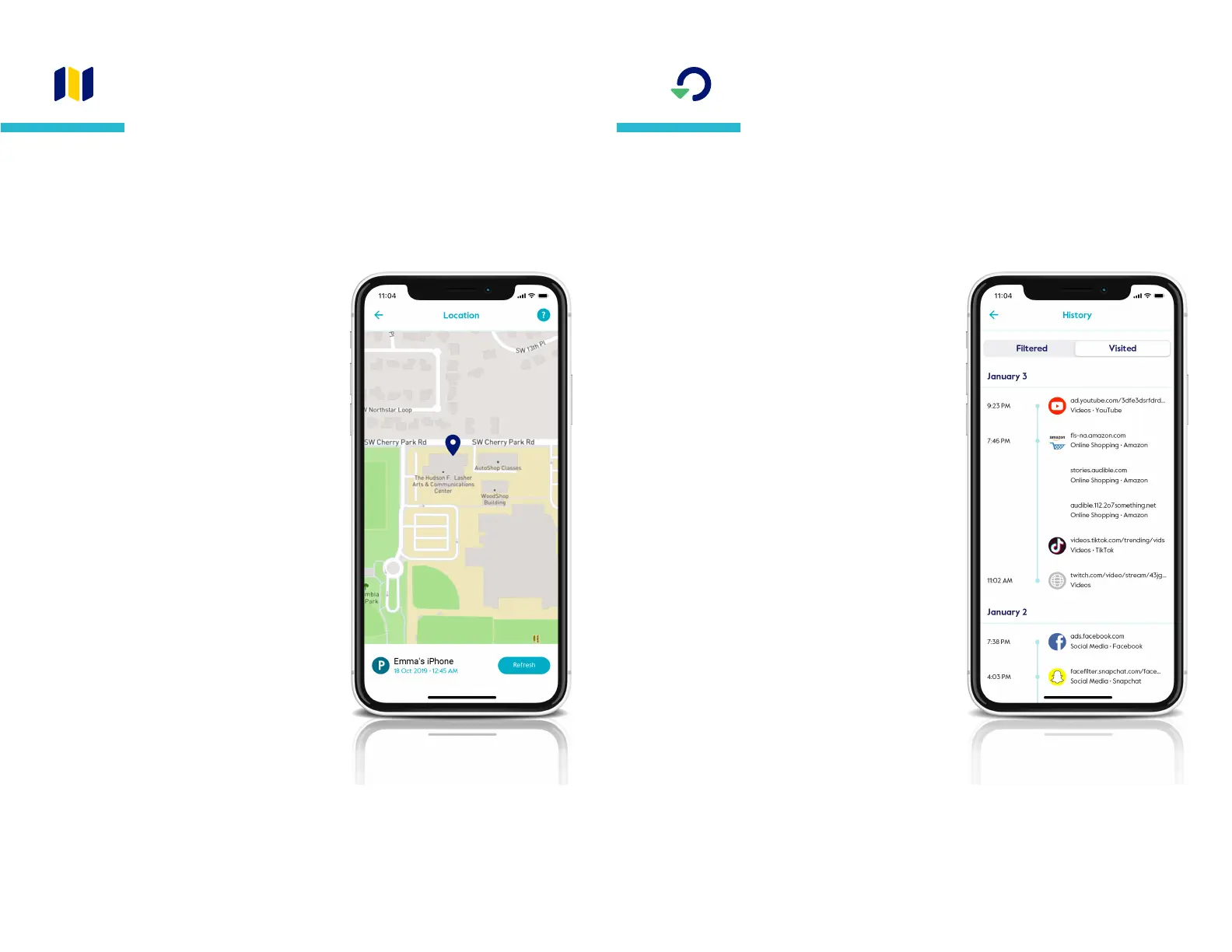
To locate a family member's
device
Tap on a prole from the home screen,
then select location from the feature list.
You might have to pick from a list of
devices to locate.
Wait for Circle to locate the device (this
may take a minute or two).
When the device has been found, you’ll
see a marker on the map.
At the bottom of the screen, you’ll see
the time when the location was received.
Tap refresh to see their location again.
Locating a device will only work if
location services are enabled on the
device you are locating, and Circle will
notify you if this is the reason a device
cannot be located.
Circle does not store a history of
previous locations.
History displays a chronological list of sites viewed by a prole.
Toggle between Filtered and Visited to see which sites were
prevented or accessed.
To see a family member’s
History
Tap on a prole from the home screen,
then select History in the feature list.
Select visited to see sites that a family
member accessed.
Toggle over to ltered to see sites
that Circle blocked because of a family
member’s lter settings.
To take action on a History
entry, tap on it and select
from the following options
Visit website, which opens your web
browser and takes you to the home
page of the site (not all sites support
this feature).
Set as allowed
Set as not allowed
Set as unmanaged
You can edit any of these custom lters
by selecting Filter from the prole
features list, then tapping custom lter
on the bottom of the screen.
History


 To Next Page