Circle
®
User Guide
9
Devices
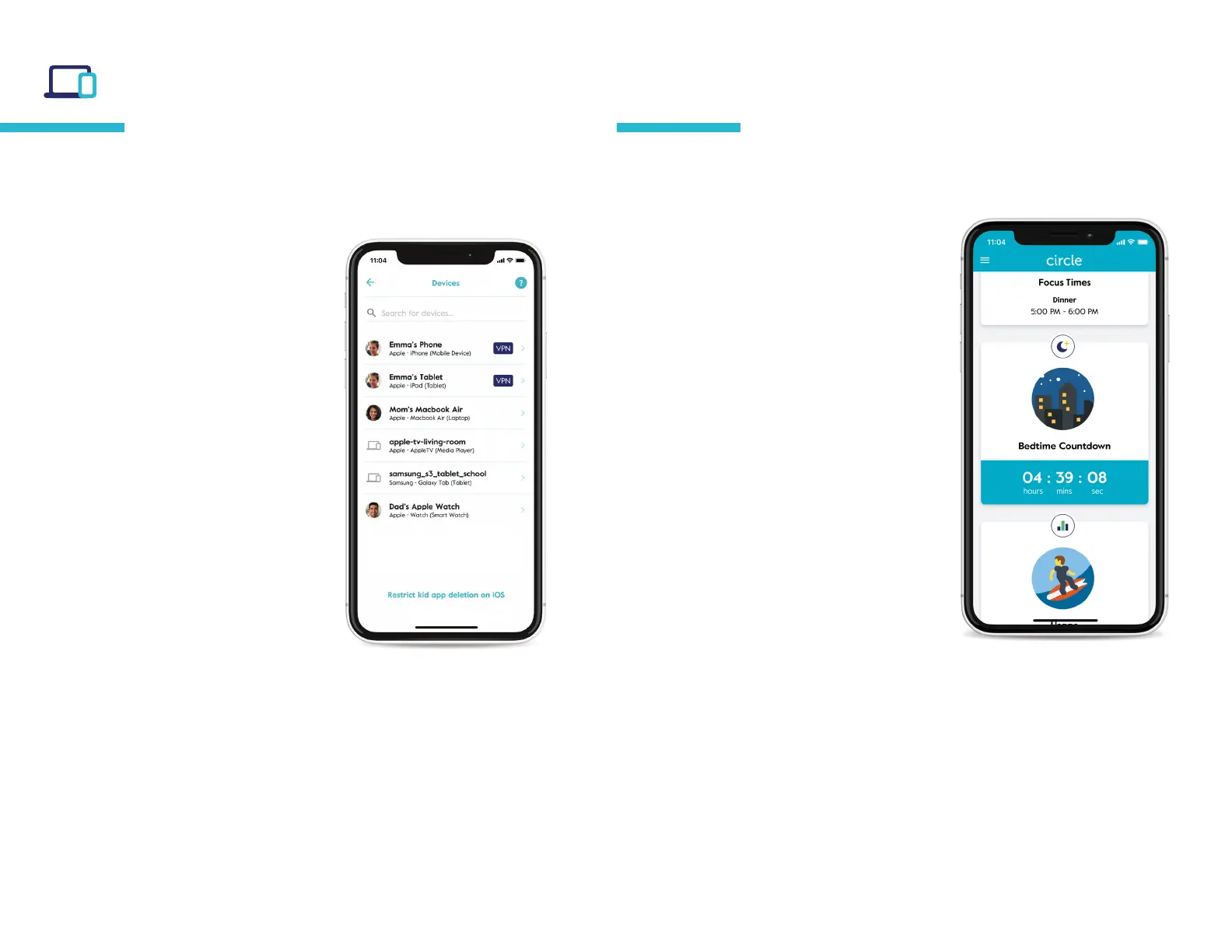
Tap on any device from the
device list to see the device
settings, where you’ll nd:
The assigned prole (edit by tapping
the text)
The device name (edit by tapping the
text)
The manufacturer and device ID — which
can help you identify the device if you
can’t gure out which is which
If it’s a kid device (with the Circle App
installed and congured), you’ll see the
VPN status.
The option to remove device, which
deletes this device from Circle
If you don’t want to manage this device
with Circle, set it to unmanaged.
A pause button, just for this single device
From the home screen, you can nd a list of all Circle devices by
tapping the devices icon in the top right portion of the screen.
From the prole screen, you can nd a list of all assigned devices
by selecting devices.
Dashboard
Finding the dashboard
If you’ve assigned a family member’s
device to a prole, they can use the
dashboard from the Circle App or a
web browser by visiting
dashboard.meetcircle.com.
What’s on the dashboard
On the dashboard, you’ll see
information for the various Circle
features you’ve enabled for that family
member. There’s also a general prole
card, where you can see the device
name associated with Circle. Finding
the device name can be helpful for
identifying devices if you’re not sure
which is which.
Dashboard push
notications
Push notications let your family
members know about changes to their
Internet access throughout the day
from Circle. They’ll be notied about
Circle features like Pause, Time Limits,
Focus Times, Bedtimes, and more.
The dashboard is where your family can check their online time for
the day, and nd other helpful information.


 To Next Page