Circle
®
User Guide
16
You may notice total online time does
not always match the sum of usage
from visible categories. This is because
each platform's algorithm is unique and
may contribute dierently to active
screen time versus background trac.
To see a family member’s
Usage
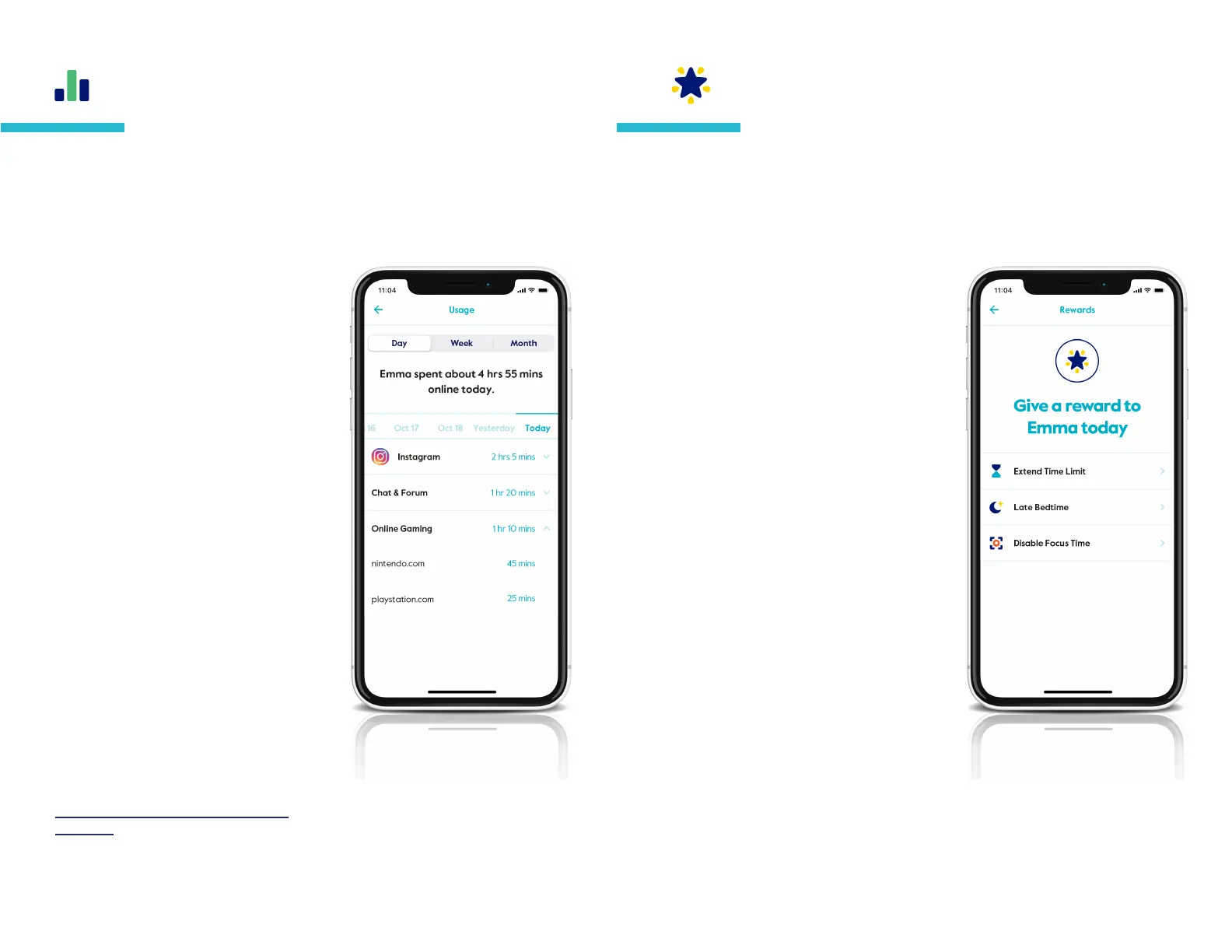
To see a family member’s Usage, Select
Usage in the feature list.
At the top of the screen, you can select
between usage by day, week, or month.
Next, you’ll see a summary of total time.
Below that, you can scroll from the
current period and into past usage.
Take action on a Usage entry by
following the same steps outlined
above for History.
In addition to the popular apps and
websites visible by default, Circle can
help you manage 100s more through
Usage.
Learn more about hidden apps and
websites.
Compare time online today, last week, or months past while
viewing the total time spent online per category and platform.
See a list of sites and platforms by tapping on a category.
A pop-up menu will allow you to take action on a particular
category that contributed total online time.
Usage
Rewards are an easy way to send family members extra online time
for an individual day. Rewards expire at midnight, so original time
limits are reset the following day.
Rewards
To send a Reward
Tap on a prole from the home screen,
then tap the star in the top right corner,
or select Rewards from the feature list.
Pick from three types of rewards: Extend
Time Limit, Late Bedtime, or Disable
Focus Time.
Set the Reward based on the existing
settings, and press send to nish.
Types of Rewards
Extend Time Limit to add additional
time to an existing Time Limit
Late Bedtime to set a new start time
for that night's Bedtime
Disable Focus Time to remove a
regularly scheduled Focus Time
To edit or cancel a Reward
Tap on a prole from the home screen
and select Rewards from the feature
list.
To edit a Reward, tap the edit
existing rewards button to make the
appropriate changes.
To cancel a Reward, tap the edit
existing rewards button and swipe
to delete it from the list.


 To Next Page