ADJUSTING PHONE SETTINGS
Action Step 1 Step 2 Step 3 Step 4
Ringer Volume
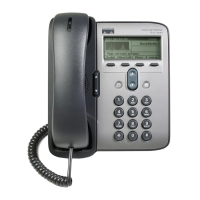
• While the phone is ringing,
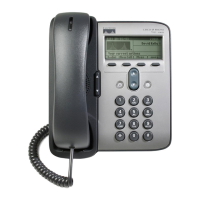
press the VOLUME arrow
key next to the handset.
• This will adjust the
volume of the ringer.
Handset
Volume
• While on an active call, press
the VOLUME arrow key
next to the handset.
• This will adjust the
volume of the
handset.
Changing the
Ringer Sound
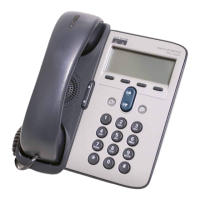
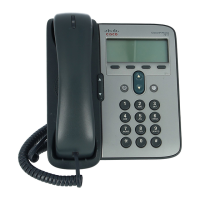
• Press the SERVICE button
to the right of the blue arrow
key.
• The display will show three
menu choices:
1. Messages
2. Directories
3. Settings
• Use the blue arrow
key to scroll to the
Settings selection.
• When it is
highlighted, press the
SELECT soft key.
• Using the blue arrow key,
scroll through the Ring
Types.
• When the desired selection is
highlighted, press the PLAY
soft key to hear the ring type.
• Press the SELECT soft key
to select the highlighted
Ring Type.
• Press the SAVE soft key.
• Press the EXIT soft key.
Adjust Display
Contrast
• Press the SERVICE button
to the right of the blue arrow
keys
• The display will show three
menu choices:
1. Messages
2. Directories
3. Settings
• Use the blue arrow
keys to scroll to the
Settings selection
• When it is
highlighted, press the
SELECT soft key
• Using the blue arrow keys,
scroll to Contrast
• When it is highlighted, press
the SELECT soft key
• Use the UP and DOWN
soft key to make changes
• View the DISPLAY until it
reflects the contrast setting
you desire.
• Press the OK soft key to
enable the setting changes.
• Press the SAVE soft key.
• Press the EXIT soft key.
Xutel ExChange 8 of 10
Cisco 7905/7912 User Manual–v1.0 02/11/05
Xutel ExChange



 To Next Page