EasyManua.ls Logo

Cisco 7975G - User Manual

Cisco 7975G
14 pages
Print Icon
To Next Page IconTo Next Page
Loading...
Cisco Unified IP Phone User Guide for Cisco Unified Communications Manager 8.6 (SCCP and SIP) 1
An Overview of Your Phone
Cisco Unified IP Phones are full-feature telephones that provide voice communication over the data
network that your computer uses, allowing you to place and receive phone calls, put calls on hold,
transfer calls, make conference calls, and so on.
In addition to basic call-handling features, your Cisco Unified IP Phone can provide enhanced
productivity features that extend your call-handling capabilities. Depending on the configuration,
your phone supports:
Access to network data, XML applications, and web-based services.
Online customizing of phone features and services from your Cisco Unified CM User Options
web pages.
A comprehensive online help system that displays information on the phone screen.
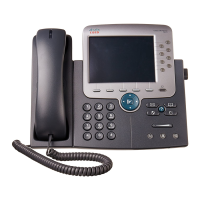
Understanding Buttons and Hardware
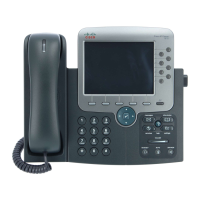
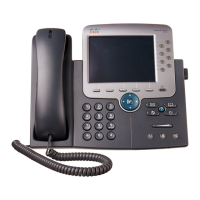
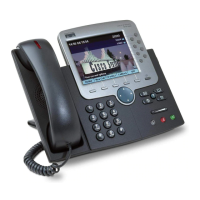
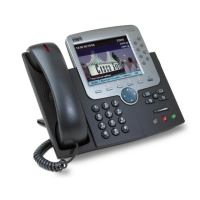
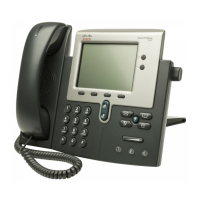
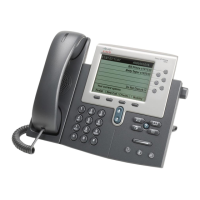
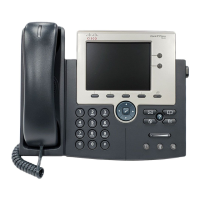
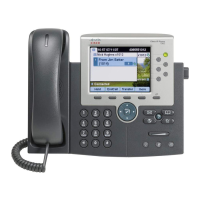
To identify buttons and hardware on your phone, refer to the following figures and table.

Other manuals for Cisco 7975G

Questions and Answers

  • J
    Jay TurnerAug 30, 2025
    Why does Barge fail and result in a fast busy tone on my Cisco 7975G?
    • S
      Shelby FlemingAug 30, 2025
      Barge fails and results in a fast busy tone because you cannot barge an encrypted call if the phone you are using is not configured for encryption.
  • S
    Steve MatthewsAug 30, 2025
    What to do if the softkey that I want to use does not appear on my Cisco 7975G IP Phone?
    • B
      bacevedoAug 30, 2025
      If the softkey you want to use does not appear, you may need to press 'more' to reveal additional softkeys. Alternatively, you might need to change the line state, for example, by going off-hook or having a connected call. It is also possible that your phone is not configured to support the feature associated with that softkey.
  • H
    Holly WatersAug 25, 2025
    Why does my Cisco IP Phone have no dial tone or cannot complete a call?
    • E
      Erica HarveyAug 25, 2025
      If your Cisco IP Phone displays no dial tone or cannot complete a call, it might be due to several reasons. You may not be connected to the Extension Mobility service, so log into it. The system might require a Client Matter Code (CMC) or Forced Authorization Code (FAC) after dialing a number; if so, enter the required code. Alternatively, time-of-day restrictions might be preventing you from using certain features; in this case, change the time-of-day restrictions.
  • J
    Jonathan CochranSep 1, 2025
    What to do if the phone screen appears blank on my Cisco 7975G IP Phone?
    • T
      Tammy Peterson MDSep 1, 2025
      To wake the touchscreen, try pressing it, lifting the handset, or pressing any button.
  • A
    Allison RoseSep 1, 2025
    Why does my Cisco 7975G reset unexpectedly?
    • A
      Amanda JohnstonSep 1, 2025
      If your Cisco Unified IP Phone resets unexpectedly, and the network connection and Cisco Unified Communications Manager connection appear stable, further investigation is required to determine the cause. If the phone has trouble connecting to the Ethernet network or Cisco Unified Communications Manager, verify the Ethernet connection. Check if the port or switch the phone is connected to is down or rebooting. Intermittent network outages can affect voice traffic. If you experience voice network issues, investigate whether an existing problem is being exposed.
  • M
    maryhigginsSep 2, 2025
    What to check if Cisco 7975G IP Phone call cannot be established?
    • Z
      Zachary MooreSep 2, 2025
      If your Cisco IP Phone call cannot be established, verify the following: 1. The Ethernet cable is properly attached. 2. The Cisco CallManager service is running on the Cisco Unified Communications Manager server. 3. Both phones are registered to the same Cisco Unified Communications Manager. 4. Audio server debug and capture logs are enabled for both phones. Enable Java debug if needed.
  • H
    Hannah HouseSep 3, 2025
    Why does my Cisco IP Phone report TFTP authorization failure?
    • S
      Scott MclaughlinSep 3, 2025
      If your Cisco IP Phone reports TFTP authorization failure, it could be because the TFTP address for the phone does not exist in the CTL file. Also, if you created a new CTL file with a new TFTP record, the existing CTL file on the phone may not contain a record for the new TFTP server.
  • K
    Keith CameronSep 4, 2025
    What does '802.1X Not Enabled' mean on my Cisco 7975G?
    • V
      Victoria ThompsonSep 4, 2025
      If you receive an '802.1X Not Enabled' error on your Cisco IP Phone, it typically indicates that 802.1X authentication is not enabled on the phone. To enable it, see the “802.1X Authentication and Status” section on page 4-36.
  • L
    ljohnsonSep 4, 2025
    Why can't I hear a dial tone on my Cisco IP Phone?
    • D
      david43Sep 4, 2025
      If you cannot hear a dial tone or complete a call on your Cisco IP Phone, it might be because you need to log into the Extension Mobility service. Alternatively, you may need to enter a client matter code (CMC) or forced authorization code (FAC) after dialing a number, if you are using an SCCP phone. It is also possible that time-of-day restrictions prevent you from using some features during certain hours.
  • P
    Phillip MeyersSep 5, 2025
    What to do if softkey does not appear on Cisco 7975G IP Phone?
    • R
      Robert MillerSep 5, 2025
      If a softkey that you want to use does not appear on your Cisco IP Phone, press the 'more' button to reveal additional softkeys. You might also need to change the line state, for example, by going off-hook or having a connected call. Additionally, your phone might not be configured to support the feature associated with that softkey.

Summary

Understanding Buttons and Hardware

Programmable and Footstand Buttons

Details programmable buttons for access to lines, services, and call features, and the footstand for angle adjustment.

Key Phone Buttons and Features

Explains the functions of display, messages, directories, help, settings, services, volume, speaker, mute, and headset buttons.

Navigation, Keypad, and Screen Elements

Covers navigation pads, keypad, softkey buttons, handset light strip, and the phone screen for user interaction.

Understanding Line and Call Icons

Understanding Phone Screen Features

Phone Screen Elements

Explains the primary phone line, programmable buttons, softkey labels, status line, call activity area, phone tab, and feature tabs on the phone screen.

Choosing Phone Screen Items

Cleaning and Maintaining the Phone Screen

Understanding Feature Buttons and Menus

Accessing the Help System on Your Phone

Understanding Feature Availability

Understanding SIP and SCCP

Understanding Energy Savings

Cisco 7975G Specifications

General IconGeneral
Handset typeWired handset
Product typeIP Phone
Product colorGrey, Silver
SpeakerphoneYes
Voice codecsG.711Mu, G.711a, G.722, G.729A, iLBC
Number of melodies24
Aspect ratio4:3
Display diagonal5.6 \
Display resolution320 x 240 pixels
Lines quantity8 lines
Phonebook capacity- entries
Number of VoIP accounts-
Front cameraNo
Security algorithms128-bit AES
Networking standardsIEEE 802.1Q, IEEE 802.1p, IEEE 802.1x, IEEE 802.3af
Ethernet LAN data rates10, 100, 1000 Mbit/s
Ethernet LAN interface typeGigabit Ethernet
Supported network protocolsDHCP, TFTP
Volume controlDigital
Headphone outputs1
Ethernet LAN (RJ-45) ports2
Number of handles included1 pc(s)
AC adapter output voltage48 V
Storage temperature (T-T)-10 - 60 °C
Operating temperature (T-T)0 - 40 °C
Operating relative humidity (H-H)10 - 95 %
CertificationFCC
Weight and Dimensions IconWeight and Dimensions
Depth152.4 mm
Width266.7 mm
Height203.2 mm
Weight1600 g

Related product manuals