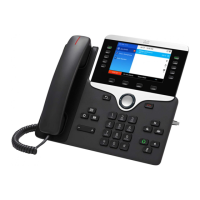
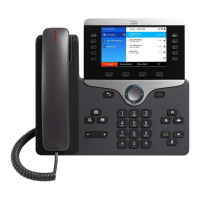
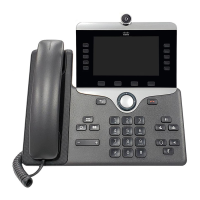
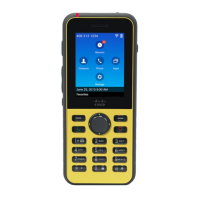
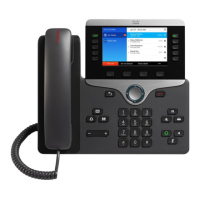
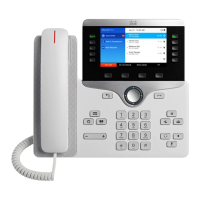
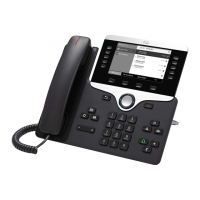
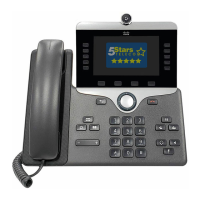
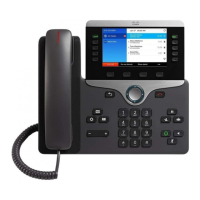
8811/8841/8851/8861 Phone
Your Phone
1. Incoming Call or Voicemail Indicator
2. Line and Feature Buttons
3. Soft Key Buttons (multi-functional)
4. Navigation - Select / Return / End Call
5. Hold / Transfer / Conference
6. Headset / Speakerphone / Secrecy
7. Messages / Applications / Contacts
8. Volume Bar
8811 – Greyscale Screen only
Lines, Features and Session Buttons
Split screen functionality with 5 programmable line
keys and feature buttons on the left. Session
buttons for answering calls, hold/resume calls,
viewing missed calls on the right.
The Applications key is used to access
Call History, Services and Preferences.
*Please Note – Not all features may be
programmed on your device*
Place a Call
Lift the Handset:
Dial an internal extn number, or
Prefix an external call with your access
code (Usually 9 or 0)
To End the Call - Replace the Handset
Hands-free functionality:
Press New Call Softkey, Speakerphone, or
Headset Key. Dial the number.
Press End Call Soft key to hang up
Answer a Call
While the phone is ringing: Lift the Handset
For Hands-free functionality:
Press the Answer Soft key, or
Press the flashing Line Key, the
Speakerphone or Headset button
Put a Call on Hold
Press Hold Key or Softkey (music on hold)
Press Resume soft key or Hold key to return
Mute / Secrecy
Press Mute Key (red light indicates secrecy)
Press Mute Key again to turn off
Transfer a Call
While active on a call, Press the Transfer Key
Enter the phone number (9 or 0 for External)
Direct Transfer - Press Transfer Key to send the
call while ringing
Consult Transfer - Wait for the call to be
answered, announce the call.
Press Transfer Key again
If the call is busy - Press the Cancel key
If the call is not answered or your colleague
cannot take the call – Press End Call,
Press Resume to return to the original caller
Conference
While on a call, press Conference Key
Dial the phone number required
Once answered, Press Conference Key again
to join the 3
rd
party
Repeat up to max of 6 parties
If the call is busy or not answered
Press the Cancel/End Call Soft Key to end that
call
Press Resume to return to the conference call
or original caller
Forwarding Calls
To avoid missing calls when you are not at
your desk, you can forward calls to another
phone number.
Press CFwdAll Soft Key
Type the extn number to receive your calls
For External divert input access code (9 or 0)
first *(CFWD External may be restricted)
To De-activate: Press Forward Off Soft Key
Forwarding Calls to Voicemail
Press CFwdAll Soft Key
Press the Voicemail Messages Key
To send all calls to Voicemail
To De-activate:
Press Forward Off Soft Key
Getting started with Cisco 88xx Range


 To Next Page
 General