EasyManua.ls Logo

Cisco 8851 - User Manual

Cisco 8851
170 pages
Print Icon
To Next Page IconTo Next Page
Loading...
REVIEW DRAFT - CISCO CONFIDENTIAL
Cisco IP Phone 8811, 8841, 8845, 8851, 8851NR, 8861, and 8865 User
Guide for Cisco Unified Communications Manager 11.0
First Published: February 17, 2015
Americas Headquarters
Cisco Systems, Inc.
170 West Tasman Drive
San Jose, CA 95134-1706
USA
http://www.cisco.com
Tel: 408 526-4000
800 553-NETS (6387)
Fax: 408 527-0883

Table of Contents

Other manuals for Cisco 8851

Questions and Answers

  • J
    James StevensJul 25, 2025
    What to do if my Cisco 8851 IP Phone displays an "Initialising Network" message constantly?
    • B
      Bruce JamesJul 25, 2025
      Check the connection from the handset to the router or switch to ensure it's receiving a signal. Swap out Cat 5 cables and check ports, as well as connections on all wires. Also, plug the handset into a different port that you know definitely works.
  • Y
    Yolanda OwensJul 29, 2025
    Why Cisco IP Phone cannot connect to another Cisco IP Phone?
    • R
      Robert HuangJul 29, 2025
      Cisco does not support connecting one IP phone to another through the PC port. Each IP Phone should connect directly to a switch port. Phones connected in a line using the PC port will not work.
  • R
    Regina ScottAug 3, 2025
    What to do if my Cisco 8851 handset shows an on-screen extension but has an amber light?
    • M
      Monica CampbellAug 3, 2025
      First, ensure all router port settings have been implemented, paying special attention to port 5060 and ensuring SIP ALG is disabled. Next, eliminate LAN variables by plugging the handset directly into the router. If your router doesn't provide power over Ethernet, ensure the only thing between the router and the handset is the Power Over Ethernet switch, and that all wires and units function correctly. Also, verify the handset is still assigned to a user on the Horizon Portal. Finally, try plugging the handset into a different port that you know works.
  • J
    joshua85Aug 7, 2025
    What to do if my Cisco 8851 IP Phone handset boots up with an amber light and no extension?
    • A
      Alexander YoderAug 7, 2025
      First, ensure all router port settings have been implemented, especially on port 5060, and make sure that SIP ALG is disabled. Check that you've assigned a local IP address by looking it up on the router's ARP cache. Eliminate LAN variables by plugging the handset directly into the router. If your router doesn't provide power over Ethernet, make sure the only thing between the router and the handset is the Power Over Ethernet switch and that all the wires and units are working correctly. Make sure the handset is still assigned to a user on the Horizon Portal. Finally, try plugging the handset into a different port that you know works.
  • T
    thomas90Aug 11, 2025
    What happens if I move a network connection from Cisco 8851 to a workstation?
    • T
      tmaddoxAug 11, 2025
      If your Cisco IP phone receives power through the network connection, exercise caution when moving the network connection from the phone to a desktop computer. The computer's network card cannot receive power through the network connection. If power is supplied through the connection, the network card may be damaged. To prevent damage, wait at least 10 seconds after unplugging the cable from the phone before plugging it into the computer. This delay allows the switch to recognize that a phone is no longer connected and to stop providing power to the cable.
  • Y
    ydavisAug 15, 2025
    What to do if there is a codec mismatch between Cisco 8851 IP Phone and another device?
    • M
      Marvin WarnerAug 16, 2025
      Check the RxType and TxType statistics to see the codec used for the conversation between your Cisco IP Phone and the other device. The values should match. If they don't, verify that the other device can handle the codec conversation, or ensure that a transcoder is in place to handle the service.
  • P
    Patricia ReynoldsAug 19, 2025
    What causes loopback condition on Cisco 8851 IP Phone?
    • S
      Sarah HortonAug 20, 2025
      A loopback condition can occur under these circumstances: 1. The SW Port Configuration option in the Network Configuration menu on the phone is set to 10 Half (10-BaseT/half duplex). 2. The phone receives power from an external power supply. 3. The phone is powered down (the power supply is disconnected). In this case, the switch port on the phone can become disabled, and the message HALF_DUX_COLLISION_EXCEED_THRESHOLD appears in the switch console log. To resolve this, reenable the port from the switch.

Summary

Getting Started

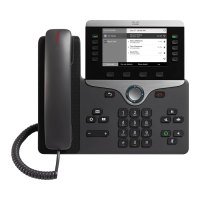
Cisco IP Phone 8811

Overview of attributes for the Cisco IP Phone 8811 model.

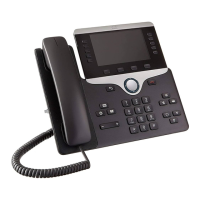
Cisco IP Phone 8841

Overview of attributes for the Cisco IP Phone 8841 model.

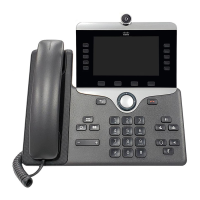
Cisco IP Phone 8845

Overview of attributes for the Cisco IP Phone 8845 model.

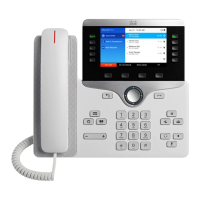
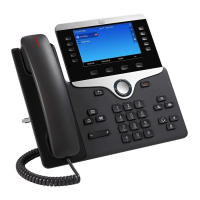
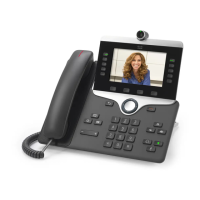
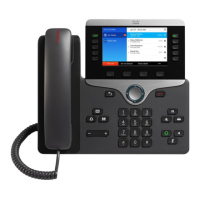
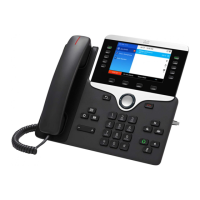
Cisco IP Phone 8851 and 8851 NR

Overview of attributes for the Cisco IP Phone 8851 and 8851NR models.

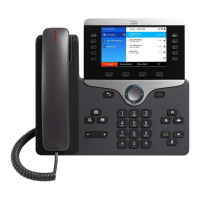
Cisco IP Phone 8861

Overview of attributes for the Cisco IP Phone 8861 model.

Cisco IP Phone 8865

Overview of attributes for the Cisco IP Phone 8865 model.

Phone Connections

Instructions on connecting the Cisco IP Phone 8865 to the network.

Basic Operations

Make Calls

Instructions for initiating calls, including predialing and using speakerphone/headset.

Answer Calls

How to answer the oldest available call, including priority over held calls.

Call Pickup

Ways to answer a ringing coworker's call by redirecting it to your phone.

Respond to a Call Waiting Notification

How to handle a new call while already on another call.

Transfer a Call to Another Number

Procedure for redirecting a connected call to another phone number.

Call Forward

How to forward calls to another number, including unconditional and conditional forwarding.

Call Park

Methods for temporarily storing a call to retrieve it later from another phone.

Contacts

Corporate Directory

Accessing and searching the corporate contact directory.

Search and Dial a Contact

Procedure for searching for and dialing contacts from the corporate directory.

Call History

Dial From the Call History

How to place a call directly from an entry in the call history.

Voicemail

Access Voicemail

Procedure for accessing the voicemail system.

Check for Voice Messages

Ways to check for new voice messages using phone indicators.

Listen to Voice Messages

How to listen to voice messages after accessing the voicemail system.

Advanced Calling Features

Conference

How to talk simultaneously with multiple parties in an ad hoc meeting.

Speed Dial

Using speed dial buttons and codes to place calls quickly.

Extension Mobility

Configuring a different Cisco IP Phone as your own temporarily.

Mobile Connect

Handling calls associated with your desk phone number using your mobile phone.

Intelligent Proximity for Mobile Devices

Pairing your mobile device to use its line through your Cisco IP Phone.

Advanced Operations

Mobile and Remote Access Through Expressway

Securely connecting to the corporate network from off-site locations.

Set Up a VPN Phone for Mobile and Remote Access Through Expressway

Procedure to configure phone settings for VPN access.

Cisco Unified Video Camera

Install Cisco Unified Video Camera

Instructions for mounting the Cisco Unified Video Camera on a phone or monitor.

Accessories

Bluetooth Headsets

Using Bluetooth headsets with Cisco IP Phones, including pairing and features.

Cisco IP Phone 8800 Key Expansion Module

Details about the Key Expansion Module and its compatibility.

Troubleshooting

Missing Mobile and Remote Access through Expressway Sign-in Window

Troubleshooting the sign-in window not appearing for remote access.

Security Error Message

Resolving 'Security Error' messages indicating internal firmware issues.

Report Phone Problems

Using the Quality Reporting Tool (QRT) to report and troubleshoot phone issues.

Product Safety and Security

Safety and Performance Information

General safety and performance guidelines for the Cisco IP Phone.

FCC Compliance Statements

Compliance statements required by the Federal Communications Commission.

Warranty

Cisco One-Year Limited Hardware Warranty Terms

Special terms applying to hardware warranty and services during the warranty period.

Cisco 8851 Specifications

General IconGeneral
Resolution800 x 480 pixels
Network InterfacesDual Gigabit Ethernet ports
Headset PortYes
AudioWideband audio
Ethernet10/100/1000 Mbps
USBYes, USB 2.0
PowerIEEE 802.3af/at Power over Ethernet (PoE)
ProtocolsSIP
PoEYes
Codec SupportG.711, G.722, G.729, iLBC
Headset ConnectorRJ9
LinesUp to 5 lines
Dimensions229 x 256 x 41 mm (excluding foot stand)
Weight1.2 kg

Related product manuals