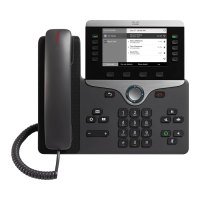
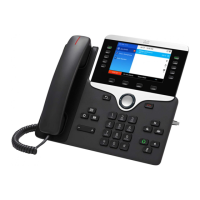
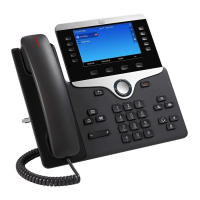
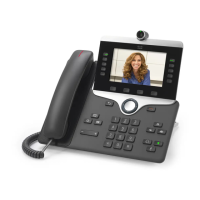
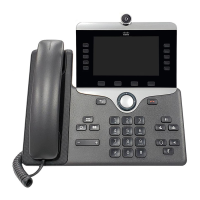
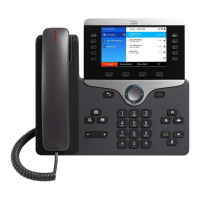
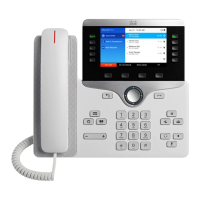
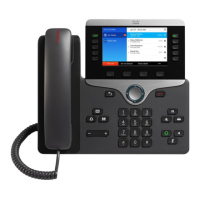
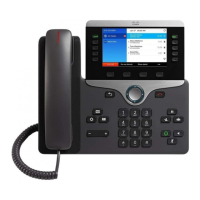
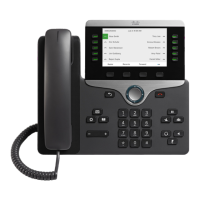
Cisco IP Phone 8811 Series
Your Phone
Quick Start Guide
1.
Make a call
Enter a number and pick up the handset.
Answer a call
Pick up the handset or press the flashing
amber line button.
2.
1.
Incoming call or voice mail indicator
Feature and session buttons
Softkeys
Back, Navigation cluster,
and Release
Hold, Transfer, and Conference
Headset, Speakerphone,
and Mute
Applications (Settings)
Volume
2.
3.
4.
5.
6.
7.
8.
Put a call on hold
1. Press Hold.
2. To resume a held call, press Hold again.
View your recent calls
1. Press the History (clock) button on the
right-hand session button to view your
recent and Missed calls
Transfer a call to another person
1. From a call that is not on hold, press
Transfer.
2. Enter the other person’s phone number.
3. Press Transfer again.
Add another person to a call
1. From a connected call that is not on hold, press
Conference.
2. Press Active calls to select a held call.
3. Press Conference again.
Feature and Session Buttons
Use feature buttons (left side) to view calls on a line or access features
such as Speed Dial. Use session buttons (right side) to perform tasks
such as resuming a held call.
Buttons illuminate to indicate status:
• Green, steady: Active call
• Green, flashing: Held call
• Amber, steady: Private line in use
• Amber, flashing: Incoming call
• Red, steady: Remote line in use
• Red, flashing: Remote line on hold
3.
4.
5.
6.
7.
8.
McGill adapted from Cisco Systems, Inc.
September 2021
Diagram labels

 Need help?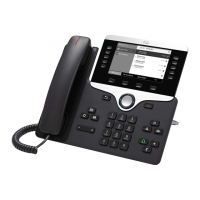

 To Next Page
 General