EasyManua.ls Logo

Cisco Catalyst Express 500 - User Manual

Cisco Catalyst Express 500
14 pages
Print Icon
To Next Page IconTo Next Page
Loading...
CHAPTER
1-1
User Guide for the Catalyst Express 500 Switches
OL-8122-01
1
Introduction
Read this chapter to familiarize yourself with the features, benefits, and
capabilities of the Catalyst Express 500 switches.
Note This chapter and the rest of this guide focus on the concepts and tasks that are
available from the switch hardware and the device manager GUI that is embedded
in the switch software.
Enhanced Catalyst Express 500 features and procedures are only available from
the Cisco Network Assistant network management application. This application
can be downloaded from Cisco.com. Refer to the Network Assistant
documentation about these enhanced switch features.
Chapter Topics
Overview, page 1-2
Features and Benefits, page 1-4
System Requirements, page 1-10
Switch Management Options, page 1-11
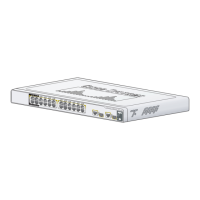
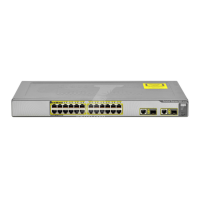
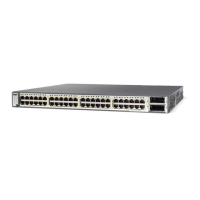
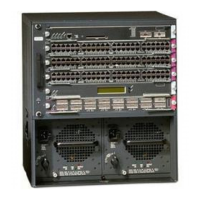
Supported Hardware, page 1-13
When You Are Done, page 1-13

Other manuals for Cisco Catalyst Express 500

Questions and Answers

  • T
    Tracy TuckerJul 25, 2025
    How to change the IP address of my Cisco Catalyst Express 500 Switch after initial setup?
    • D
      Dr. Michael MartinezJul 25, 2025
      To change the Cisco Switch IP address after the initial setup, go to the Configure > Express Setup device manager screen. For more information about changing the switch IP address, see the User Guide for the Catalyst Express 500 Switches online at Cisco.com.
  • Z
    zfloresJul 30, 2025
    How to check if PC is connected to the correct port on Cisco Catalyst Express 500?
    • S
      Sandra JonesJul 30, 2025
      Verify that you are connected to the switch port with the blinking LED as shown in Step 6.
  • J
    Joseph JordanAug 3, 2025
    What to do if I have a pop-up blocker running while connecting my PC to the Cisco Catalyst Express 500?
    • M
      Mrs. Maria Washington DDSAug 3, 2025
      If you had a pop-up blocker enabled when connecting to the switch port, disconnect the cable from the switch port, disable the pop-up blocker, and then reconnect to the switch. Press the SETUP button to continue.
  • A
    Ashley ArnoldAug 8, 2025
    What to do if proxy settings were enabled when connecting to the Cisco Switch?
    • J
      Jeffrey CordovaAug 8, 2025
      If proxy settings were enabled in your browser when you connected to the switch port, disconnect the cable from the switch port, disable the proxy settings, and reconnect to the switch. Press the SETUP button to continue.
  • L
    Luis MurphyAug 12, 2025
    What to do if a wireless client was running when connecting to the Cisco Catalyst Express 500 port?
    • S
      Steven ReeseAug 12, 2025
      If you had a wireless client running on your PC when you connected to the switch port, disconnect the cable from the switch port, disable the wireless client, and reconnect to the switch. Press the SETUP button to continue.
  • K
    Kristen HicksAug 16, 2025
    What to do if I started the browser before the SETUP LED was solid green on my Cisco Catalyst Express 500?
    • M
      Marilyn Knight MDAug 16, 2025
      If you started a browser session before the SETUP LED was solid green, restart the Cisco Switch. Then, perform steps 2 through 6. When the SETUP LED is solid green, start a browser session on your PC and complete the set-up procedure.
  • S
    Sherri ChangAug 20, 2025
    What if the SETUP LED wasn't blinking when I pressed the SETUP button on my Cisco Switch?
    • P
      pyoderAug 20, 2025
      If the SETUP LED was not blinking when you pressed the SETUP button, or if you are unsure, restart the switch. Ensure that the SETUP LED is blinking when you press the SETUP button.

Summary

Overview

Features and Benefits

Hardware Features

Describes the physical components and ports of the Catalyst Express 500 switches, including installation options.

Software Features

Details the software capabilities, including Express Setup, Troubleshooting, and Monitoring features for the switch.

Device Manager GUI

Explains the graphical interface for managing switch configuration, monitoring, and troubleshooting.

System Requirements

Hardware Requirements

Specifies the minimum hardware specifications for running the device manager interface on a PC.

Software Requirements

Lists supported operating systems and browsers required for the device manager.

Switch Management Options

Cisco Network Assistant

Details the Network Assistant application for enhanced configuration and monitoring of network devices.

Simple Network Management Protocol

Explains using SNMP for managing the switch from a compatible workstation or application.

Supported Hardware

When You Are Done

Cisco Catalyst Express 500 Specifications

General IconGeneral
ModelCisco Catalyst Express 500
CategorySwitch
MAC Address Table Size8000 entries
RAM64 MB
Flash Memory16 MB
Authentication MethodRADIUS, TACACS+
Jumbo Frame SupportYes
Uplink Ports2 x combo Gigabit Ethernet
PoE SupportYes
ManagementWeb-based management interface
Status Indicatorssystem
Compliant StandardsIEEE 802.3, IEEE 802.3u, IEEE 802.3ab
FeaturesVLAN support, QoS
Power SupplyInternal
Operating Temperature0 to 40 °C
Storage Temperature-20 to 70 °C
Relative Humidity10% to 85% (non-condensing)

Related product manuals