Connecting an Ethernet Cable to the Access Point
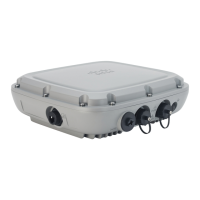
Connect an Ethernet cable to the access point by using a cable gland or an M12-RJ45 adapter.
Connecting an Ethernet Cable to the Access Point
Follow these steps to connect an Ethernet cable to the RJ-45 port:
Step 1 Disconnect power to the power injector, and ensure all power sources to the access point are turned off.
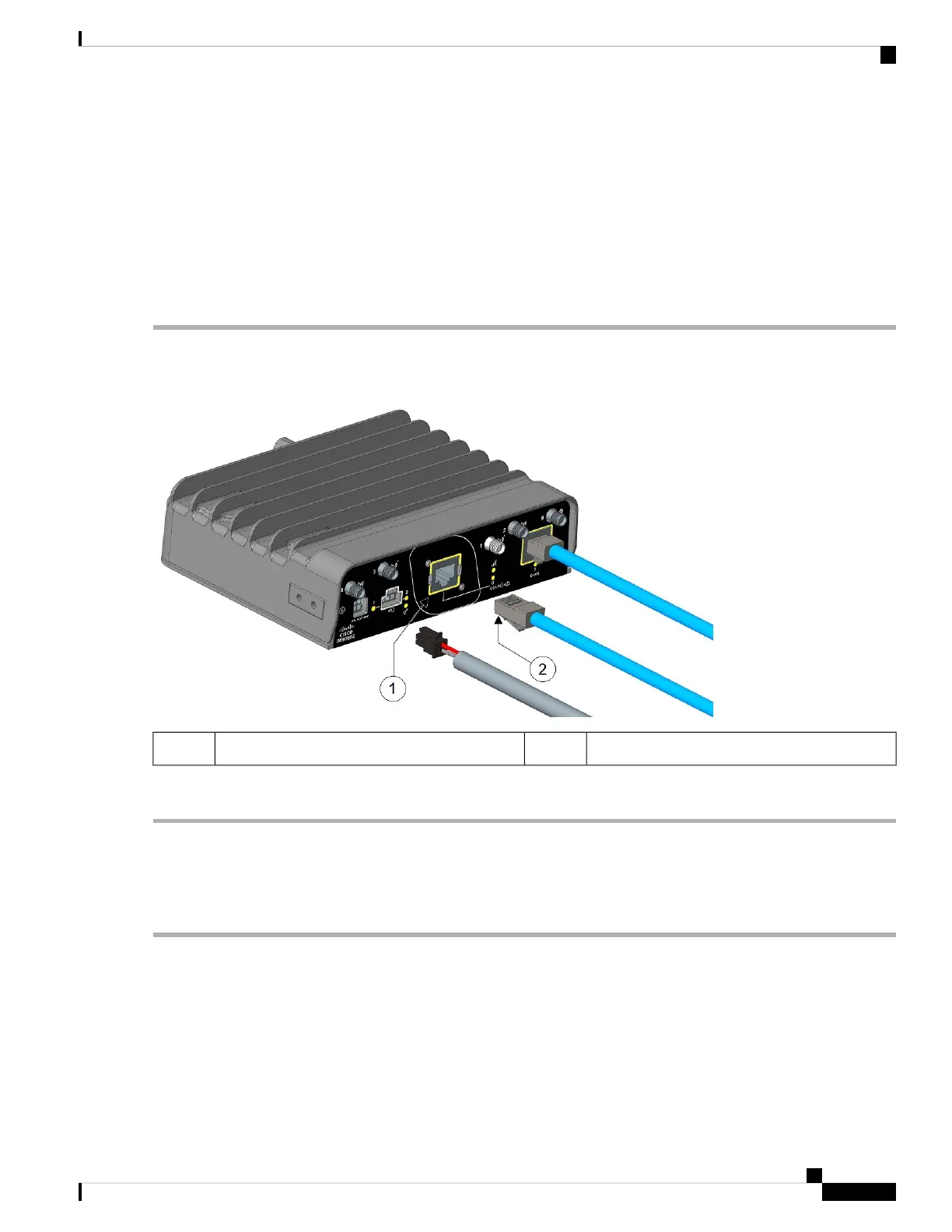
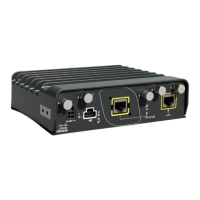
Step 2 Insert the RJ-45 cable connector into the Ethernet port opening on the access point as shown in the following figure:
RJ-45 cable2RJ-45 port1
Step 3 Ensure that the antennas are connected to the access point before you apply power to the access point.
Connecting to the RJ-45 Port Using M12 Adapter
Follow these steps to connect to the RJ-45 port using M12 adapter:
Step 1 Ensure the O-rings are on the M12 adapter and spacer.
Installation Overview
13
Installation Overview
Connecting an Ethernet Cable to the Access Point



 To Next Page