EasyManua.ls Logo

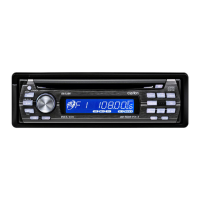
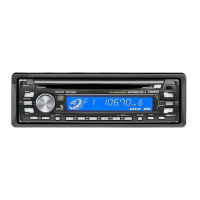
Clarion DUZ388RMP - User Manual

Clarion DUZ388RMP
324 pages
Print Icon
To Next Page IconTo Next Page
Loading...
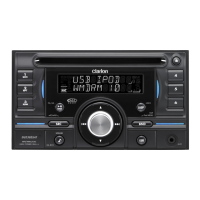
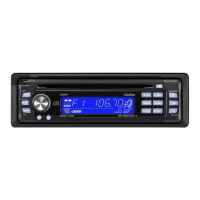
CD/USB/MP3/WMA/AAC RECEIVER WITH CeNET CONTROL
AUTORADIO CD/USB/MP3/WMA/AAC / AVEC COMMANDE CeNET
CD/USB/MP3/WMA/AAC-RECEIVER MIT CeNET-STEUERUNG
SINTOLETTORE CD/USB/MP3/WMA/AAC CON CONTROLLO CeNET
CD/USB/MP3/WMA/AAC-RADIO-COMBINATIE MET CeNET-BEDIENING
RECEPTOR
CD/USB/MP3/WMA/AAC
CON CONTROL CeNET
CD/USB/MP3/WMA/AAC-RADIO MED CeNET-KONTROLL
RECEPTOR CD/USB/MP3/WMA/AAC COM CONTROLO CeNET
DUZ388R MP
Owner’s manual
Mode d’emploi
Bedienungsanleitung
Istruzioni per l’uso
Gebruiksaanwijzing
Manual de instrucciones
Bruksanvisning
Manual de instruções
DUZ388RMP_EN.book Page 1 Monday, November 26, 2007 9:56 AM

Table of Contents

Questions and Answers

  • D
    Dale BakerAug 14, 2025
    How to reset my Clarion Car Receiver when buttons don't work?
    • C
      Christina PatelAug 14, 2025
      If nothing happens when you press the buttons on your Clarion Car Receiver and the display isn't accurate, the microprocessor may have malfunctioned. Turn off the power, then press the reset button for about 2 seconds with a thin rod. Also, the DCP or main unit connectors could be dirty. Wipe them off with a soft cloth moistened with cleaning alcohol.
  • R
    Reginald BradleyAug 17, 2025
    Why won't my Clarion Car Receiver turn on?
    • S
      Shelley CraigAug 17, 2025
      If your Clarion Car Receiver isn't turning on and no sound is produced, the fuse might be blown. Replace it with a fuse of the same amperage. If it blows again, consult your store of purchase. Also, check for incorrect wiring and consult your store of purchase if needed.
  • M
    Mark BuckleyAug 21, 2025
    What to do if there is no sound output with amplifiers or power antenna attached to my Clarion Car Receiver?
    • C
      Crystal ClineAug 21, 2025
      If you are not hearing sound when operating your Clarion Car Receiver with amplifiers or a power antenna, it could be that the power antenna lead is shorted to ground, or excessive current is required. Here’s what to do: 1. Turn the unit off. 2. Remove all wires attached to the power antenna lead and check each wire for a short to ground using an ohm meter. 3. Turn the unit back on. 4. Reconnect each amplifier remote wire to the power antenna lead one by one. If the amplifiers turn off before all wires are attached, use an external relay to provide remote-on voltage, as excessive current is required.
  • C
    Cindy MartinezAug 25, 2025
    Why does my Clarion Car Receiver sound skip or is noisy?
    • N
      Nathan JonesAug 25, 2025
      If the sound skips or is noisy on your Clarion Car Receiver, the compact disc might be dirty. Clean it with a soft cloth. If the disc is heavily scratched or warped, replace it with one that has no scratches.
  • J
    James MartinezAug 28, 2025
    Why does my Clarion Car Receiver sound bad when first turned on?
    • V
      vewingAug 28, 2025
      If the sound is bad directly after turning on your Clarion Car Receiver, water droplets may have formed on the internal lens due to parking in a humid place. Let it dry for about 1 hour with the power on.
  • R
    robertcortezAug 31, 2025
    Why is my Clarion Car Receiver showing the wrong filename?
    • L
      Linda FreemanAug 31, 2025
      If your Clarion Car Receiver displays the wrong filename, the file system might not be correct. Use ISO9660 level 1, 2 or JOLIET or Romeo or APPLE ISO file system.
  • Z
    zacharyhullSep 3, 2025
    Why can't I hear any sound from my Clarion Car Receiver device?
    • B
      Belinda BarrySep 4, 2025
      If you are not hearing sound from your Clarion Car Receiver, make sure the device contains MP3/WMA/AAC files and that they are recorded properly. Also, ensure the files are in the proper MP3/WMA/AAC format. Check that the connectors are not loose; disconnect the device and reconnect securely.
  • K
    Kenneth OdonnellSep 7, 2025
    What to do if my Clarion Car Receiver doesn't recognize the device?
    • J
      Jennifer MillerSep 7, 2025
      If your Clarion Car Receiver isn’t recognizing the device, it could be damaged. Disconnect and reconnect the device. If it's still not recognized, try a different device. Also, check for loose connectors by disconnecting and reconnecting the device. A communication fault could also be the cause, so disconnect and reconnect the device.
  • S
    Steven SmithSep 10, 2025
    Why can't I insert the device into my Clarion Car Receiver?
    • A
      Amanda RichardsonSep 10, 2025
      If you can’t insert the device into your Clarion Car Receiver, it may have been inserted improperly. Try reversing the connection direction of the device (usually the brand name surface should be facing left). If the connector is broken, replace it with a new device.

Summary

Safety Cautions and Warnings

General Cautions

General safety precautions for operating the appliance, including laser product information.

Radiation Exposure Caution

Warning regarding hazardous radiation exposure from improper adjustments or procedures.

Features

iPod and Digital Media Connectivity

Highlights direct connectivity for iPod and digital media devices.

Variable Color Display

Describes the display's variable color and illuminated key feature.

Bluetooth Ready via CeNET

Indicates Bluetooth readiness through the CeNET connection.

Precautions

Handling Compact Discs

Guidelines for handling, storing, and cleaning compact discs to ensure proper playback.

Controls

Button Functions and Names

Details the names and functions of all buttons on the main unit.

Display Items Overview

Explanation of various indicators and information shown on the unit's display.

Display Screen Behavior

Notes on display behavior in extreme cold conditions.

Remote Control Operations

Remote Control Button Functions

Explains the functions of each button on the remote control unit.

Inserting the Battery

Step-by-step guide for inserting the battery into the remote control.

Operations

Basic Operations

Covers fundamental operations like power on/off, volume adjustment, and mode selection.

Sound and Audio Adjustments

Details how to adjust audio effects, tone quality, balance, fader, and bass enhancement.

Radio Operations

Listening and Tuning

Guide to selecting radio mode, bands, tuning stations, and seek/manual tuning methods.

Station Memory and Scanning

Covers recalling preset stations, manual memory, auto store, and preset scan functions.

RDS Operations

RDS Overview

Explains Radio Data System features like PS, AF switching, EON, and TP.

AF and REG Functions

Manages alternative frequencies for reception and regional program selection.

Traffic Announcement (TA)

Details TA standby mode, TP station search, and auto-store for TP stations.

Programme Type (PTY)

Covers PTY selection, search, preset memory, and language settings.

Emergency Broadcasts

Explains handling of emergency broadcasts and volume settings for interrupts.

CD;MP3;WMA;AAC Operations

Understanding Media Formats

Explains MP3, WMA, and AAC audio compression methods and their characteristics.

Media Creation and Disc Handling

Guidelines for creating media, handling discs, and playing loaded CDs.

Playback and Track Selection

Covers track selection, pausing, title display, and fast-forward/backward operations.

Advanced Playback Modes

Details functions like folder select, scan play, repeat play, and random play.

Operations Common to Each Mode

General Settings and Display Customization

Covers accessing settings, contrast, illumination, dimming, and title scrolling.

Security, Messages, and Phone Integration

Details anti-theft functions, personal code, screen saver, messages, and cellular phone features.

Media Title Management and AUX Input

Covers entering/clearing titles, AUX function, and sensitivity settings.

Accessories

USB;MTP Device Operations

Covers connecting, playing, and managing USB memory and MTP devices.

USB Digital Media Streaming

Explains the function of playing music files using Media Transfer Protocol (MTP).

iPod Operations

iPod Connection and Basic Playback

Details connecting an iPod, selecting modes, and basic playback operations.

iPod Menu Navigation and Category Selection

How to navigate the iPod menu and select categories using unit controls and presets.

iPod Title Display and Playback Modes

Covers iPod title display and advanced playback functions like repeat and random.

Bluetooth BB Operations

Basic Bluetooth Connection

Covers switching source, making calls, answering calls, and call history.

Bluetooth Settings and Pairing

Details changing settings, pairing devices, and selecting/deleting paired phones.

Bluetooth Device Configuration

Explains MIC gain, ring volume, auto answer, call refusal, auto connect, PIN code, address, and version.

CD Changer Operations

CD Changer Functionality

Details unit control of connected CD changers and disc selection.

Title Display and Scrolling

Covers displaying and scrolling CD titles on the unit.

CD Changer Playback Modes

Explains disc scan, repeat, and random play functions for CD changers.

Troubleshooting

Power and Unit Responsiveness

Addresses issues like no power, blown fuses, incorrect wiring, and unresponsive buttons.

Audio Playback Issues

Covers no sound, skips, noise, and poor audio quality across different media types.

Media File and Format Errors

Troubleshoots problems with MP3/WMA/AAC files, disc errors, and file system issues.

Device Connection and Recognition

Addresses issues with USB/MTP/iPod devices not being recognized or connected properly.

Error Displays

CD Changer Errors

Lists error codes for CD changer issues like caught or unplayable discs.

CD;MP3;WMA;AAC Errors

Lists error codes for CD/MP3/WMA/AAC playback issues.

USB;MTP;iPod Errors

Lists error codes for USB/MTP/iPod connection and recognition problems.

Power and Hub Errors

Covers errors related to power detection and connected device recognition.

Specifications

Radio Section Specifications

Details tuning system and receiving frequencies for FM, MW, and LW bands.

CD Player Section Specifications

Provides technical specifications for the CD player system.

General Unit Specifications

Covers output power, voltage, consumption, impedance, weight, and dimensions.

Clarion DUZ388RMP Specifications

General IconGeneral
TypeCar Receiver
BrandClarion
ModelDUZ388RMP
Display TypeLCD
Power Output50W x 4
BluetoothYes
USB PortYes
Compatible FormatsMP3, WMA
EqualizerYes
Equalizer bands quantity3
Tuner BandsAM/FM
Preset Stations24
CD playerYes
CD-R playbackYes
CD-RW playbackYes
AUX inYes
Line outputs (RCA)Yes
Remote controlYes
Detachable FaceplateYes
Preamp Outputs3 (Front, Rear, Subwoofer)

Related product manuals