EasyManua.ls Logo

Clarion VX400 - User Manual

Clarion VX400
55 pages
Print Icon
To Next Page IconTo Next Page
Loading...
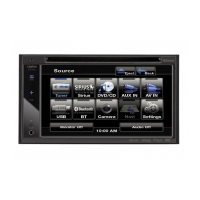
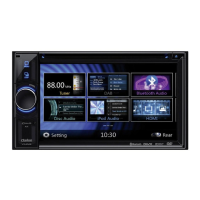
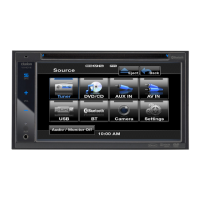
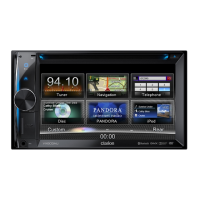
2-DIN DVD MULTIMEDIA STATION WITH 6.5-inch
TOUCH PANEL CONTROL
STATION MULTIMÉDIA DVD 2-DIN AVEC COMMANDEAVEC COMMANDEAVEC COMMANDE
ÉCRAN TACTILE DE 6,5 pouces
ESTACIÓN DVD MULTIMEDIA DOBLE DIN CON PANELCON PANELCON PANEL
DE CONTROL TÁCTIL DE 6,5 pulgadas
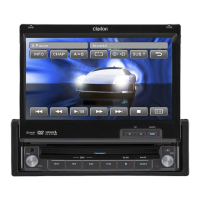
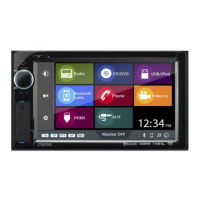
DVD MULTIMEDIA STATION WITH 7-inch
TOUCH PANEL CONTROL
STATION MULTIMÉDIA DVD AVECAVECAVEC COMMANDE
ÉCRAN TACTILE DE 7 pouces
ESTACIÓN DVD MULTIMEDIA CON PANEL DE CONTROLCON PANEL DE CONTROLCON PANEL DE CONTROL
TÁCTIL DE 7 pulgadas
VX400
VZ400
Owner’s manual & Installation manual
Mode d’emploi et manuel d’installation
Manual de instrucciones y de instalación

Other manuals for Clarion VX400

Questions and Answers

  • C
    Charles SharpSep 23, 2025
    How to fix disturbed iPod/iPhone’s video image on Clarion VX400 Car Video System?
    • N
      Nathan KeithSep 23, 2025
      If the iPod/iPhone’s video image is disturbed, the TV Signal setting of the iPod/iPhone is not set correctly. Set the TV Signal setting (NTSC/PAL) of the iPod/iPhone correctly.
  • L
    logan14Aug 23, 2025
    Why is my Clarion VX400 Car Video System remote control not working?
    • J
      jamesjonesAug 23, 2025
      Your Clarion Car Video System remote control might not be working due to these reasons: * **Direct Sunlight:** If direct sunlight is hitting the light-receptive part of the remote, it may not function correctly. * **Battery Issues:** The batteries in the remote might be dead or missing. Check and replace the batteries as needed.
  • M
    Michael SantosAug 25, 2025
    What to do if my Clarion VX400 Car Video System disc cannot be loaded?
    • C
      cookbriannaAug 25, 2025
      If your Clarion Car Video System is unable to load a disc, consider the following: * **Disc Already Loaded:** Eject the current disc before trying to load a new one. * **Foreign Matter:** Check the disc slot for any foreign objects. If there are any, remove them, or consult a service station.
  • D
    dreyesAug 27, 2025
    What to do if my Clarion VX400 sound skips or is noisy?
    • S
      shawn76Aug 27, 2025
      If the sound from your Clarion Car Video System skips or is noisy, here's what you can do: * **Dirty Disc:** Clean the compact disc with a soft cloth. * **Damaged Disc:** Replace the compact disc with one in good condition if it is heavily scratched or warped.
  • E
    Elizabeth GonzalesAug 27, 2025
    What to do if nothing happens when buttons are pressed on my Clarion VX400 Car Video System?
    • A
      Amber SteeleAug 27, 2025
      If nothing happens when you press the buttons on your Clarion Car Video System, and the display is inaccurate, it could be due to a microprocessor malfunction. To resolve this: 1. Turn off the power. 2. Open the operation panel. 3. Press the reset button with a thin rod. Note that pressing the reset button will turn off the ACC power and clear any stored radio frequencies and titles.
  • L
    Lauren SimmonsSep 17, 2025
    What to do if Clarion Car Video System video images are not displayed?
    • I
      irodriguezSep 17, 2025
      If video images are not displayed, check that the parking brake is engaged.
  • E
    Erik WrightSep 14, 2025
    What to do if Clarion VX400 Car Video System sound skips or is noisy with MP3/WMA files?
    • M
      Melanie HarrisSep 14, 2025
      If the sound skips or is noisy when playing MP3/WMA files, it may be because the MP3/WMA files are not encoded properly. Use MP3/WMA files encoded properly.
  • R
    Robert RichardsonSep 15, 2025
    What does it mean if Clarion Car Video System disc cannot play with the display “PARENTAL VIOLATION” shown?
    • C
      Christina WilsonSep 15, 2025
      If the disc cannot play and the display shows “PARENTAL VIOLATION”, it means the feature exceeds the set parental level. Release the view limitation or change the parental level. See the subsection “Setting up the parental level.”
  • T
    Tyler ArnoldSep 6, 2025
    What to do if Clarion VX400 power does not turn on?
    • L
      Luis MillerSep 6, 2025
      If the Clarion Car Video System does not turn on and no sound is produced, it could be due to a blown fuse. Replace it with a fuse of the same amperage. If it blows again, consult your store of purchase. Another possible cause is incorrect wiring, in which case you should consult your installation center.
  • A
    Ashley ScottSep 3, 2025
    Why does the sound skip or is noisy with MP3/WMA files on my Clarion VX400?
    • K
      Katie MooreSep 3, 2025
      If the sound skips or is noisy when playing MP3/WMA files on your Clarion Car Video System, it's likely that the MP3/WMA files are not encoded properly. Use MP3/WMA files that are encoded correctly.

Summary

Features

Precautions

Controls

Operational Panel

Shows the layout of buttons and indicators on the unit's operational panel.

Functions of Buttons

Explains the specific functions of each button on the unit's operational panel.

Remote Control

Illustrates the layout and components of the remote control unit.

Functions of Remote Control Buttons

Details the operational functions of each button on the remote control.

Cautions on Handling

Handling Discs

Offers guidance on handling, storing, and cleaning discs for optimal playback.

DVD Video System

Discs

Lists playable and non-playable disc types and notes on MP3/WMA playback and region numbers.

Operations

Basic Operations

Details fundamental operations like turning the power on/off and selecting modes.

Adjusting the Settings

Guides on accessing and navigating the main settings menu.

Adjusting the Audio Settings

Explains how to adjust various audio settings like EQ, Bass, Treble, Balance, and Fader.

Radio Operations

DVD Video Player Operations

Setting up the password for parental level control

Explains how to set a password for parental level control on DVD playback.

Set rating for parental level control

Guides on selecting the desired rating level for parental control.

LISTENING TO a CD

Guides on playing audio CDs, including basic operations and controls.

LISTENING TO MP3;WMA

Details how to listen to MP3 and WMA files, including ID3 Tag compatibility.

Sirius Satellite Radio Operations

Parental Controls Lock Channels

Guides on locking specific Sirius channels using a code.

Setting the Password

Explains how to set a password for parental control features.

ACCESSORIES

iPod;iPhone Operations

Details how to connect and control iPod/iPhone devices with the unit.

Controlling the iPod;iPhone

Explains the operation keys and modes for controlling iPod/iPhone.

Viewing video data in the iPod;iPhone

Details how to view video data from compatible iPod/iPhone devices.

Bluetooth Audio Player Operations

Registering your Bluetooth Device (Pairing)

Details the process of pairing Bluetooth devices with the unit.

Controlling the Bluetooth Audio Player

Guides on playing music from a connected Bluetooth audio player.

Playing Music

Explains how to start and control music playback from Bluetooth devices.

Selecting the BT Phone mode

Guides on selecting the Bluetooth phone mode for calls.

Setting the Telephone Features

Explains how to configure telephone settings for Bluetooth calls.

Telephone operations

Provides safety notes and instructions for telephone operations.

Making a Call Using the Ten-Key Pad

Guides on making calls using the on-screen ten-key pad.

Making a Call Using the Phone Book

Explains how to make calls using the phone book data.

Making a Call Using the History

Guides on making calls using the call history.

Answering to an Incoming Call

Explains how to answer incoming calls via Bluetooth.

HD Radio Operations

AUX In; AV In Operations

Camera In Operations

Setup Operations

General Settings

Covers settings for clock, clock mode, radio region, and software version.

Advanced Audio Settings

Details adjustments for bass frequency, treble frequency, and bass Q-factor.

Restrictive Settings

Details password settings and DVD parental control ratings.

Parental control

Explains how to set DVD rating restriction levels.

TROUBLESHOOTING

GENERAL

Addresses general issues like power, button response, display, and remote control.

USB DEVICE

Provides solutions for issues related to USB device recognition and playback.

ERROR DISPLAY

DVD PLAYER

Lists DVD player error displays and their corresponding causes and measures.

INSTALLATION;WIRE CONNECTION GUIDE

Cautions On Installation

Offers specific cautions regarding the installation process and placement.

Installing the Main Unit

Guides on how to install the main unit in NISSAN and TOYOTA vehicles.

Installing the Main Unit in TOYOTA Vehicle

Details the installation process for TOYOTA vehicles.

Cautions on Wiring

Provides important cautions and guidelines for safe wiring practices.

Wire Connections

Illustrates the detailed wire connections for various components.

Connecting the parking brake cord

Explains how to connect the parking brake cord for video playback safety.

Connecting the accessories

Guides on connecting external amplifiers, iPod/iPhone, and Sirius radio.

Clarion VX400 Specifications

General IconGeneral
Resolution800 x 480 pixels
TouchscreenYes
BluetoothYes
USB PortYes
NavigationNo
DVD PlayerYes
Rear View Camera InputYes
Audio Formats SupportedMP3, WMA
AM/FM RadioYes
Video InputYes
Video OutputYes
Video Formats SupportedAVI, DivX
Maximum Power50W x 4 channels

Related product manuals