17
English
6.1 Getting Started6.1 Getting Started
ᶀ
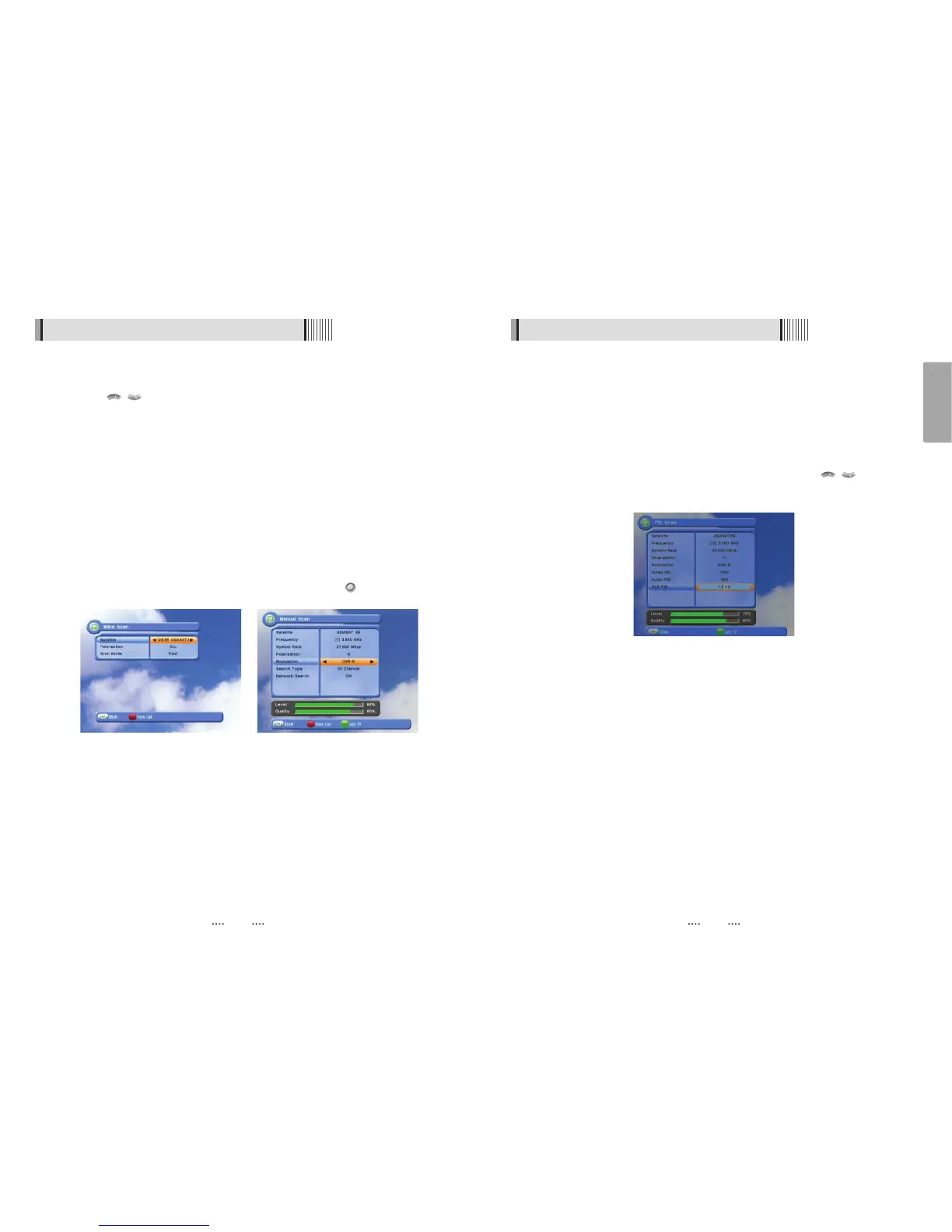
Blind Scan <Figure 6.1.7>
⊹
Select the satellites you want to search by pressing the button on the remote.
⊺
Press / to set the “Polarization” and “Scan Mode” options. - Polarization :
Select Vertical / Horizontal / All.
- Scan Mode : Select Fast / Detail.
⊻
SCAN : Begin channel search of the selected satellites.
ᶀ
Manual Scan <Figure 6.1.8>
⊹
Select a transponder.
⊺
To change a transponder’s information (Frequency, Symbol Rate), use the NUMERIC
buttons.
⊻
To add a new transponder, press the GREEN button.
⊼ To delete a transponder, press the YELLOW button with the cursor next to the
Frequency parameter.
⊽ To search a transponder, set its different parameters and press .
ᶀ
Package Identifier (PID) Scan <Figure 6.1.9>
⊹
Select a transponder.
⊺
To change a transponder’s information (Frequency, Symbol Rate), use the
NUMERIC buttons.
⊻
To add a new transponder, press the GREEN button.
⊼ To delete a transponder, press the YELLOW button with the cursor next to the
Frequency parameter.
⊽ To search a transponder, set its different parameters and press / . You can
search a specific channel of the transponder by setting its PID data (Video, Audio
and PCR).
ҫ
Note : If you cannot access programs after correctly completing a scan procedure,
please contact your seller or your installer.
<Figure 6.1.9>
<Figure 6.1.7> <Figure 6.1.8>
16



 To Next Page