Clickfree C2 Portable Backup Drive (Macintosh) Advanced topics (HD)
6. Select Erase all backed up data but do not re-enable security.
7. Click
Erase
and continue with step 8.
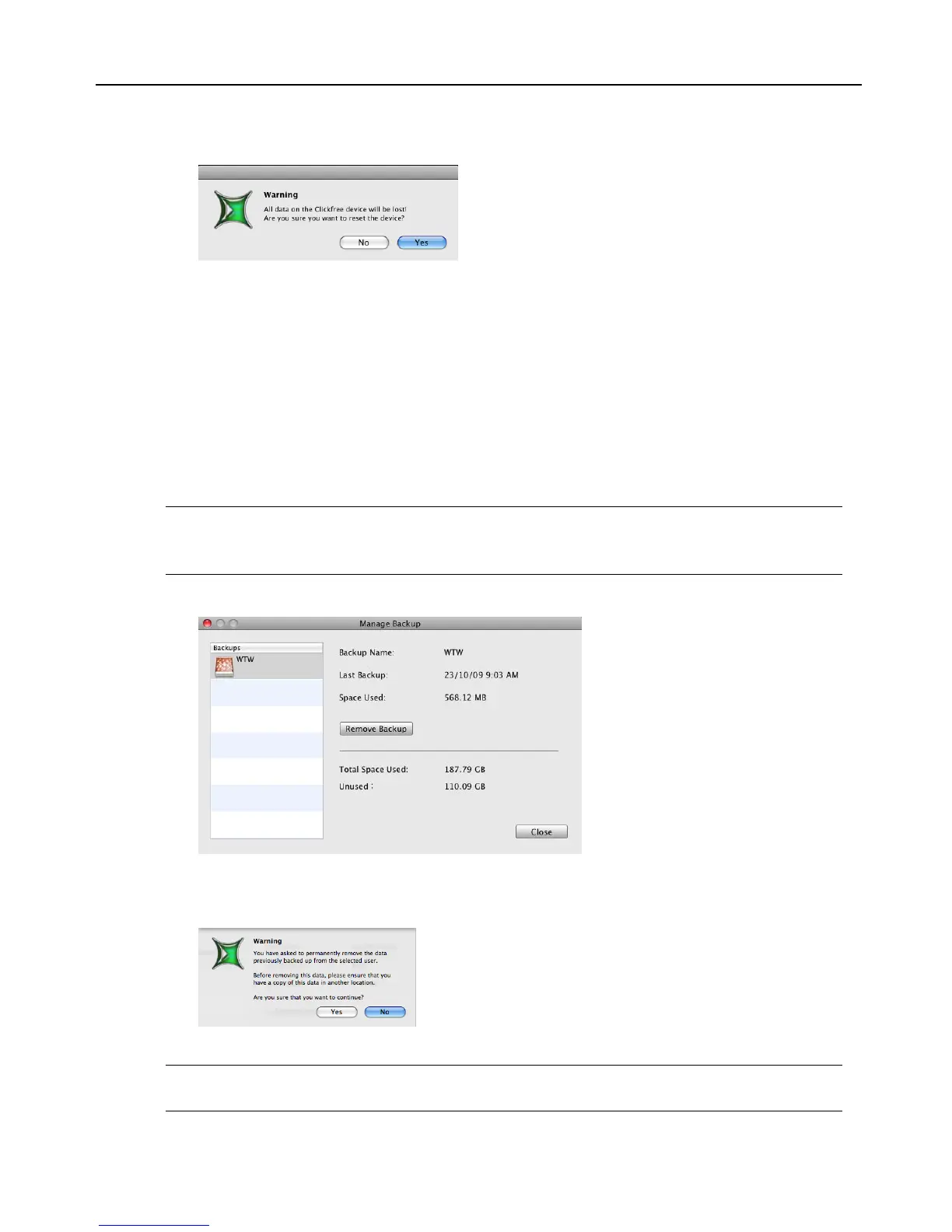
8. Click
Yes to confirm that you are sure you want to erase all backed-up content.
Clickfree shows you how far it has got with erasing data, then tells you that your
Portable Backup Drive has been reset.
M
ANAGE BACKUPS
To remove a user:
If you no longer want to keep content backed up from a user, you can free up space on
your Portable Backup Drive by removing the user from Clickfree.
Warning: If you have not restored the content and you still want to keep it, do not remove
the user from Clickfree: you cannot restore content from a user that you have
removed.
1. On the Tools window click Manage Backup.
2. Click the user you want to remove.
3. Click
Remove Backup.
4. If you really want to remove the user’s backups from Clickfree, click
Yes.
Warning: Once you have removed a user’s backups from Clickfree there is no way to
recover that user’s content from the Portable Backup Drive.


 To Next Page