Clickfree Transformer SE User Guide Restoring my content (HD)
Copyright © 2009 Storage Appliance Corporation. 26
Restoring my content (HD)
WHAT IF MY COMPUTER’S INTERNAL HARD DRIVE STOPS WORKING,
OR I WOULD LIKE TO TRANSFER MY CONTENT TO A NEW COMPUTER?
All computer hard drives fail eventually, sometimes without warning. Occasionally,
computers suffer damage that affects the hard drive. Sometimes, laptop computers get lost
or stolen. Sometimes, also, you may delete content by mistake. When these things happen,
other computer users may lose valuable, sometimes irreplaceable, data.
But if you lose content you’ll be really happy that you bought and used Clickfree. Your
backed-up content is safe on your Clickfree backup, and can be restored when you have a
working computer again.
A Clickfree backup is also ideal for transferring your content from an old computer to a
new one. For details, see “How do I undo a restore?” on page 39.
WHAT DO I NEED BEFORE I CAN USE CLICKFREE TO RESTORE MY CONTENT?
Before you can restore your content, your computer needs to be working – at the very least
it needs to be able to start up and display the desktop.
In addition you need the external USB hard drive you used to back up your content.
Of course, you can ‘restore’ your content to any computer that meets the system
requirements (see “What do I need before I start?” on page 13), not just to the computer
whose content you backed up.
The easiest way to copy content between computers is to plug the same combination of
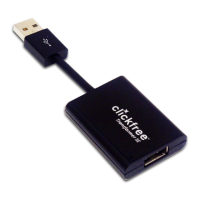
Clickfree Transformer SE and external hard drive in to your new computer. When the
Clickfree application launches, just click the
Restore button at the bottom of the
countdown screen.
HOW DO I GET MY CONTENT BACK?
To get your content back you don’t need to do much more than you did to back the content
up – it just takes a couple of clicks.
As with Clickfree backup, you can either make some choices – whether to restore all, or
just selected content, and where the content is restored to – or you can allow Clickfree to
make the choices for you.


 To Next Page