17
Based on Software Version 1.31.1. Content subject to change without notice. Check www.clintonelectronics.com for the most current manual.
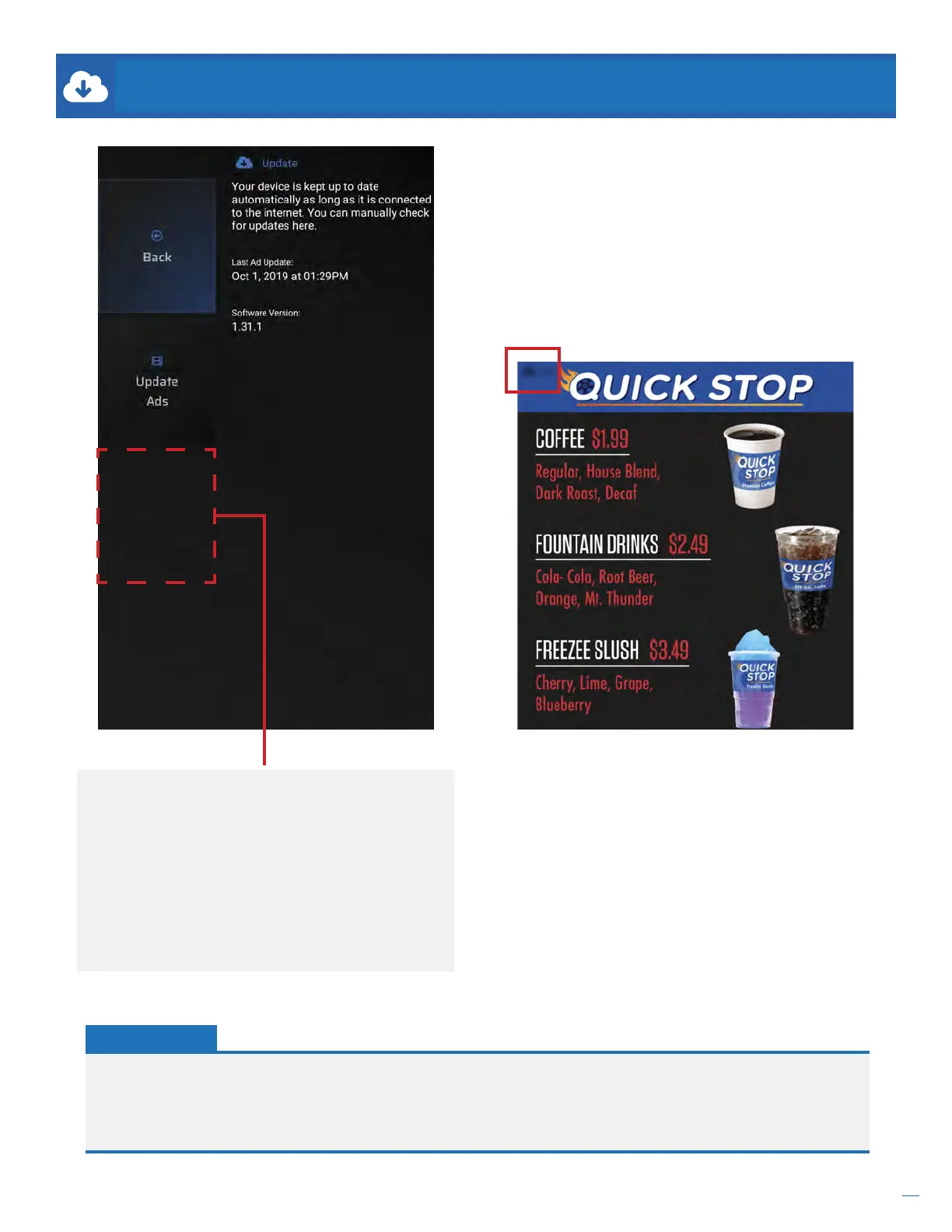
Software Update (Not Shown). Periodically new
software is released to connected devices. The
software update will automatically install on its own. If
for some reason the software update does not install
on its own, or if you would prefer to manually update
the software now, select Software Update.
Update times will vary depending on network
performance and the size of the update. After the
software update has successfully been installed the
device will reboot.
Update Ads. If for some reason the device did not
receive it’s digital signage content, select Update Ads
to manually fetch new content if available.
Selecting to manually update the ads will exit the
menu screen.
During the update, a WHITE cloud icon and percentage
will be shown in the top left corner of the screen.
Accessing the menu screen will not be available until
the update has completed.
54%
UPDATE
• If during the download the cloud icon is RED instead of WHITE, this indicates an error occurred during the
download of the content. Check the Network settings to verify the device can connect to the internet. After
verifying Network settings are correct, try to re-download the deployed content by selecting Update Ads, then
ENTER on the remote.
HELPFUL TIP:


 To Next Page