3
Based on Software Version 1.31.1. Content subject to change without notice. Check www.clintonelectronics.com for the most current manual.
REMOTE CONTROL INFO
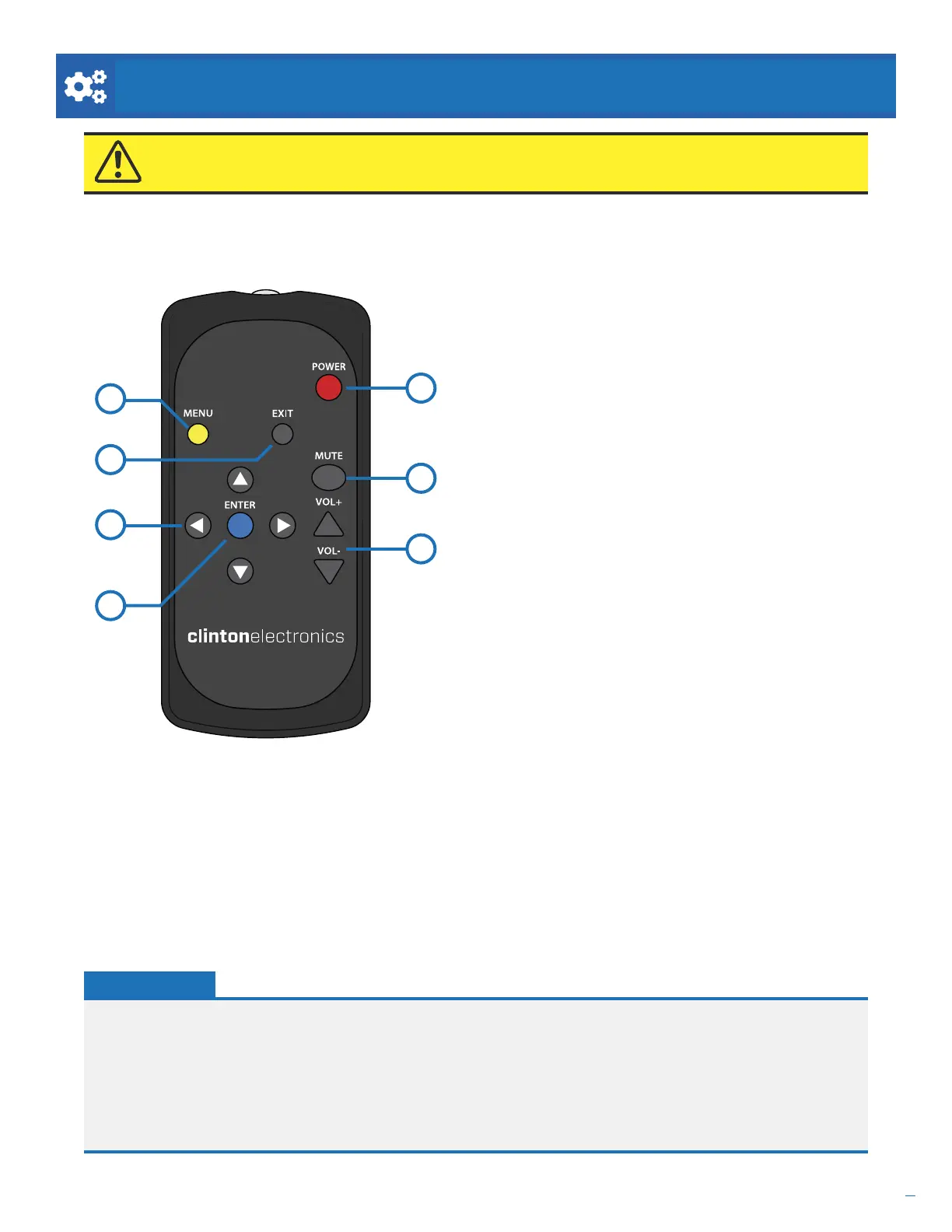
1. MENU
Press the MENU button to open the Main Menu.
2. EXIT
Press the EXIT button to close the Main Menu or to
go back to the previous menu screen.
3. LEFT / RIGHT / UP / DOWN
Use these directional buttons to navigate the menu
options.
4. ENTER
Press the ENTER button to confirm a menu selection.
5. POWER
Pressing the POWER button will turn o the LCD.
This does not power o the device. While the screen
is o the camera will still have power and output
video to connected devices.
6. MUTE
Press the MUTE button to disable or enable audio on
this device.
7. VOL + / VOL -
Press VOL + to increase the volume level or press
VOL - to decrease the volume level.
3
4
1
2
ATTENTION: The included remote is required to access the Main Menu and make any adjustments to
menu options. Keep the remote in a safe place for future use.
5
6
7
• If the Remote is lost or misplaced a USB mouse can be used to navigate the Main Menu. Plug the mouse into
one of the USB ports on the rear of the device. Move the mouse cursor to the top left corner of the screen, then
click the left mouse button to open the Main Menu.
• When Advertising Content is shown: Pressing LEFT or RIGHT will navigate forwards or backwards through
advertising content playing on the screen.
• Press and hold the POWER button, then select Restart from the menu if the device is unresponsive.
HELPFUL TIPS:


 To Next Page